More room to work with your numbers.
Resize and freeze columns, act on visible ranges and build formulas with examples. Your project spreadsheets get a clearer workspace, from the first cell to the final CSV.
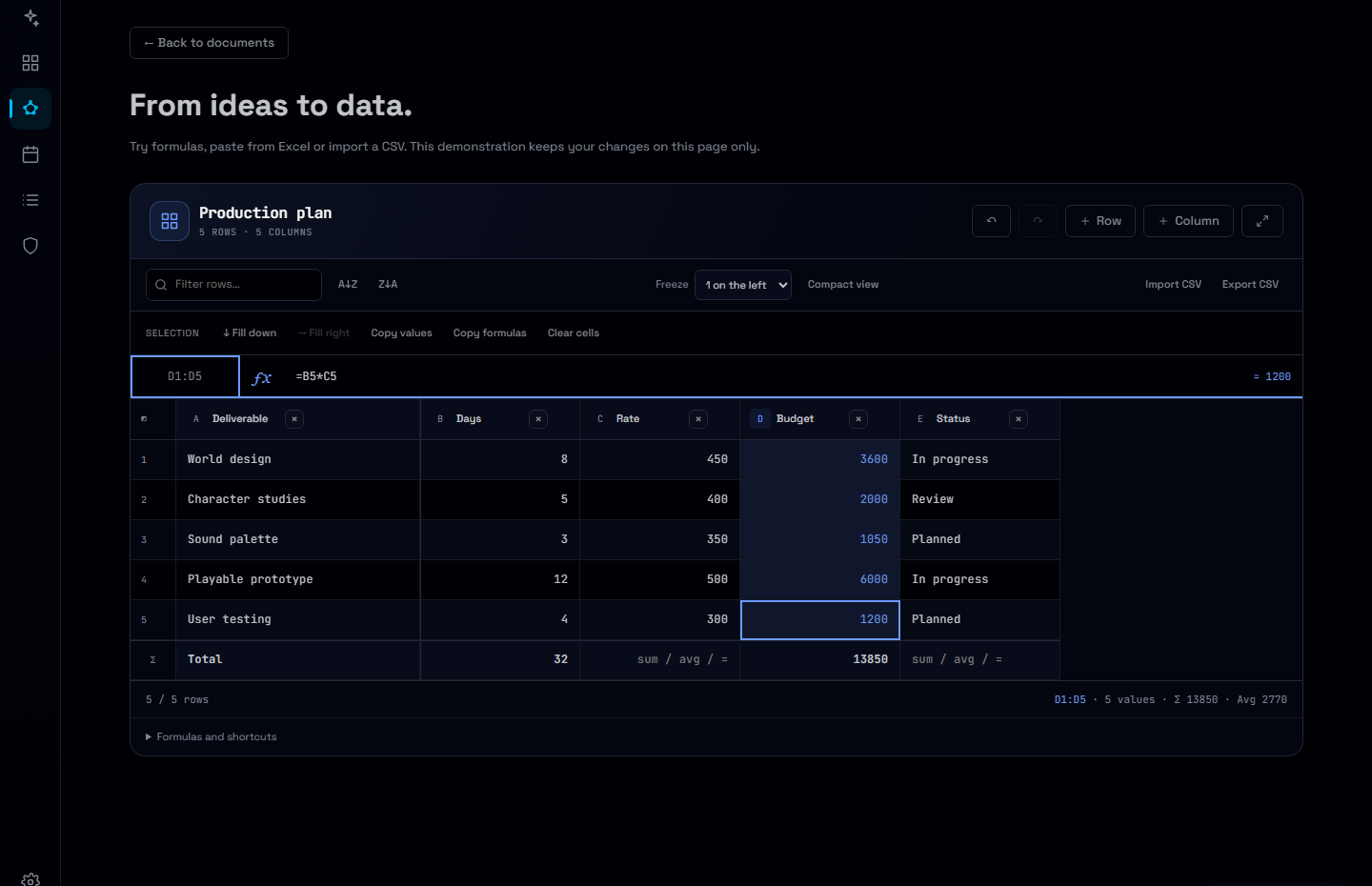
A budget is easier to use when you can keep the deliverable in sight, compare the right rows and understand the formula behind a number. The spreadsheet inside your Nodary document now gives those everyday tasks more room.
Make the grid fit the work
Drag a column edge to resize it, or double-click to fit its content. Freeze up to three leading columns and switch to compact rows when you need a wider overview. Widths, density and the freeze preference are saved with the sheet. On narrow screens, the number of visible frozen columns adapts to leave room for the rest of the table.
Work with a range, not one cell at a time
Click a column letter or row number, select the whole grid, or enter an address such as B2:D5. Fill down or right with relative formula references, clear cells, and copy either calculated values or formula sources. Selection statistics follow the visible rows. In a filtered or sorted view, filling, clearing and matrix paste follow the displayed order and leave hidden rows untouched.
Give a formula a starting point
Open the function button beside the address box, search the library and insert one of sixteen examples. Adjust its references in the formula bar and see the calculated result. Escape cancels an unfinished cell or formula edit without closing focus mode. Moving between cells no longer clears the redo history.
Keep the context around the numbers
The table remains part of the document with its explanations, references and decisions. CSV exchange still exports computed values for use elsewhere. Choose Copy formulas when you need their source instead. Dark and light themes, keyboard column resizing and a scrolling action bar on phones keep the same tools accessible across views.
Try it in your workflow
- Open the example below. Resize Deliverable and choose one frozen column.
- Click the D column letter to select Budget, then try Copy values or Copy formulas.
- Filter for In progress, enter B1:B4 in the address box and use Fill down. Clear the filter to see that the other rows kept their values.
- Open the function button, search for ROUND and adapt the inserted example to =ROUND(B1*C1/7, 2).
The public example resets on reload. Saved layout settings apply to the editable spreadsheet; print and read-only tables keep their own layout. Filtering and sorting change the view, not stored row order or formula references. CSV exports the complete sheet, including hidden rows; range copying uses the selected visible rows. A paste that exceeds a filtered or sorted view is refused with guidance. CSV import replaces the current sheet and can be undone. This release does not add XLSX import, charts, pivot tables or new cell-level collaboration guarantees.