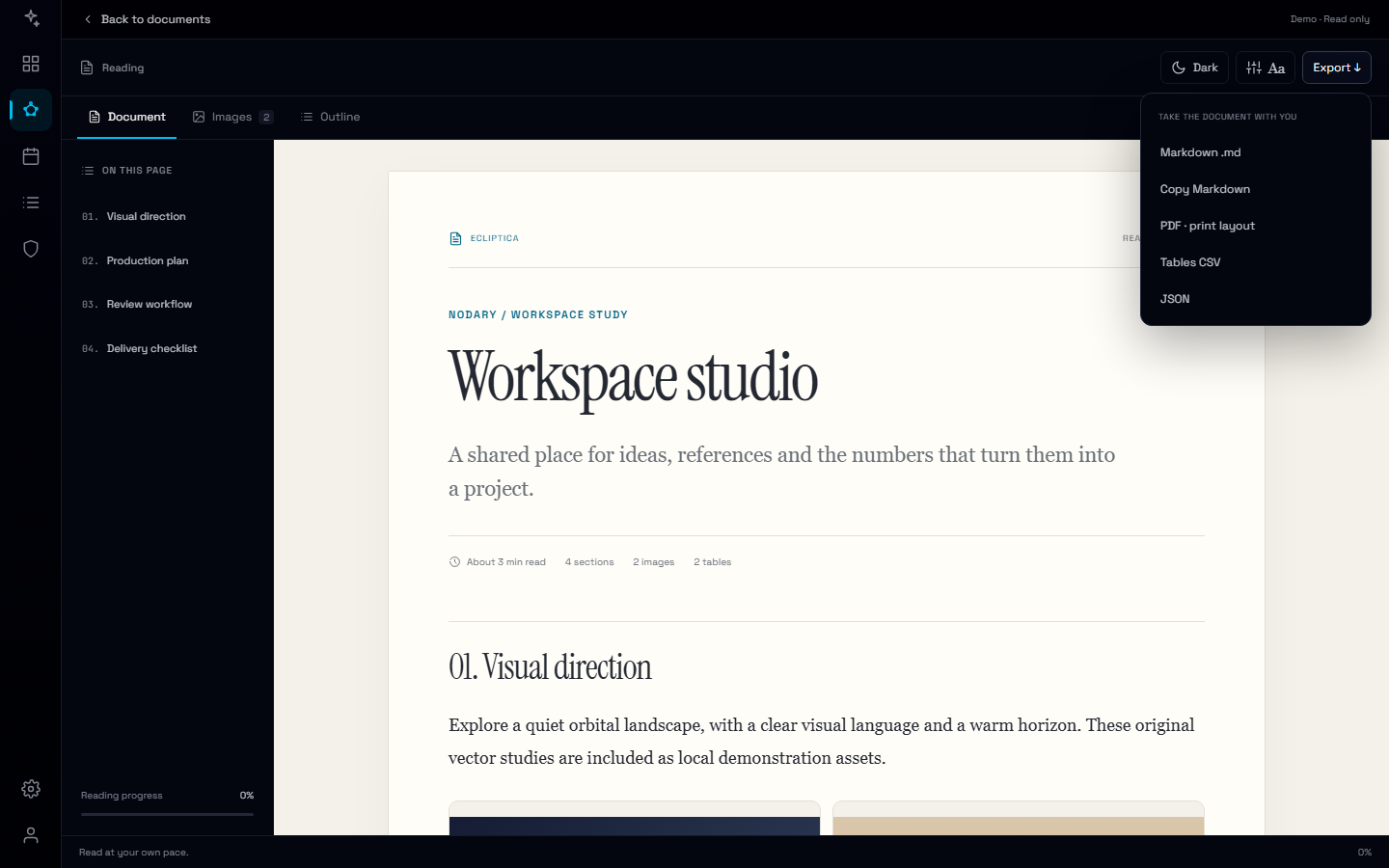
Find the detail. Keep the context.
Search inside a document, follow highlighted matches and jump straight to the right passage or table row, even from a quick preview.
A project document holds more than its title: decisions, references, production details and the numbers behind them. Find the passage you need while keeping the rest of the document within reach.
Search the document you are reading
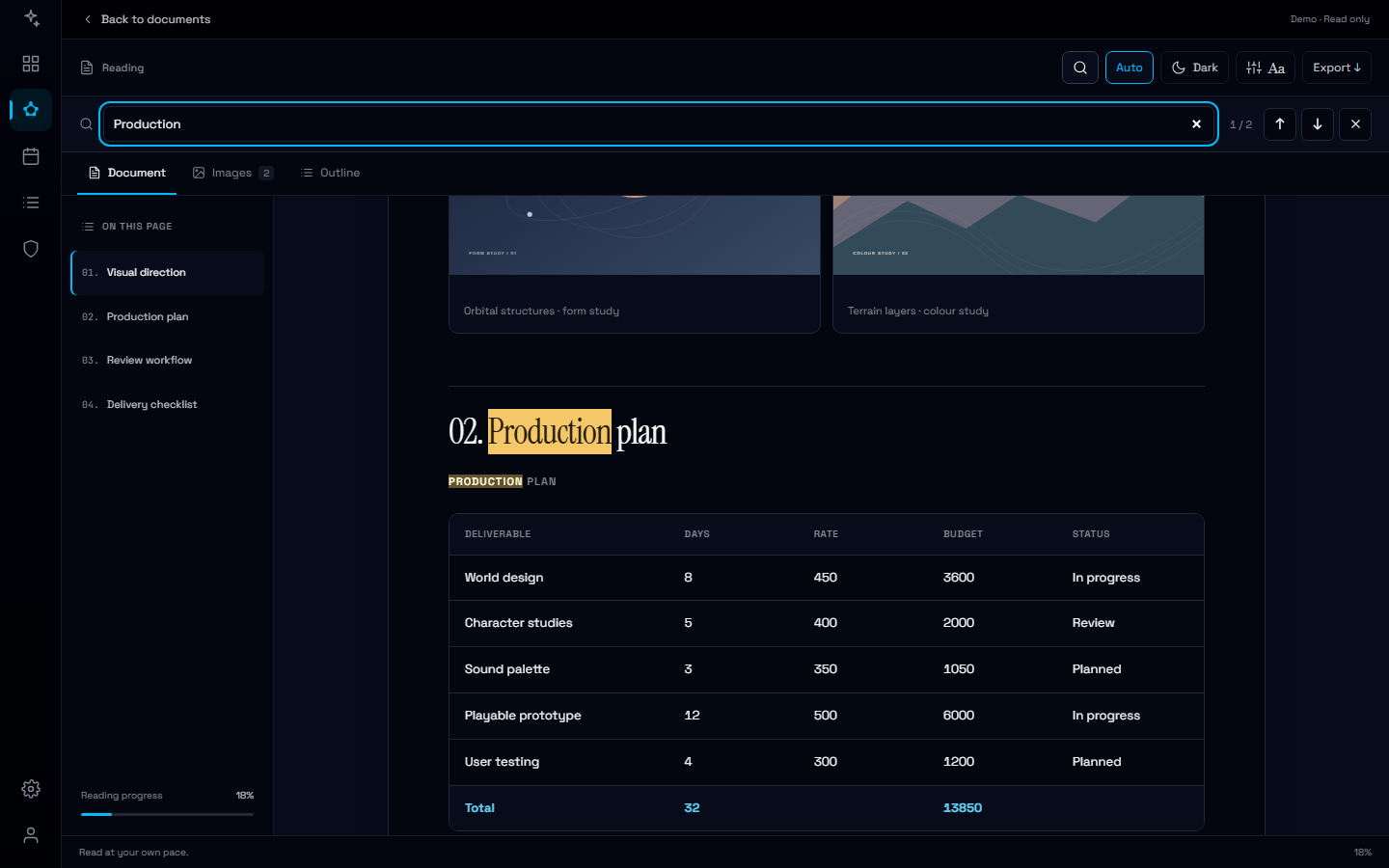
Open the magnifying glass in the reader, or use Ctrl/Cmd+F while focus is inside it. Search titles, paragraphs, image captions and table values. Capital letters and accents do not get in the way, and a phrase can span bold or italic text.
Move through the matches
A counter shows where you are. Use the arrows or Enter and Shift+Enter to visit the next and previous matches. The reader brings the passage into view, including rows far down a long table. Switch to Images and back: your query and selected result stay with you while that reader remains open.
Useful even in a quick preview
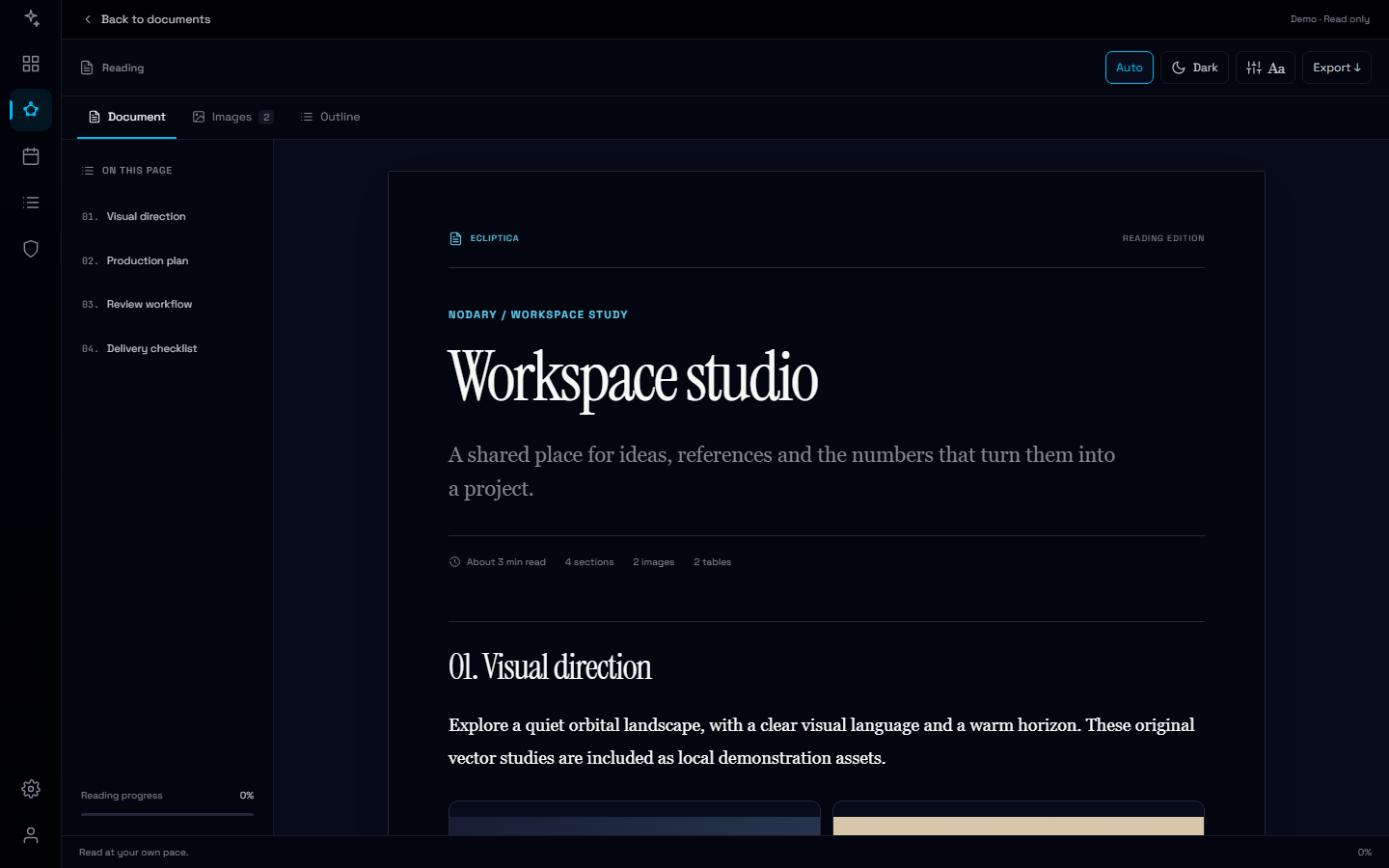
The same controls work in column previews and expanded readers, with light and dark themes and a phone layout. Each reader keeps its own search. Escape closes the search first and returns focus to its button; a second Escape can close the surrounding preview.
Try it in your workflow
- Open the public document below and choose the magnifying glass.
- Search for Production, then try Review checkpoint to explore the complete checklist.
- Use Enter to advance, Shift+Enter to go back, and Escape to return to reading.
Search covers rendered document text. It does not read text inside images or diagram drawings, and it does not search other documents. Queries stay in memory while the reader is open. Broad searches show the first 500 matches. On browsers without custom text highlighting, the current block is outlined instead.