Arrange the whole map in one go.
Arrange everything lays out every project and every folder at once, packs projects close by their own size and keeps every name clear. One Undo puts it all back, and your team sees the stars glide.
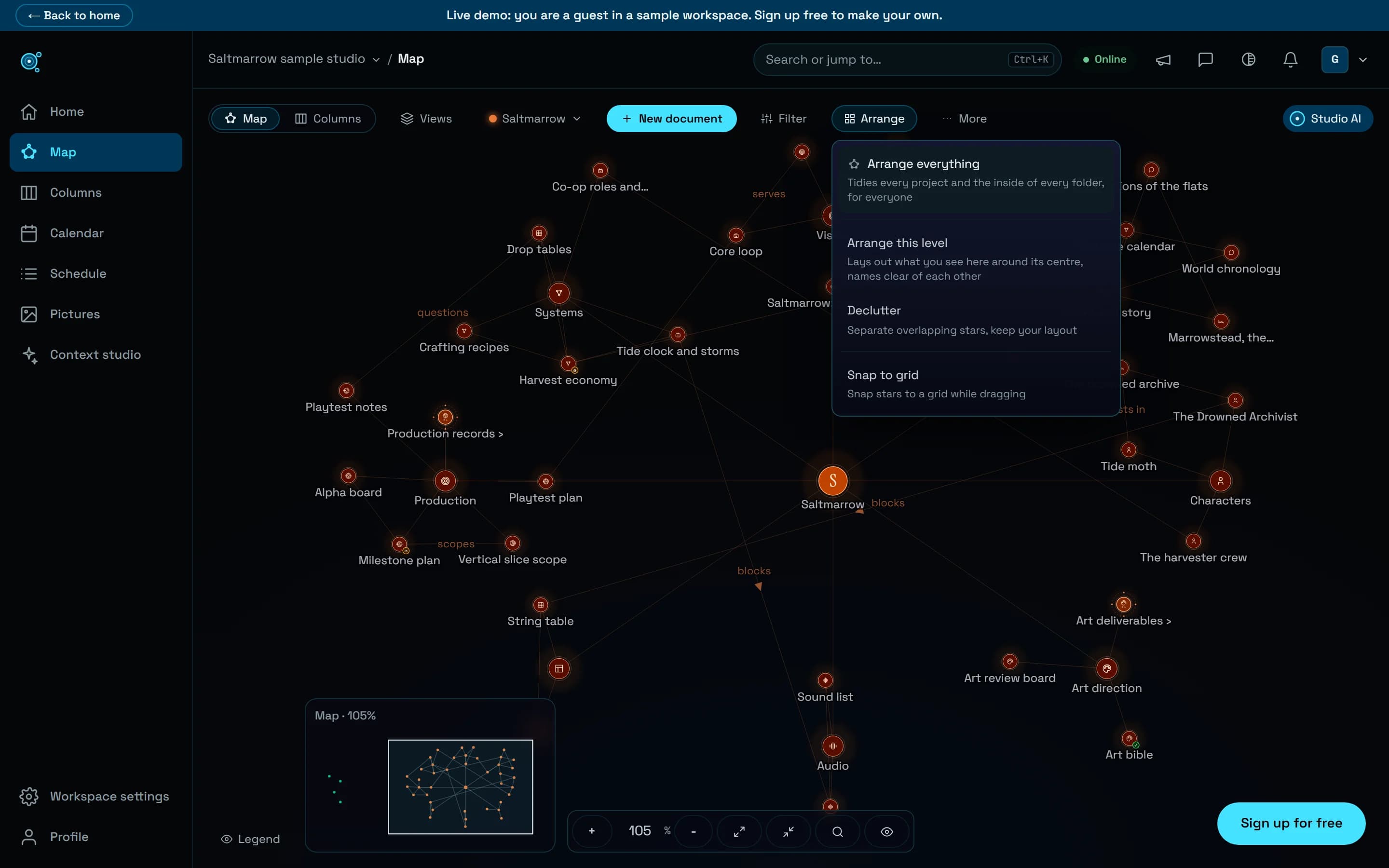
A map grows one star at a time, and after a few weeks of imports, new folders and links it gets hard to read. Arranging it used to be done one view at a time, and the old Spread projects gave every project the room of the largest one, so smaller projects ended up far apart. One action now tidies the whole map, every level at once, and one Undo takes it back.
Every level, in one action
Open Arrange in the map’s toolbar and choose Arrange everything. Before anything moves, Nodary asks, and says how many stars will move, in how many projects and folders. Then every project and the inside of every folder, however deep, is laid out again and saved in one go. The stars glide to their new places, the view frames the result clear of the toolbar, the minimap and any open panel, and the notice that follows has an Undo that puts every level back at once.
A tree around each heart
Each project becomes a tree around its heart star, and each folder a tree around its own star: a document sits in the middle of the documents filed under it, and a document that is only linked to another sits beside what it cites. Every star takes the room of its circle and its name, so at 100% zoom no star or name sits over another. The result does not depend on the order the map loaded in, and arranging an arranged map moves nothing.
Projects side by side, not far apart
Projects are now packed by their own size, close together, with room for each project’s name, and a document shared by two projects goes between them. Spread projects, when you look at all projects, does only that: each project keeps its own layout, a star stranded far from its project comes back beside it, and the projects close up. On a test workspace with its stars piled up and one left 25,000 units from the centre, Arrange everything took the overlaps from ten to none, brought the stray star back to 337 units from the centre, and its Undo put all eight stars back where they were.
One signal for the team
Arranging is not an edit: health badges and recent lists no longer think every document was just changed. Teammates with the map open get one signal: their stars glide into place and a note says Maëlle Rocher arranged the map. A star someone is dragging at that moment stays under their hand. Arrange this level still lays out only the view on screen, or the inside of the folder you are in, and Declutter only separates stars that overlap and leaves the rest as it is.
Try it in your workflow
- Open your workspace’s map and choose Arrange in the toolbar.
- Choose Arrange everything, read what will move, and confirm.
- Open a folder and choose Arrange this level to lay out only what is inside it.
- Not convinced? Press Undo in the notice: every level goes back as it was.
Arranging needs edit rights: a reader, like a visitor of the live demo, can open the menu but moves nothing. One arrangement moves at most 5,000 stars; on a larger map, arrange one level at a time. The layout is made for 100% zoom: further out, the map hides the names that would collide, as before. The Grid and Force arrangements are gone: the new one does both jobs.