What shipped, and how to try it.
Every Nodary release with what it changes for your team, a real screenshot and a working example you can open without an account.
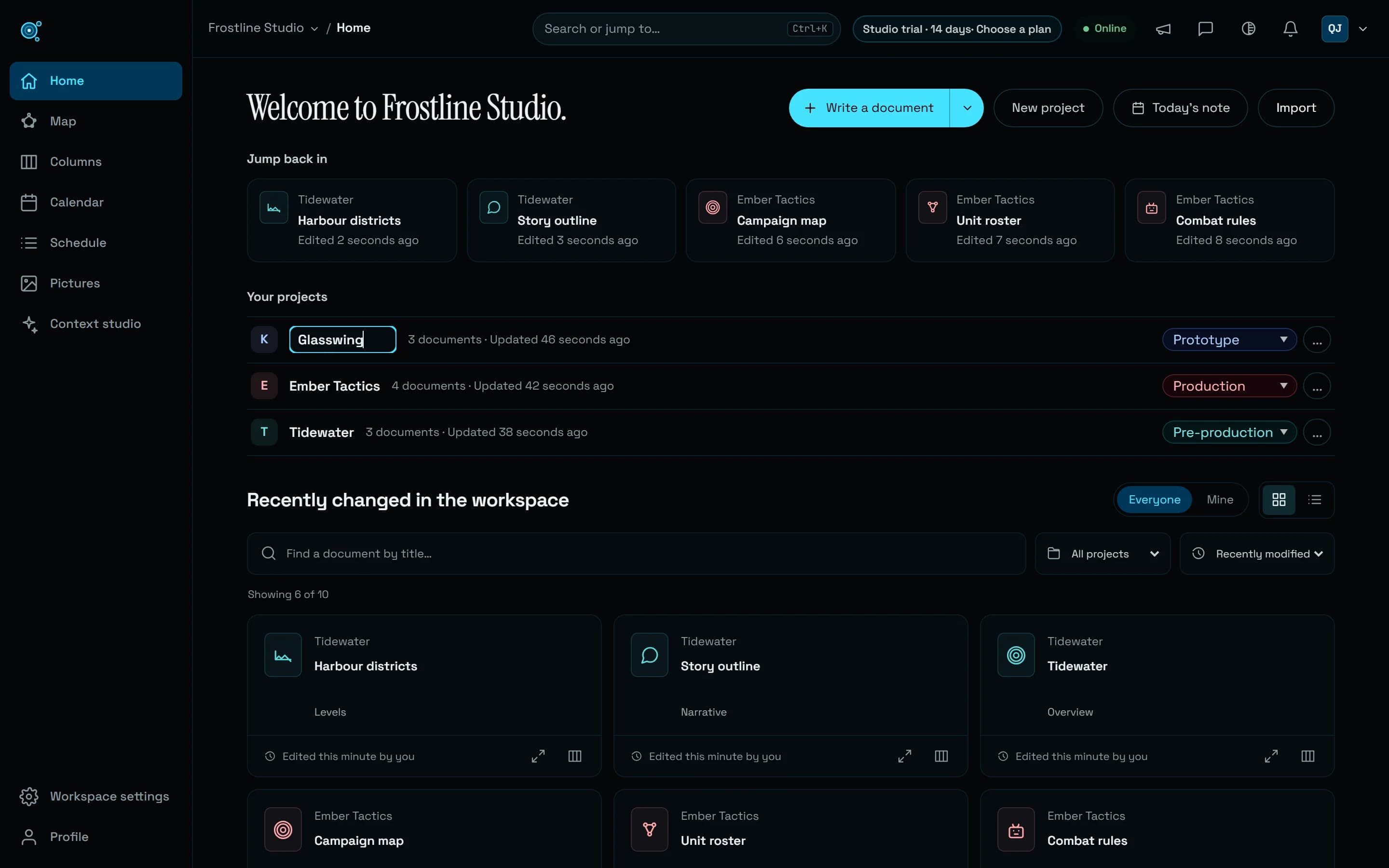
Rename a workspace or a project where you see its name.
Press F2 on a project’s or a workspace’s name, or choose Rename in its menu, and the name becomes a field where it stands: on Home, in the top bar, on the map, in Columns or from Ctrl+K. Every open tab follows, and the team’s history keeps each rename.
Read the storyMore to explore
54 stories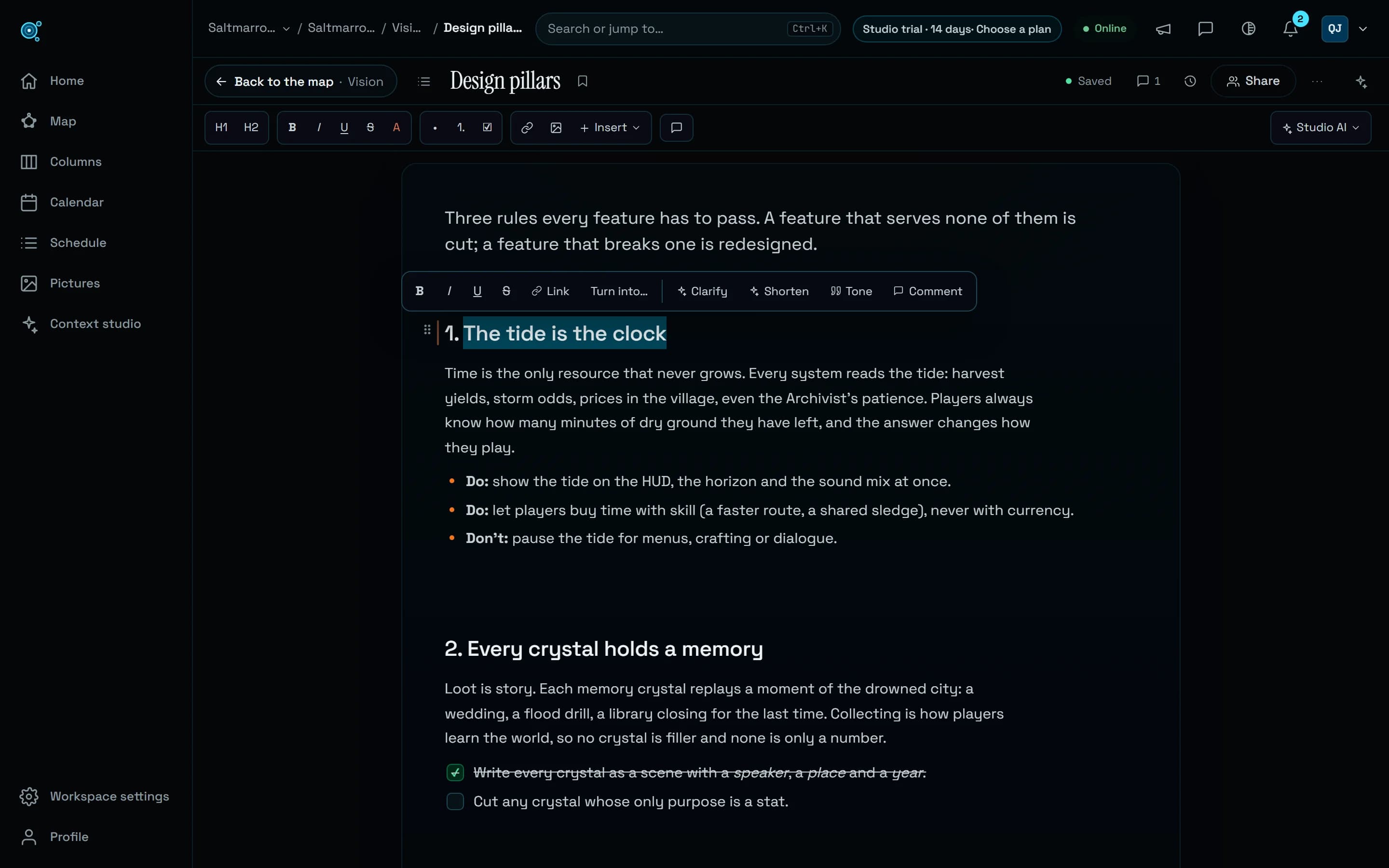
Write by hand, with the keys you already know.
A new document has a line to type on, bold and links stay in lists and tables, a bubble formats what you select and the shortcuts of other editors work. The way back from a document names where it goes, and gets there.
Read the story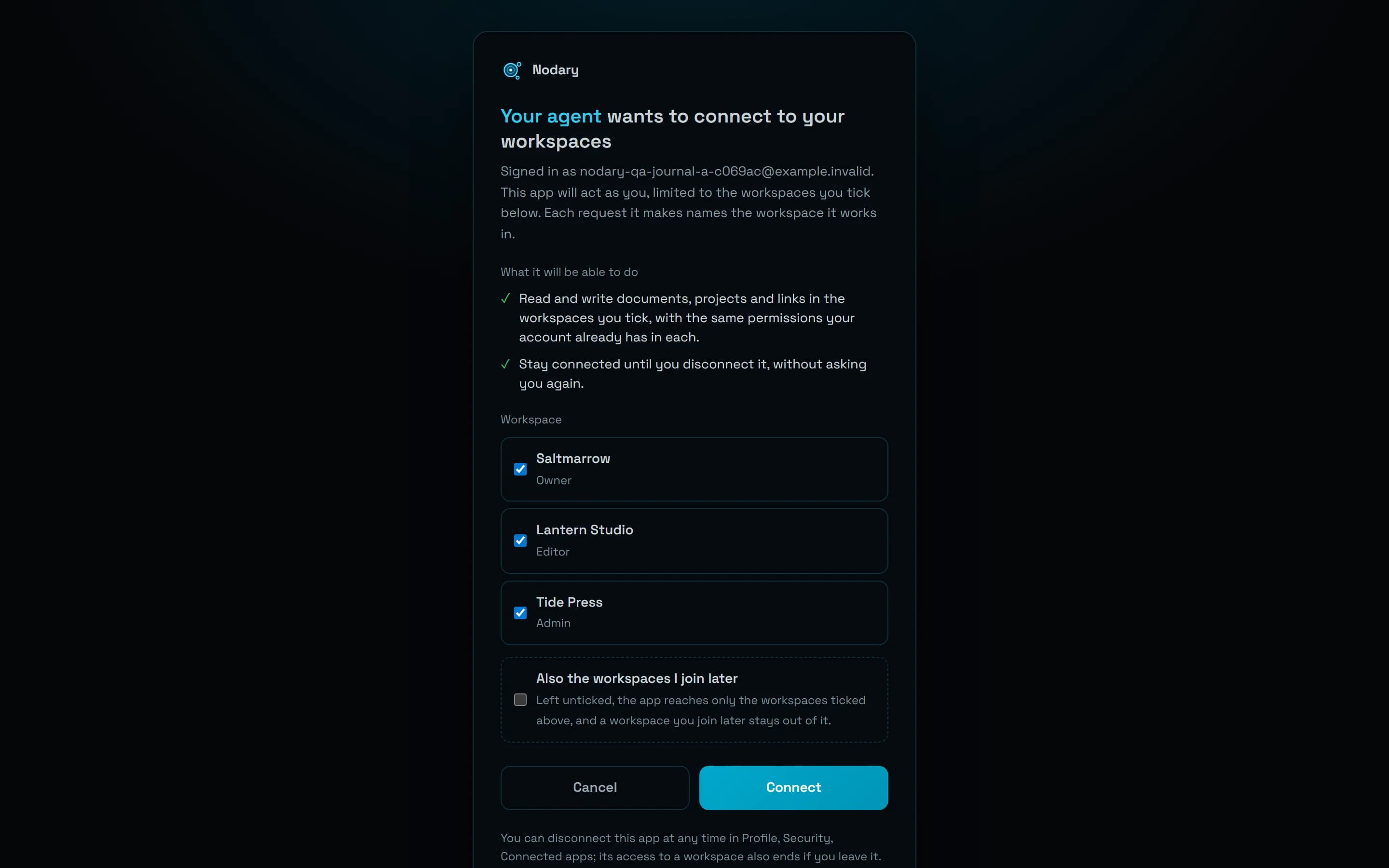
One agent connection, several workspaces. Studio AI sees the pictures.
Connect an agent once and tick the workspaces it may reach: every call names the one it works in. Studio AI now looks at the pictures in your documents, searches the whole workspace and sees long tasks through, and templates come in 12 languages.
Read the story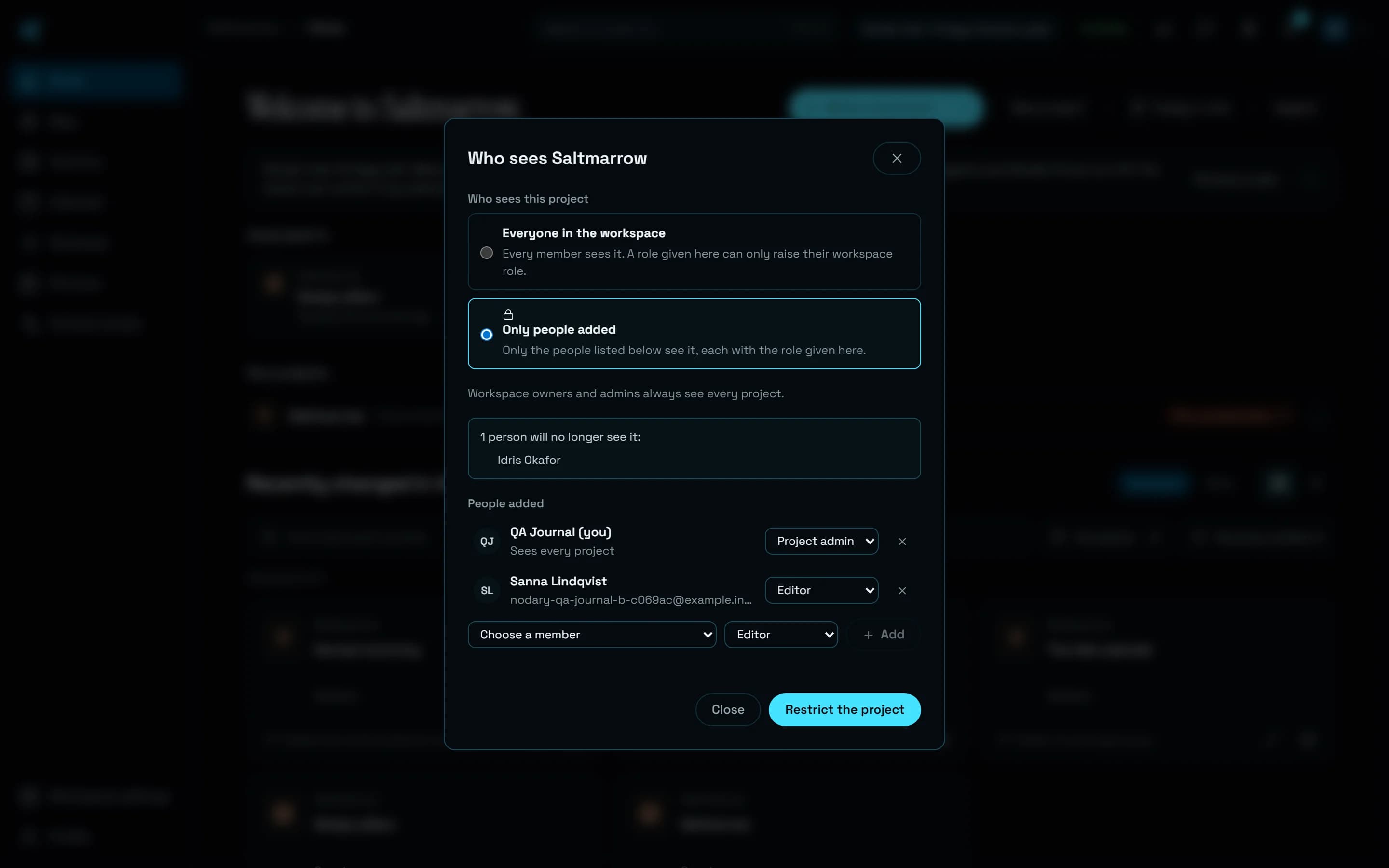
Keep a project to the people who work on it.
On Studio, a project can be open to the whole workspace or kept to the people added to it, each with a role there. Newcomers are welcomed for their role and plan, comments reach the people concerned, and storage goes past 50 GB.
Read the story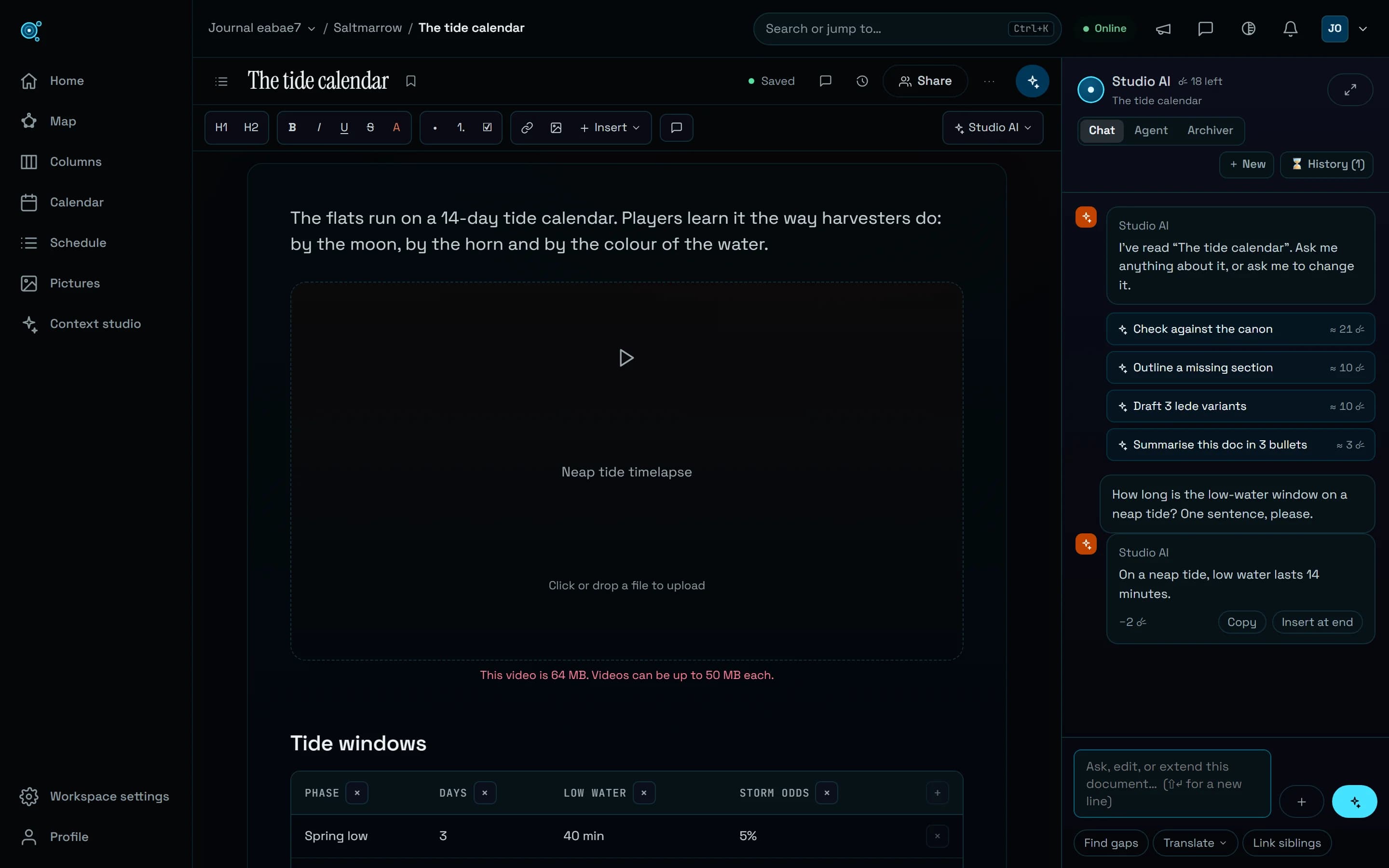
Studio AI answers sooner, and questions cost fewer Comets. Uploads say why.
A plain question now goes to a lighter model and costs a fraction of the Comets, answers start sooner, and a change you ask for in any of the 12 languages is made without a back-and-forth. A refused file says why, with its numbers.
Read the story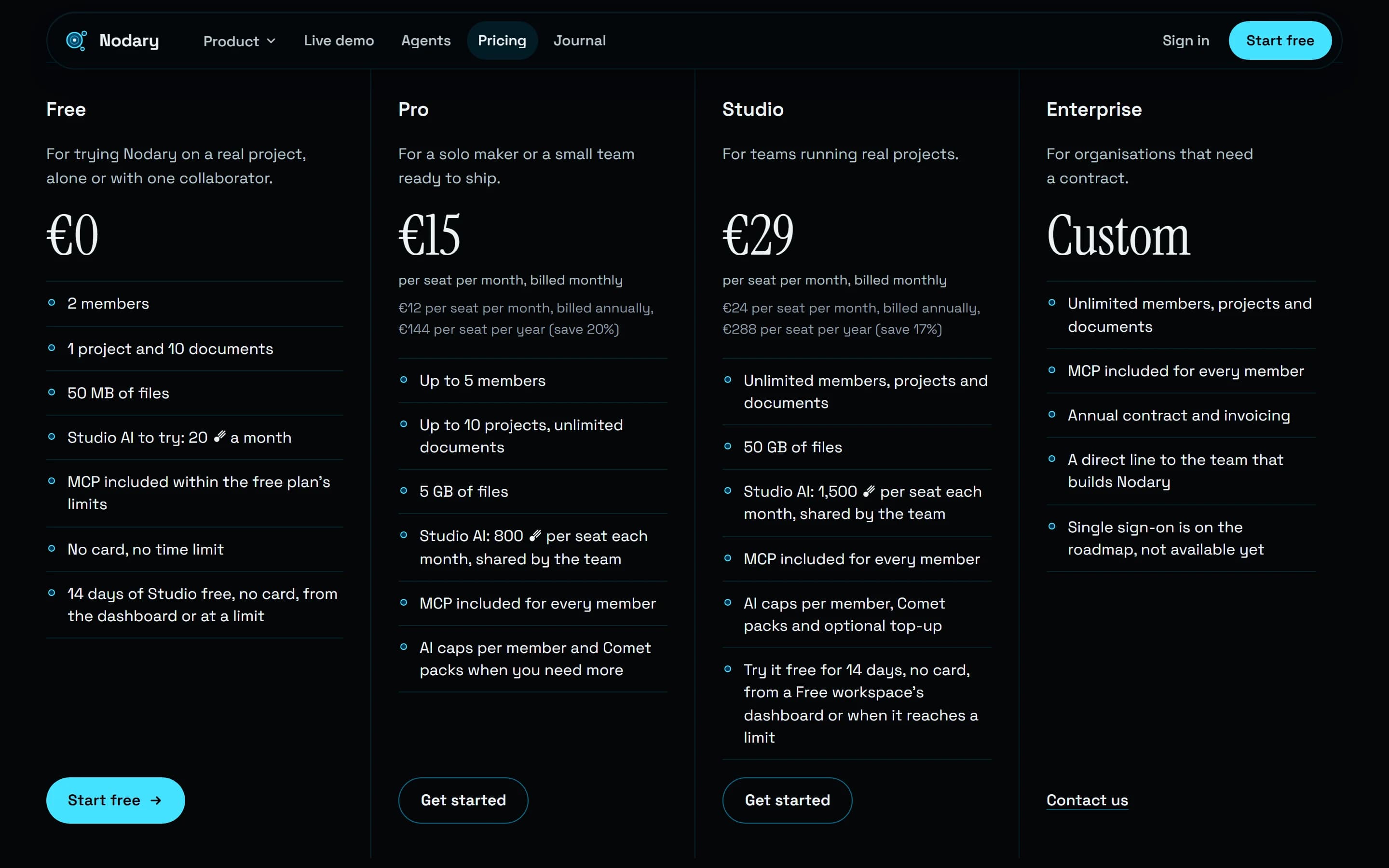
MCP in every plan. Lower prices. Studio free for 14 days.
Connect Claude, ChatGPT, Cursor or Claude Code to your projects on any plan, Free included within its limits. Pro and Studio now cost less per member, and a Free workspace can try Studio for 14 days with no card.
Read the story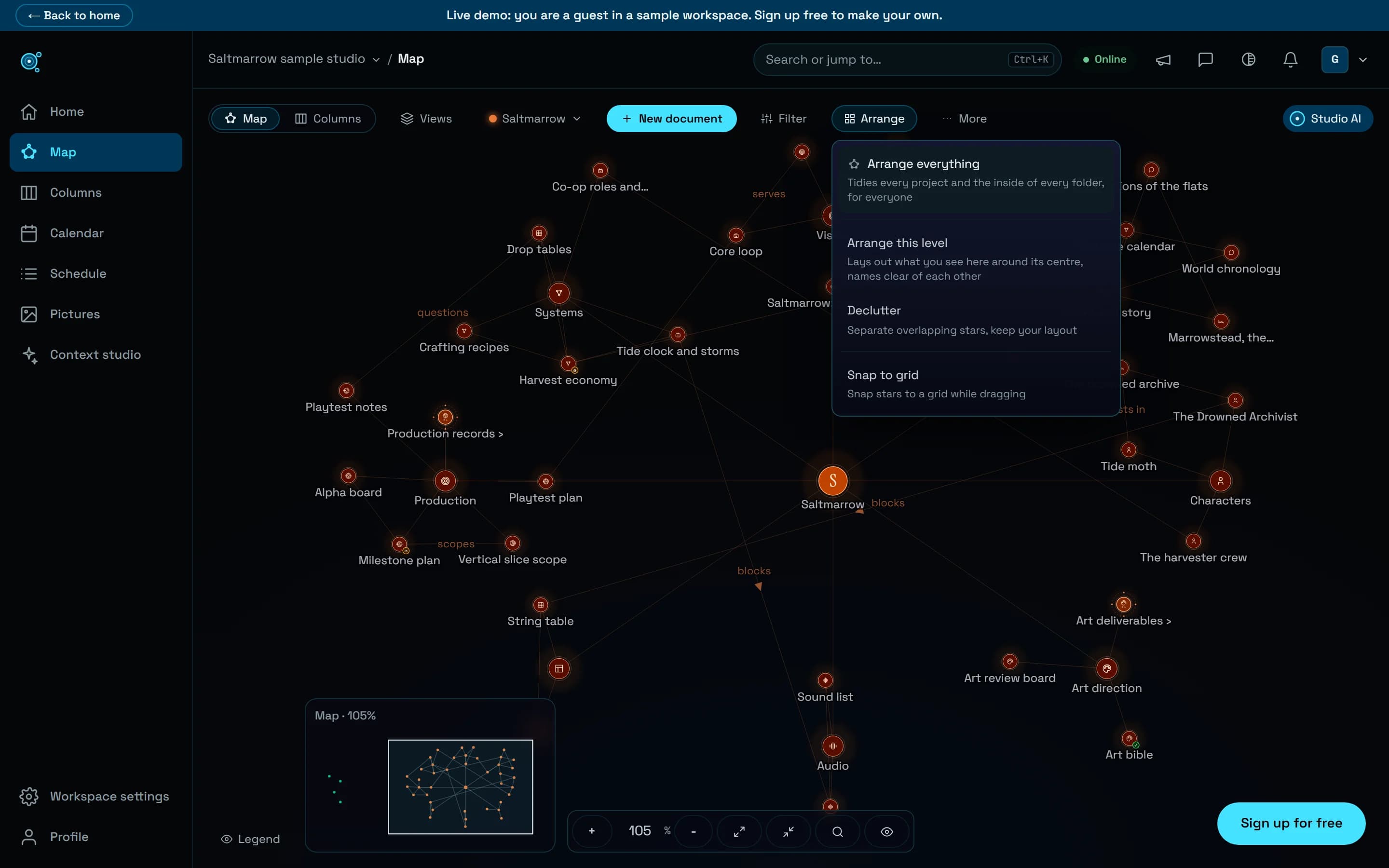
Arrange the whole map in one go.
Arrange everything lays out every project and every folder at once, packs projects close by their own size and keeps every name clear. One Undo puts it all back, and your team sees the stars glide.
Read the story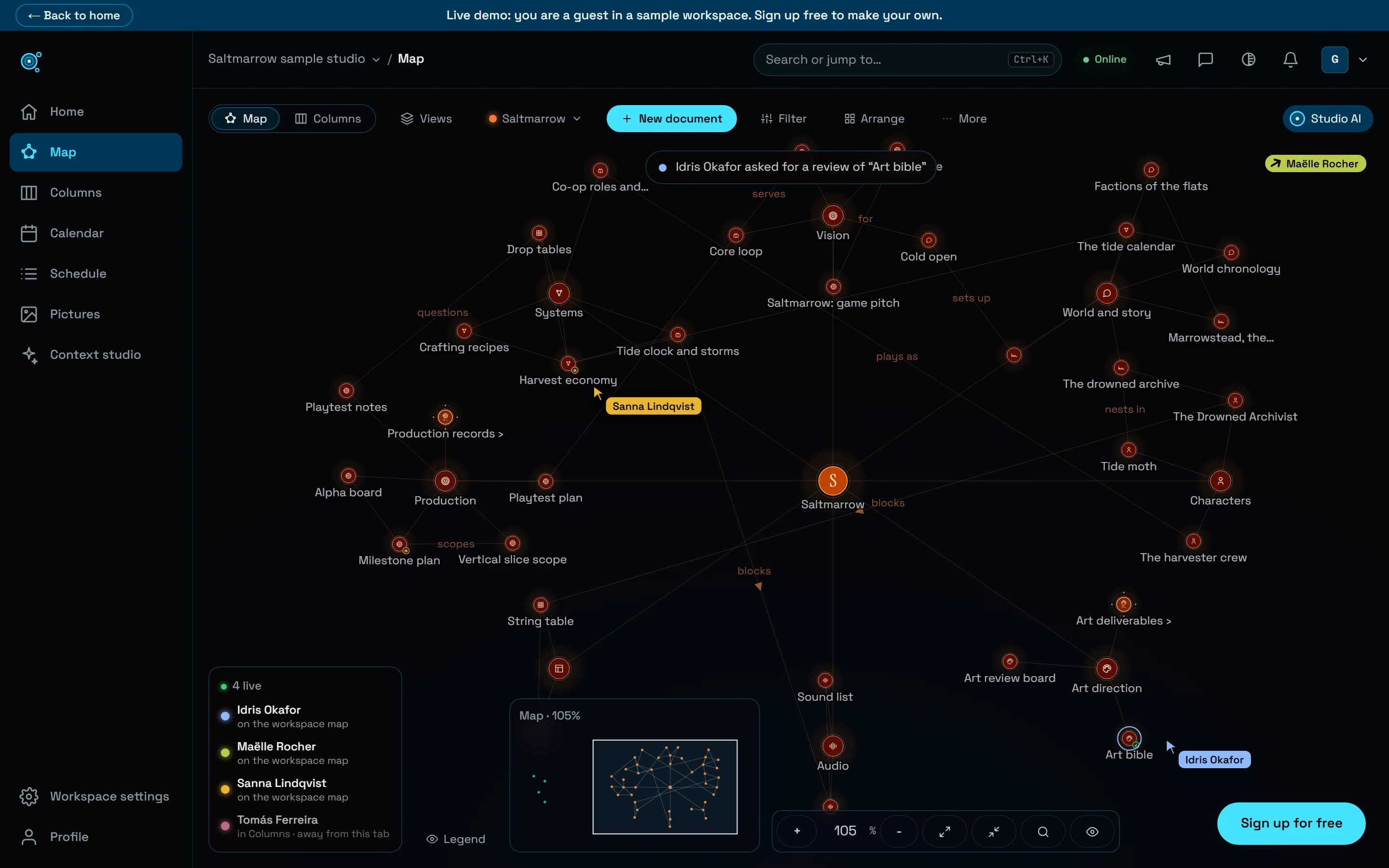
See your team on the map, as it happens.
Teammates’ pointers glide and leave when they do, an arrow points to anyone out of view, and each change arrives at once, with a ring in its author’s colour and a short note of who did what.
Read the story![Nodary’s import window, opened from Home in the live demo, previewing a folder of fictional Saltmarrow field notes for the Saltmarrow project: Neap shore and Salt pans under Shore walks, Archive dives and Tide almanac, and a line saying that one link names a document in neither the import nor the project, [[Lantern keepers]] in Tide almanac.md, whose words stay.](/_next/image?url=%2Frelease-media%2F2026-10-import-from-home.webp&w=3840&q=75)
Imports with no dead ends. Exports that come back whole.
Import from Home, Ctrl+K or an empty page, choose what comes in when an archive is bigger than your plan, keep Obsidian’s [[wiki links]], and get sheets, screenplays and live views back from Markdown.
Read the story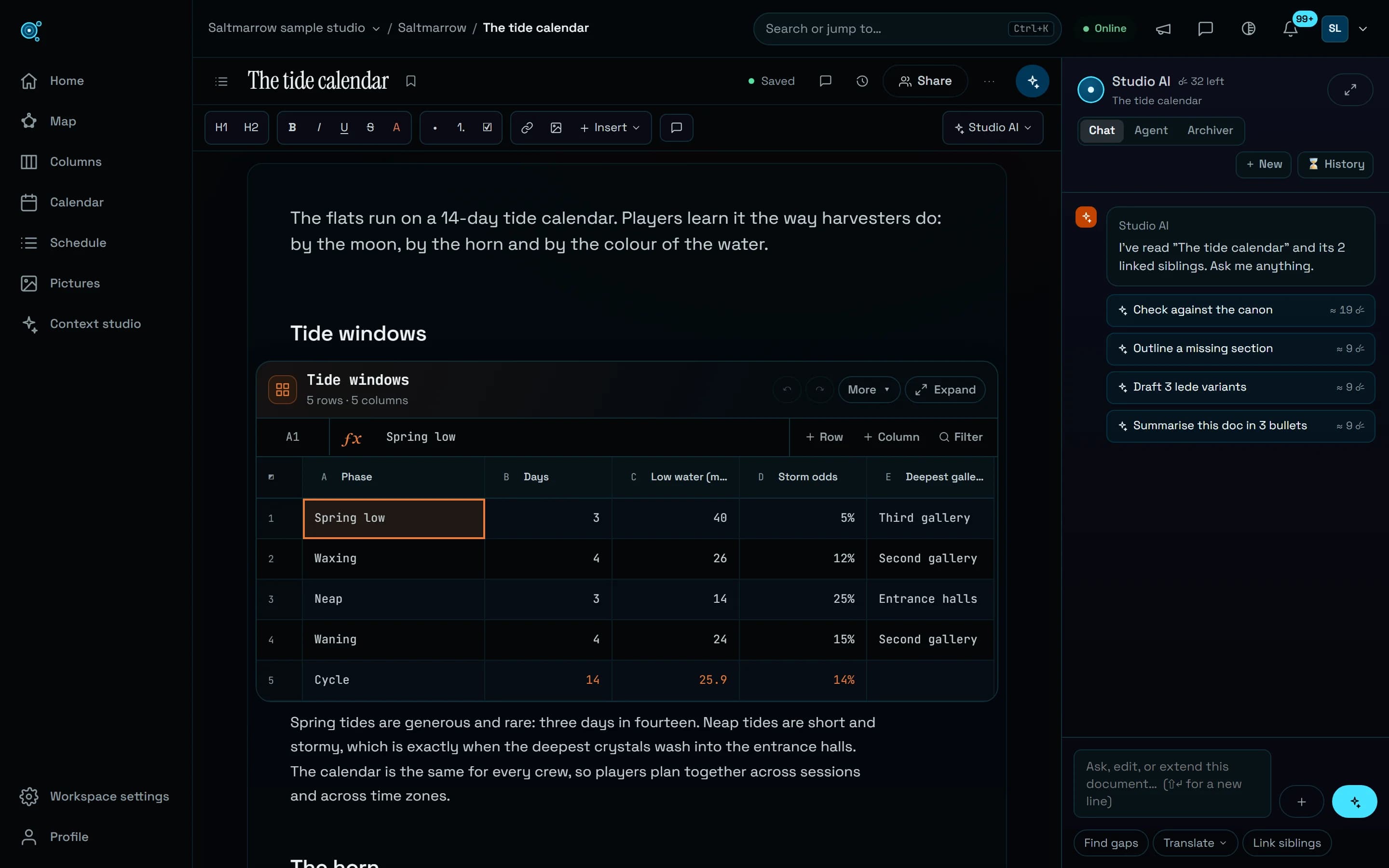
Sheets, diagrams and boards show their result first.
A sheet opens on its grid at the page’s width, a diagram on its drawing, a board ready to write on. Diagram errors are explained in plain words, and keys typed fast across cells land where you typed them.
Read the story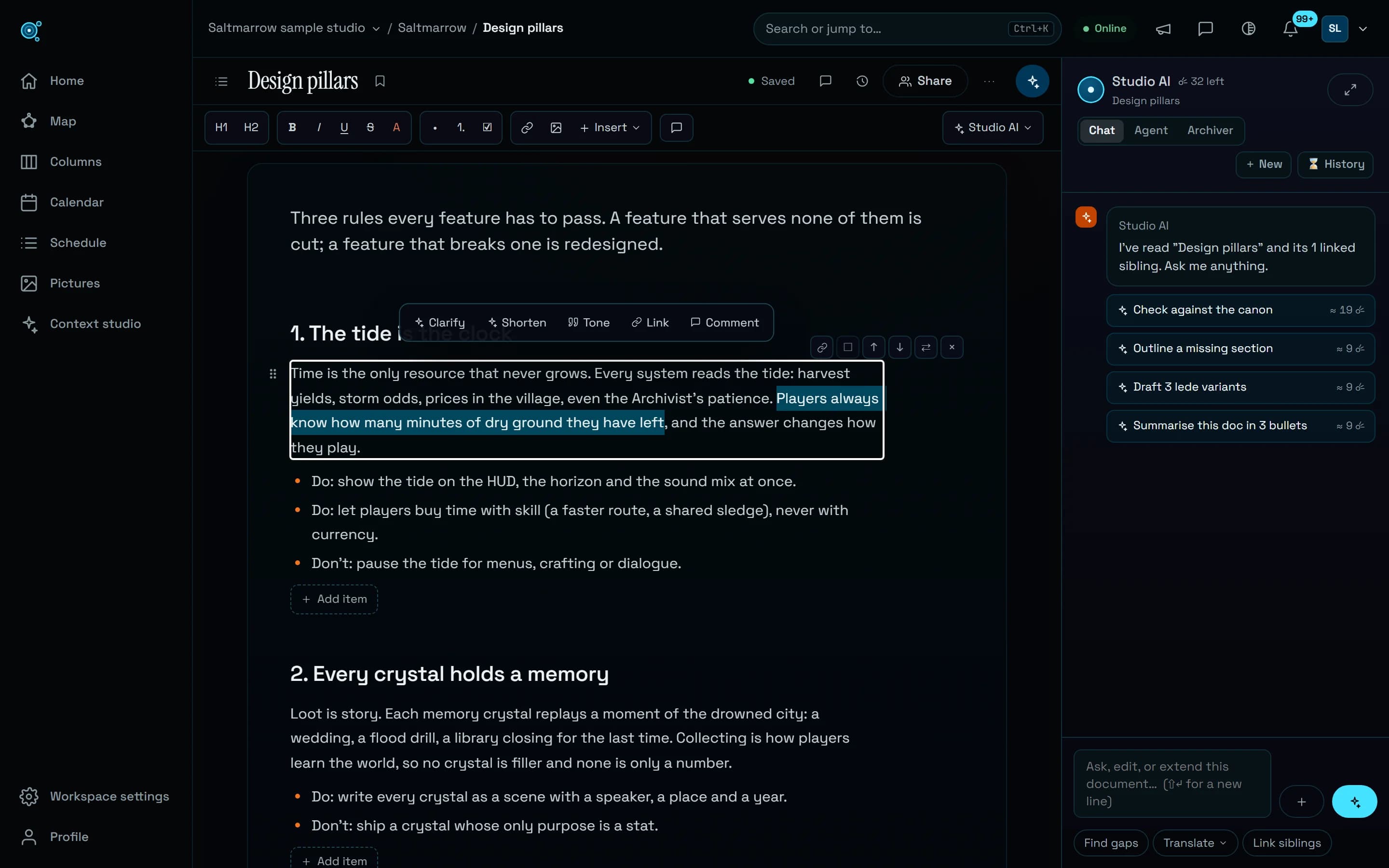
Open on the words. Write from the keyboard.
A document now opens on its text, under one bar. Enter, Backspace, / and Markdown shortcuts do what you expect, and Studio AI rewrites a selection in place, with Undo.
Read the story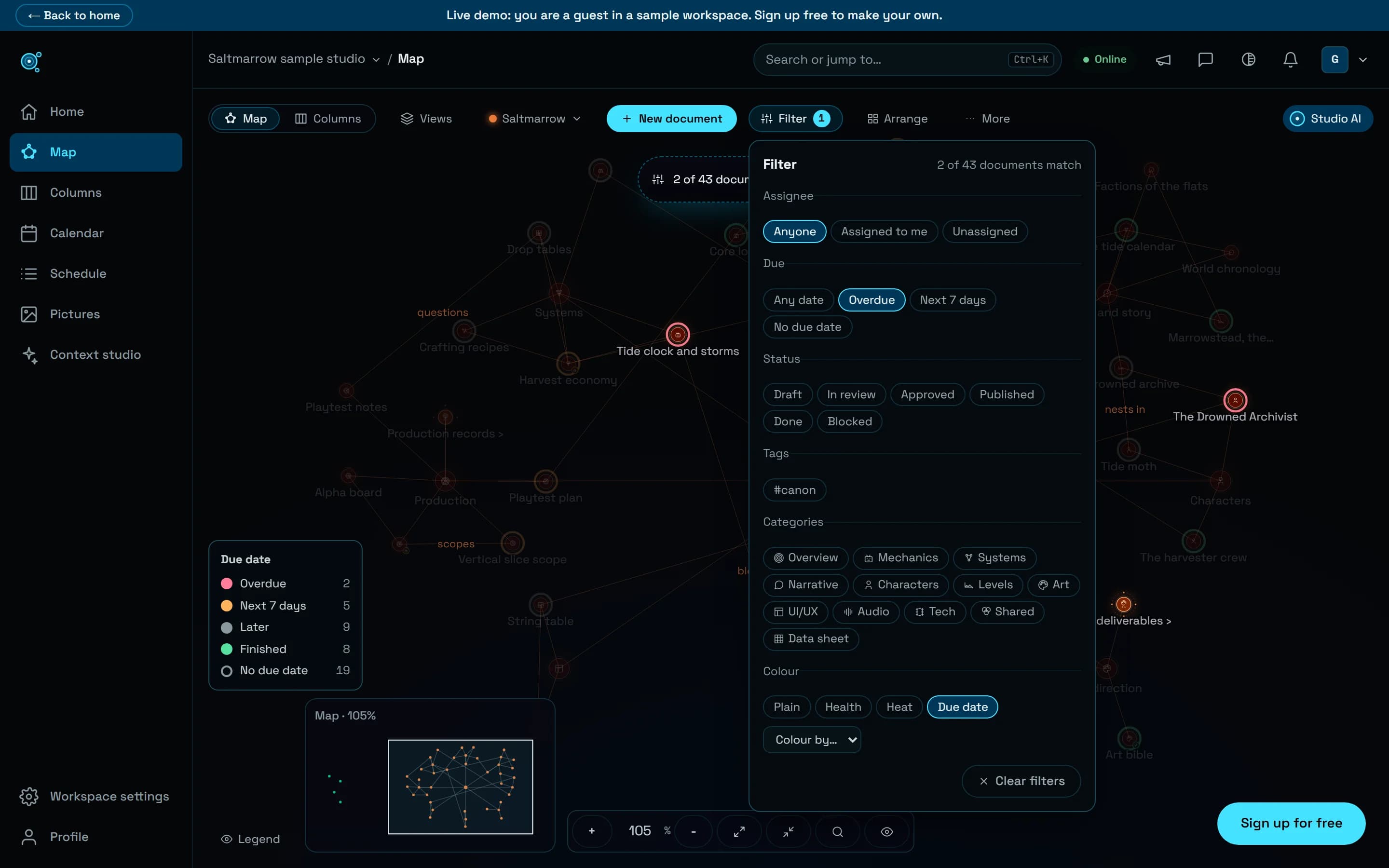
Find what’s overdue, and sort it out from the map.
Filter the map to what is overdue, due this week or yours, colour it by due date, then set the assignee, status, due date and tags of many documents at once, each change with its Undo.
Read the story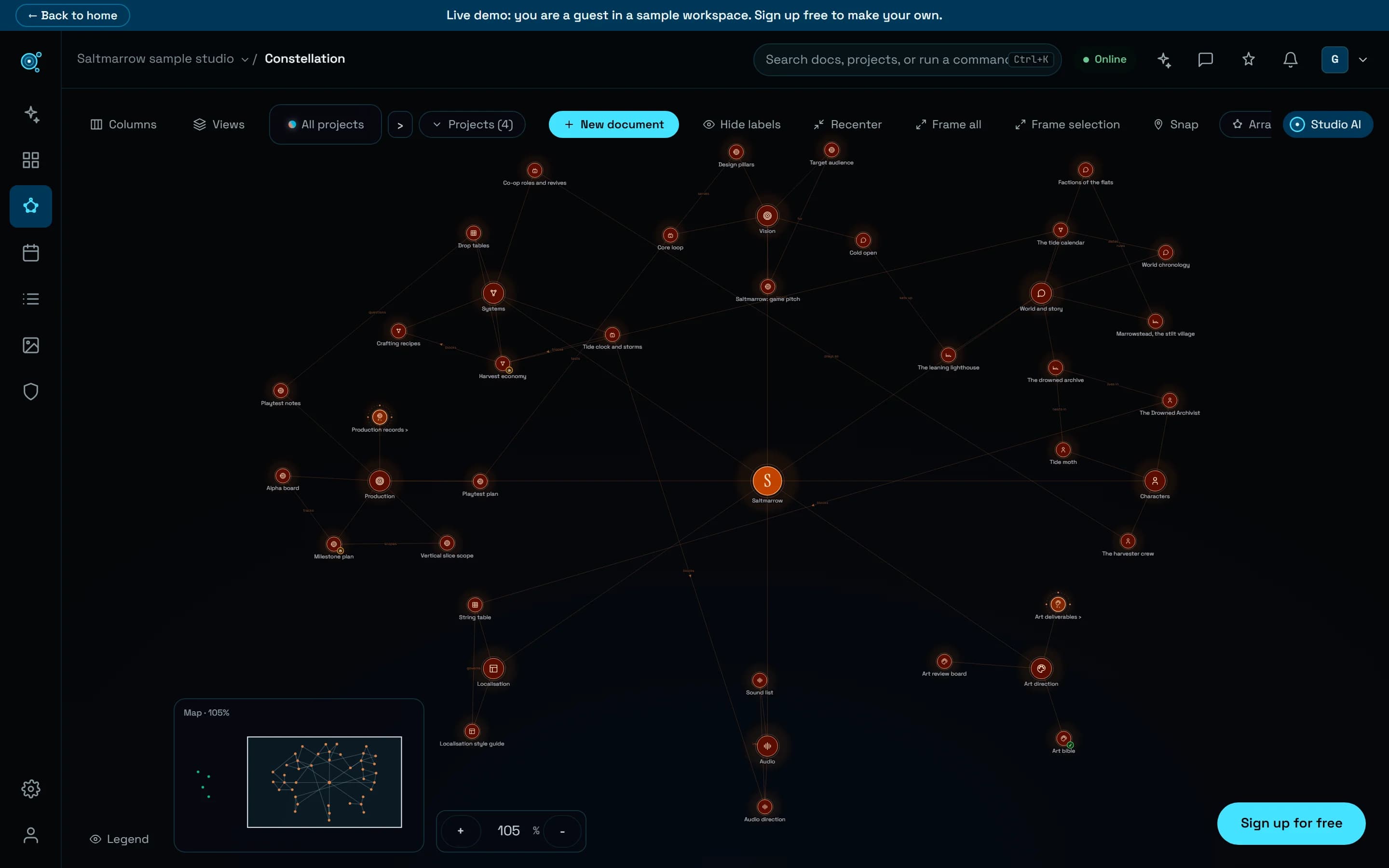
One night sky, from the site to your workspace.
The app, the sign-in pages and the demo now share the site’s look, and a line of light crosses the screen when you change page, so you see where you left and where you arrive.
Read the story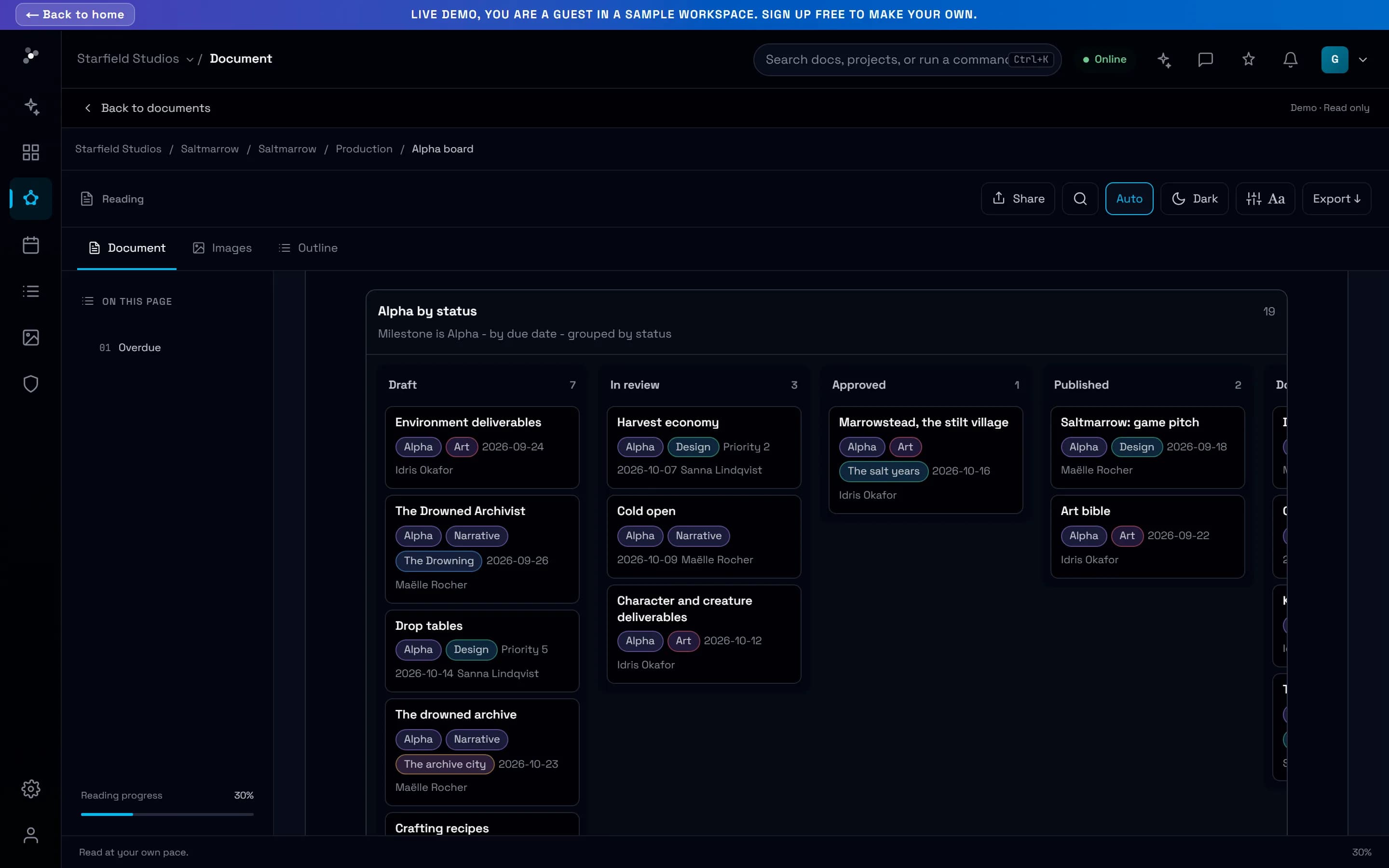
Open the sample game behind the site, in the live demo.
Saltmarrow, the fictional game this site shows, is now in the live demo: 44 linked documents, with live boards, timelines and progress, and no account.
Read the story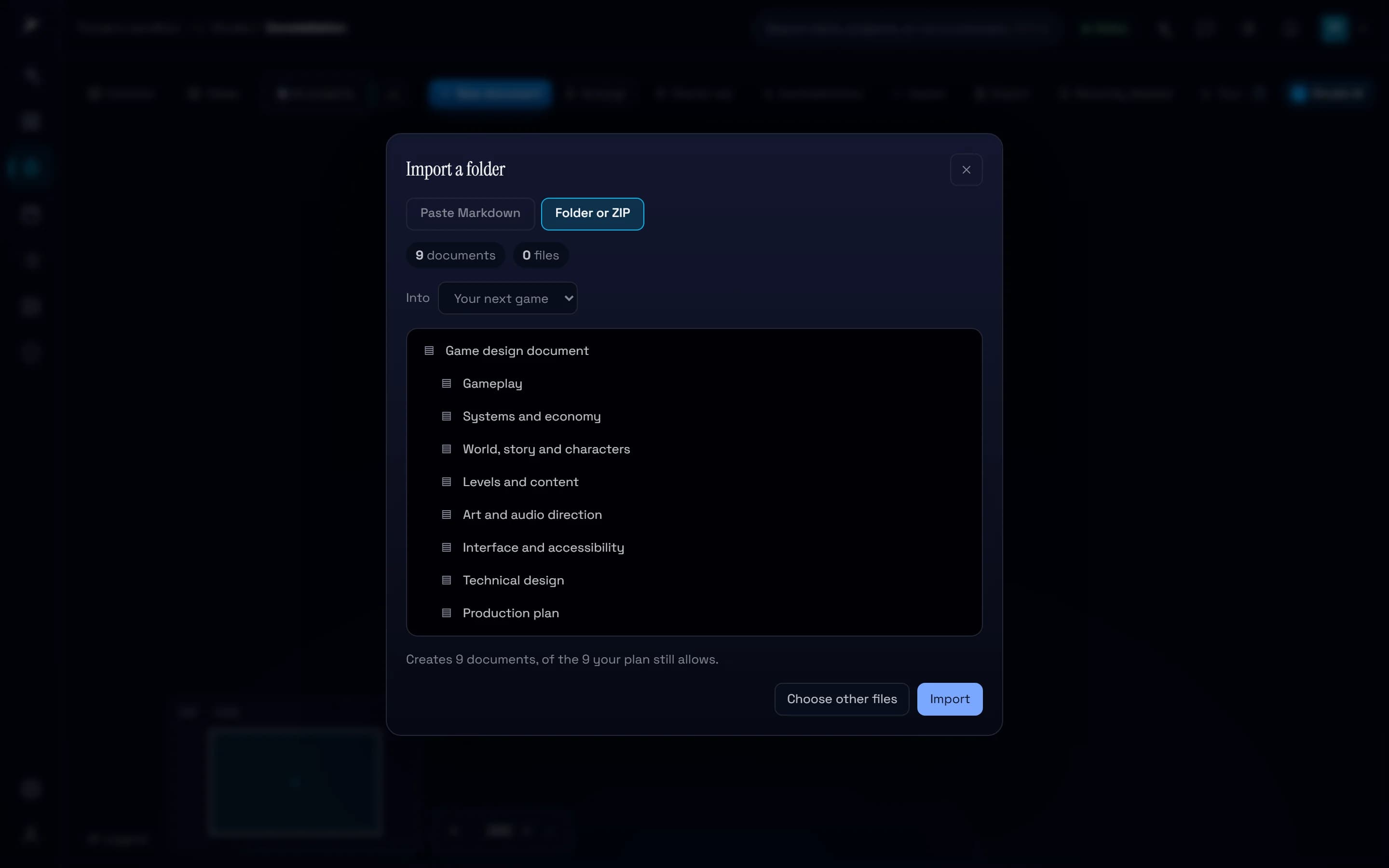
A free game design document template, in 12 languages.
Nine linked Markdown documents, from the pitch to the decision log, each saying what to write. Read them on the site, download the .zip, and import it into a project in one step.
Read the story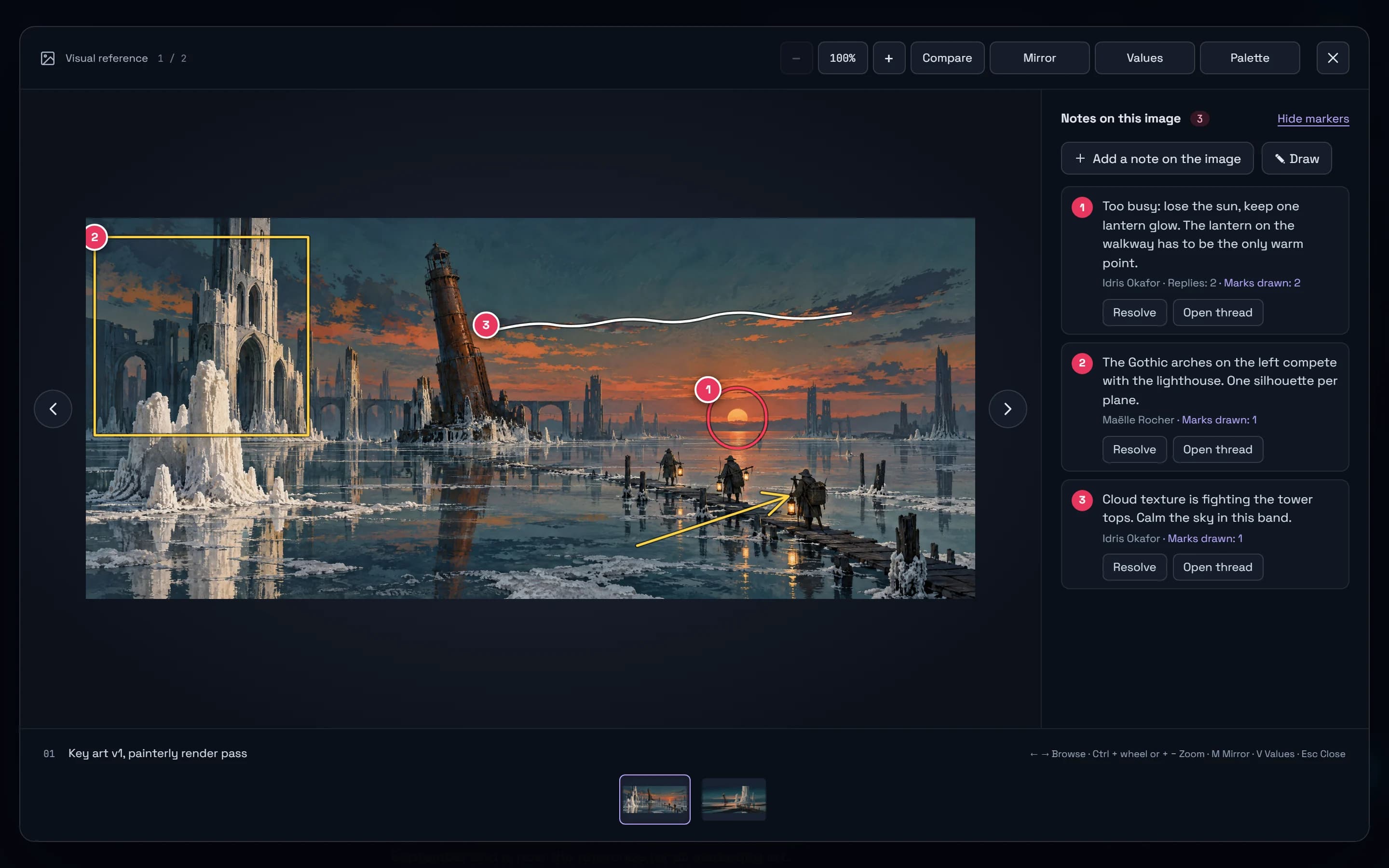
Draw the feedback on the picture. Send it as one sheet.
Circle, box or point at what to change on a picture, keep every version to compare and restore, and send your outsourcer one printable sheet with the notes drawn on each image.
Read the story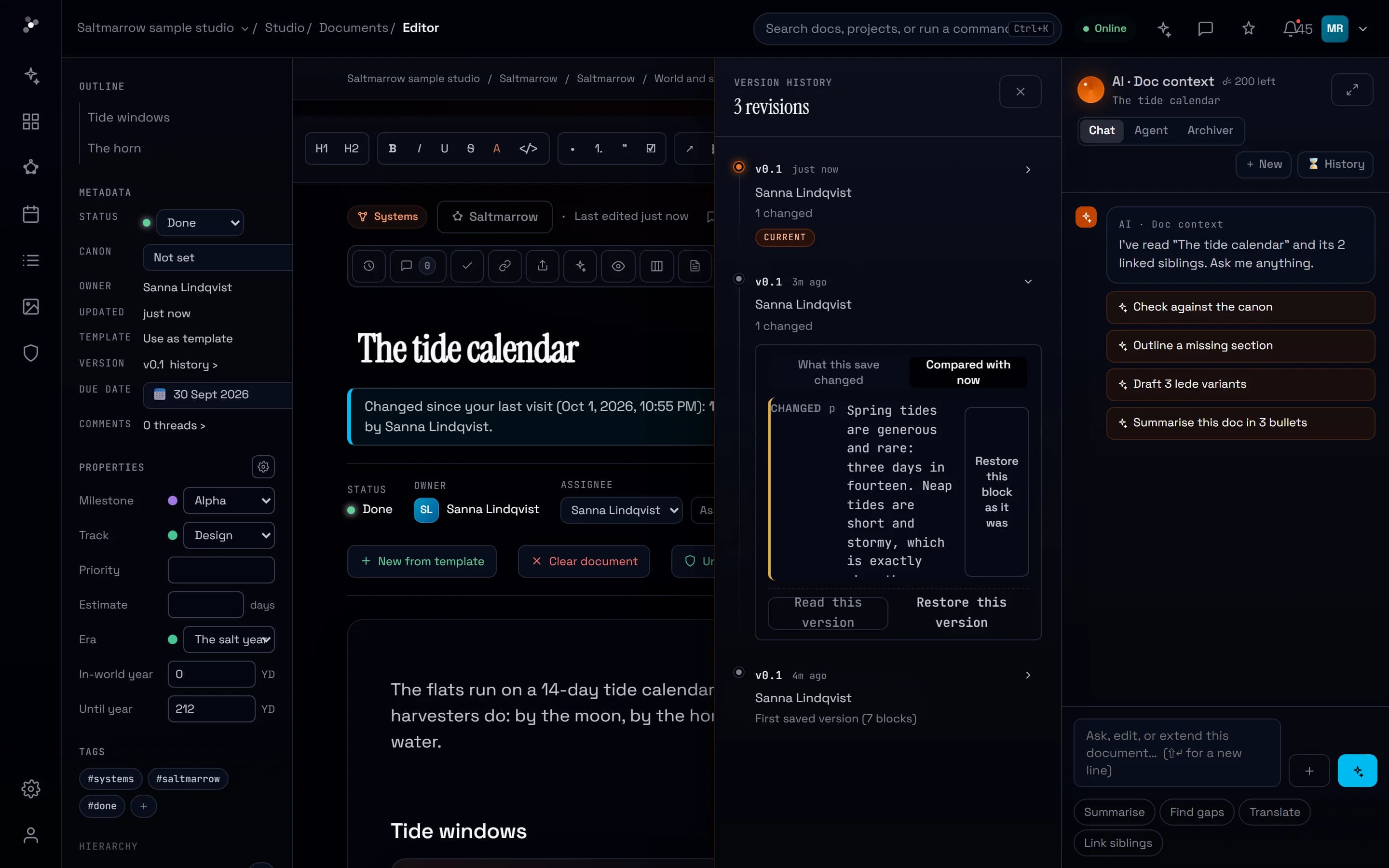
Know if the Alpha lands, and what changed while you were away.
A progress view draws the burn-up of any set of documents toward your target date. Add live boards, tables and timelines, a cut line on a day budget, and a note that says what changed since your last visit.
Read the story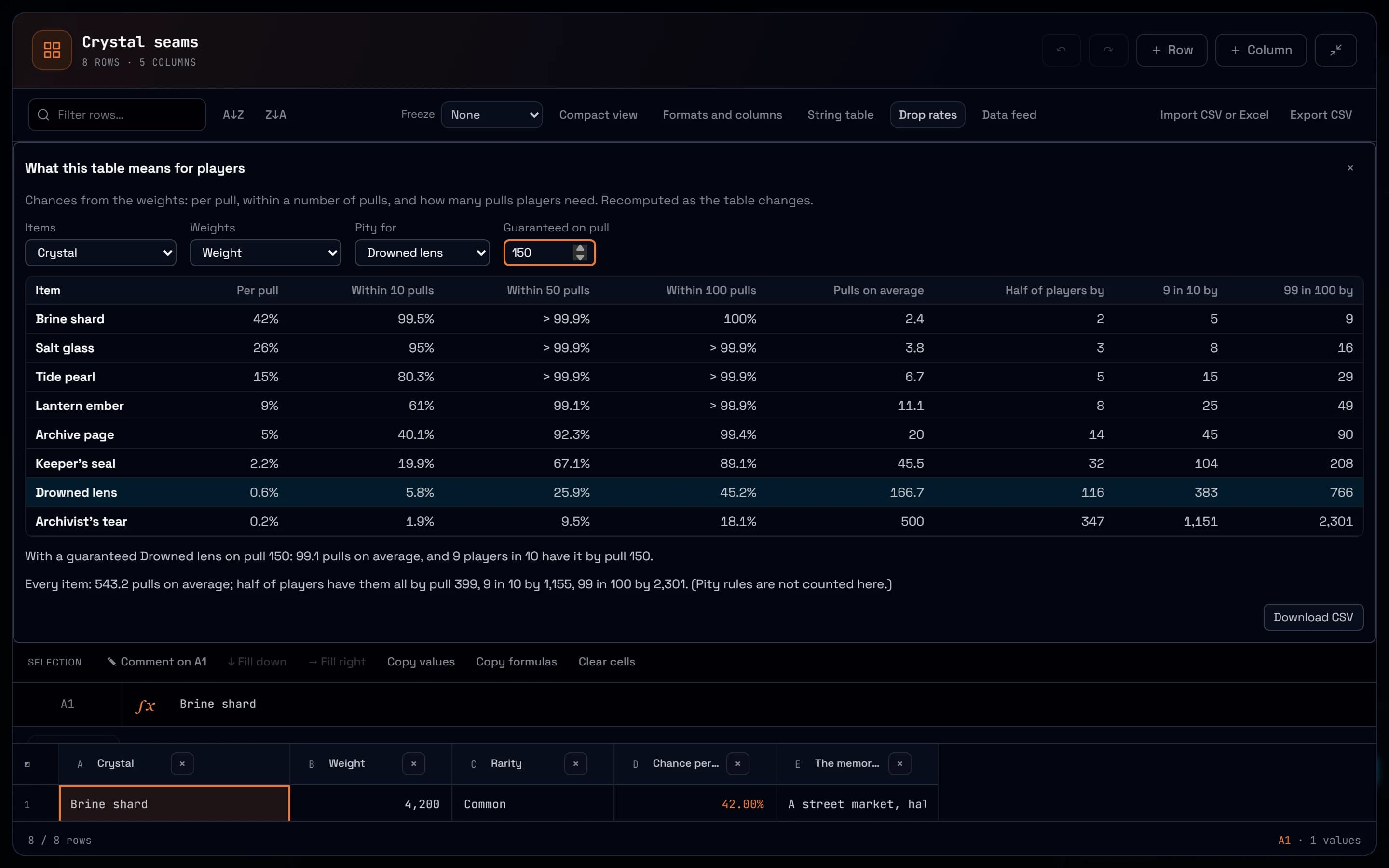
Read a loot table in players, not percentages.
Drop rates turns weights into what players live: the odds within 10, 50 or 100 pulls, the pull by which nine in ten have an item, and what a pity rule changes. Plus balancing formulas, live charts and a feed to your engine.
Read the story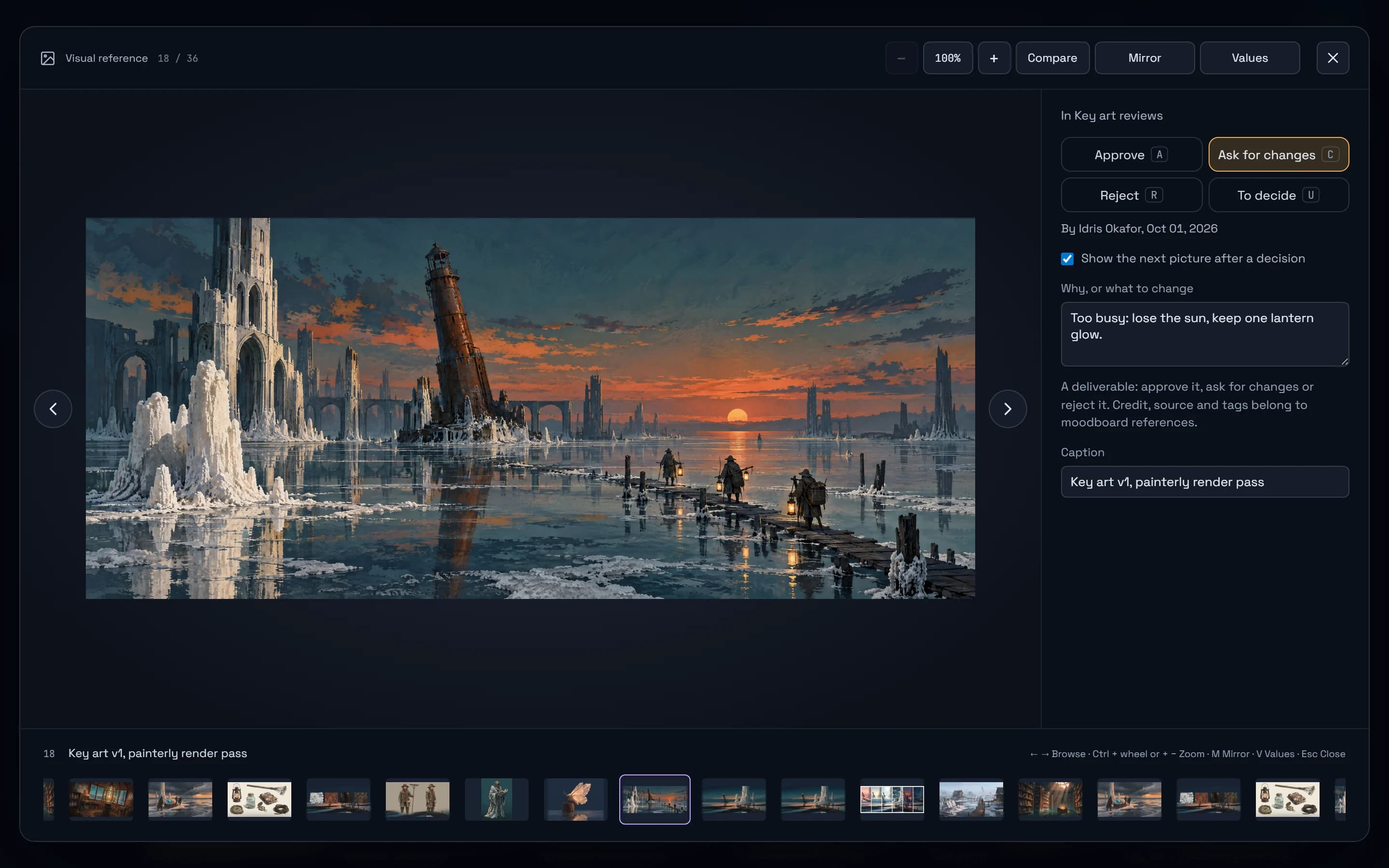
Decide every picture, signed. Then check it against the palette.
Approve, send back or reject any deliverable from the keyboard, each decision signed with who and when. Then hold the picture to the art bible’s palette, mirrored or in values.
Read the story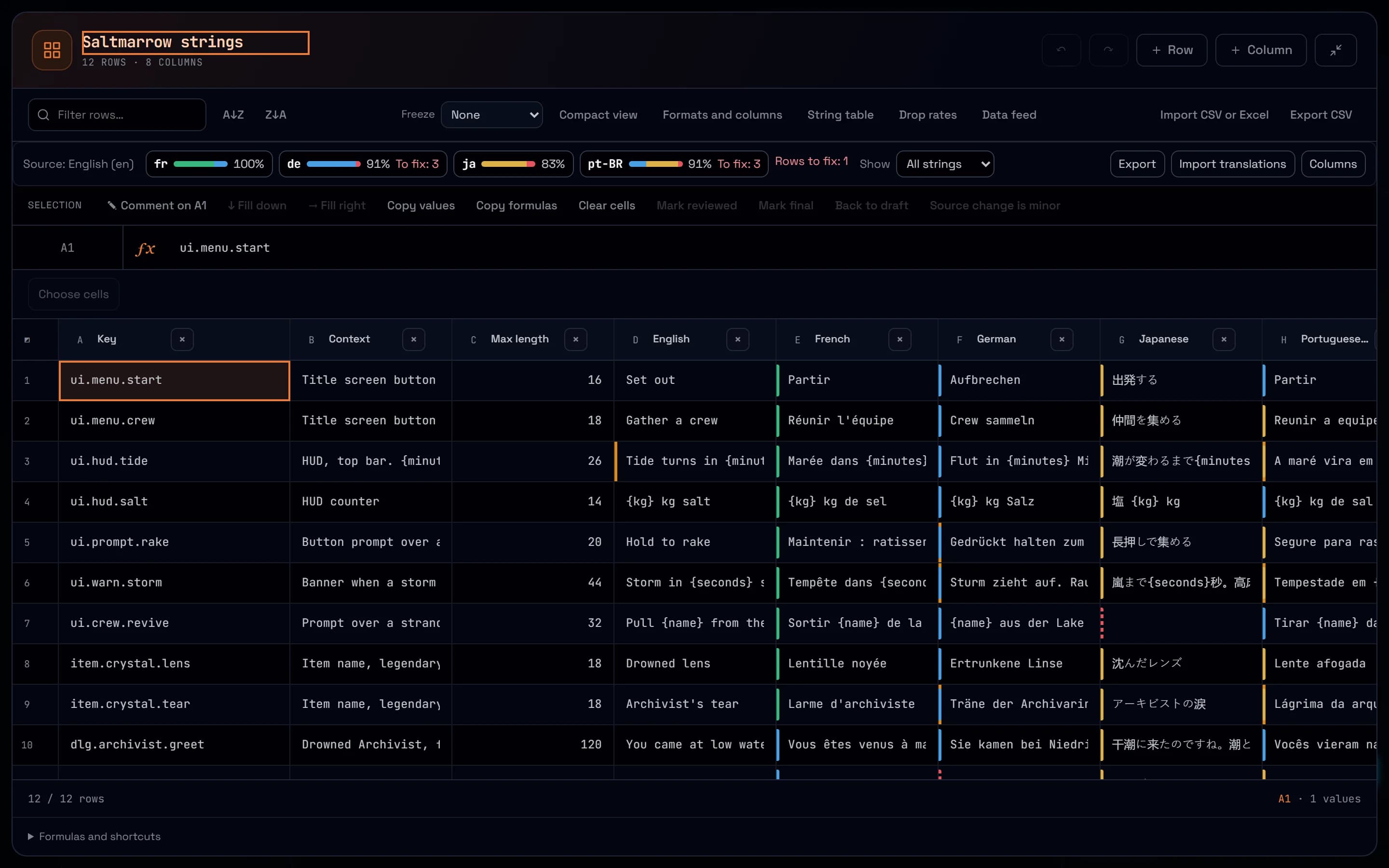
Branching dialogue and string tables, in your design documents.
Write branching dialogue as a script, play it through and export it to Yarn Spinner. Keep the game’s text in a string table with a state per translation, length and placeholder checks, and files for your engine.
Read the story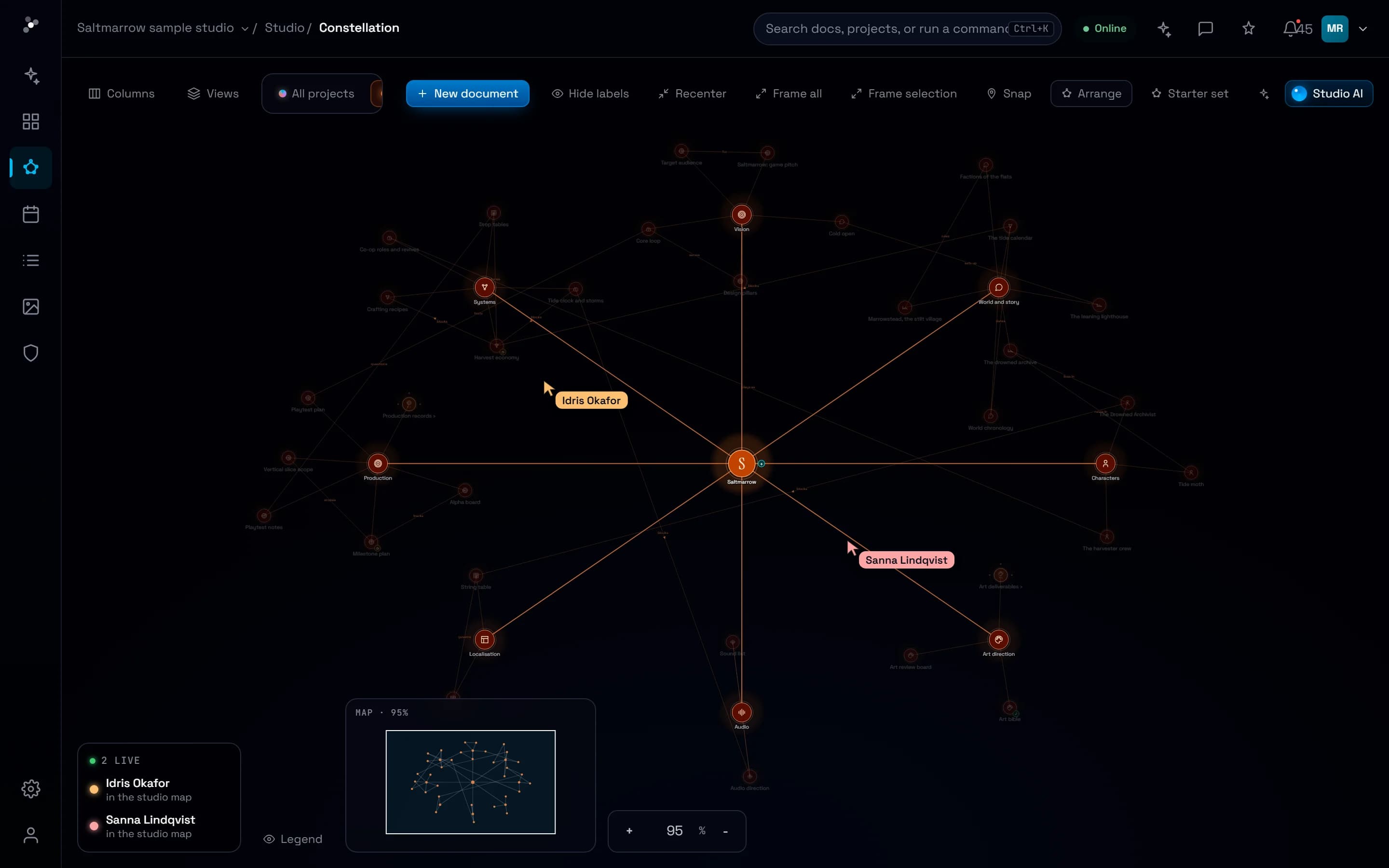
Agents that work in batches, and sign what they decide.
Over MCP, an agent now creates 25 documents or changes 50 in one call, reads the week’s activity, sends and fetches files, sees a board as people do and starts from ready-made prompts. Each decision it makes carries your name.
Read the story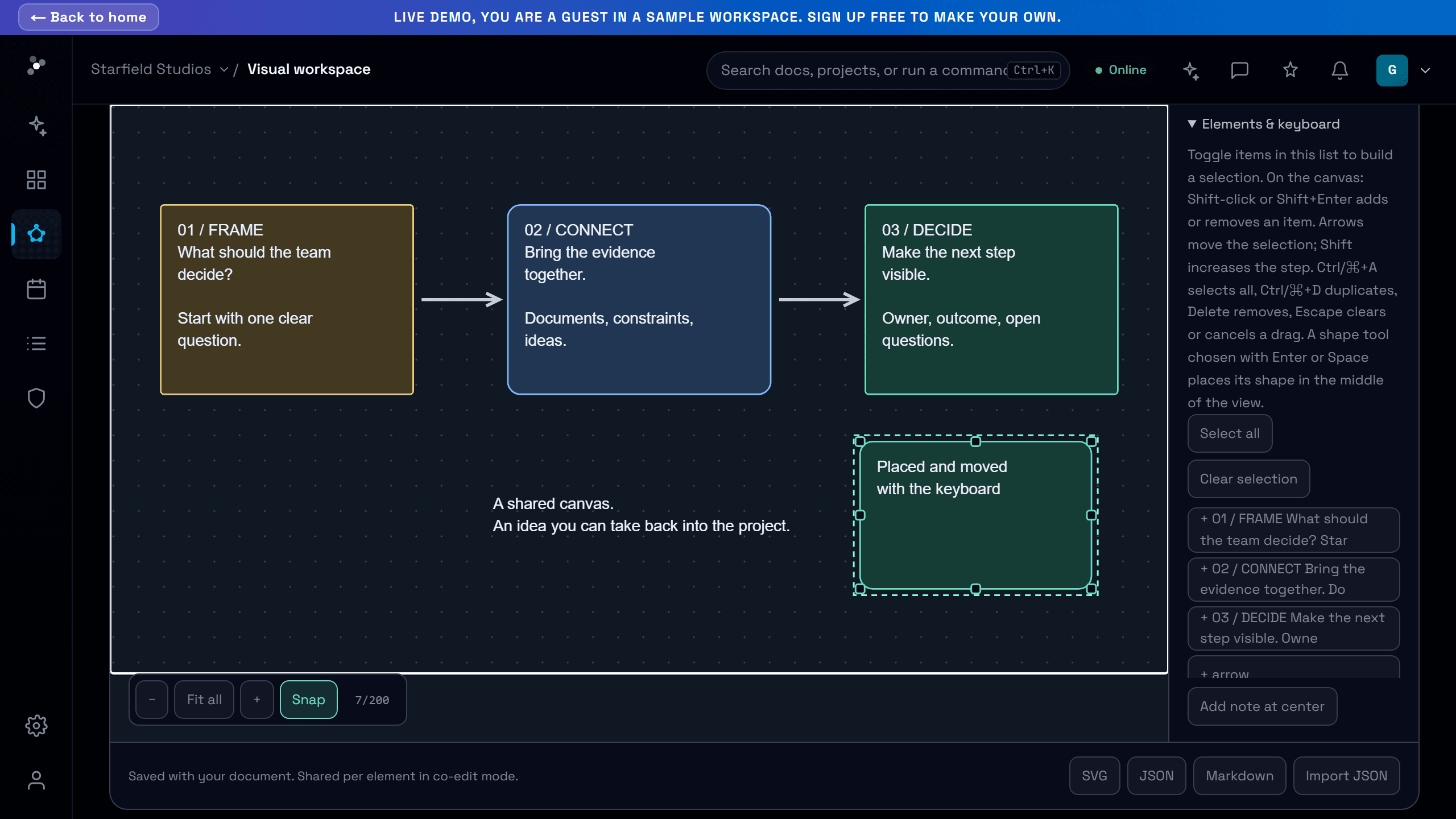
Everything you can drag, you can now do without dragging.
Reschedule, move a star, file it in a cluster, relate two stars, place a shape, pan a diagram or restore a version with the keyboard or a tap, and every control is big enough for a finger.
Read the story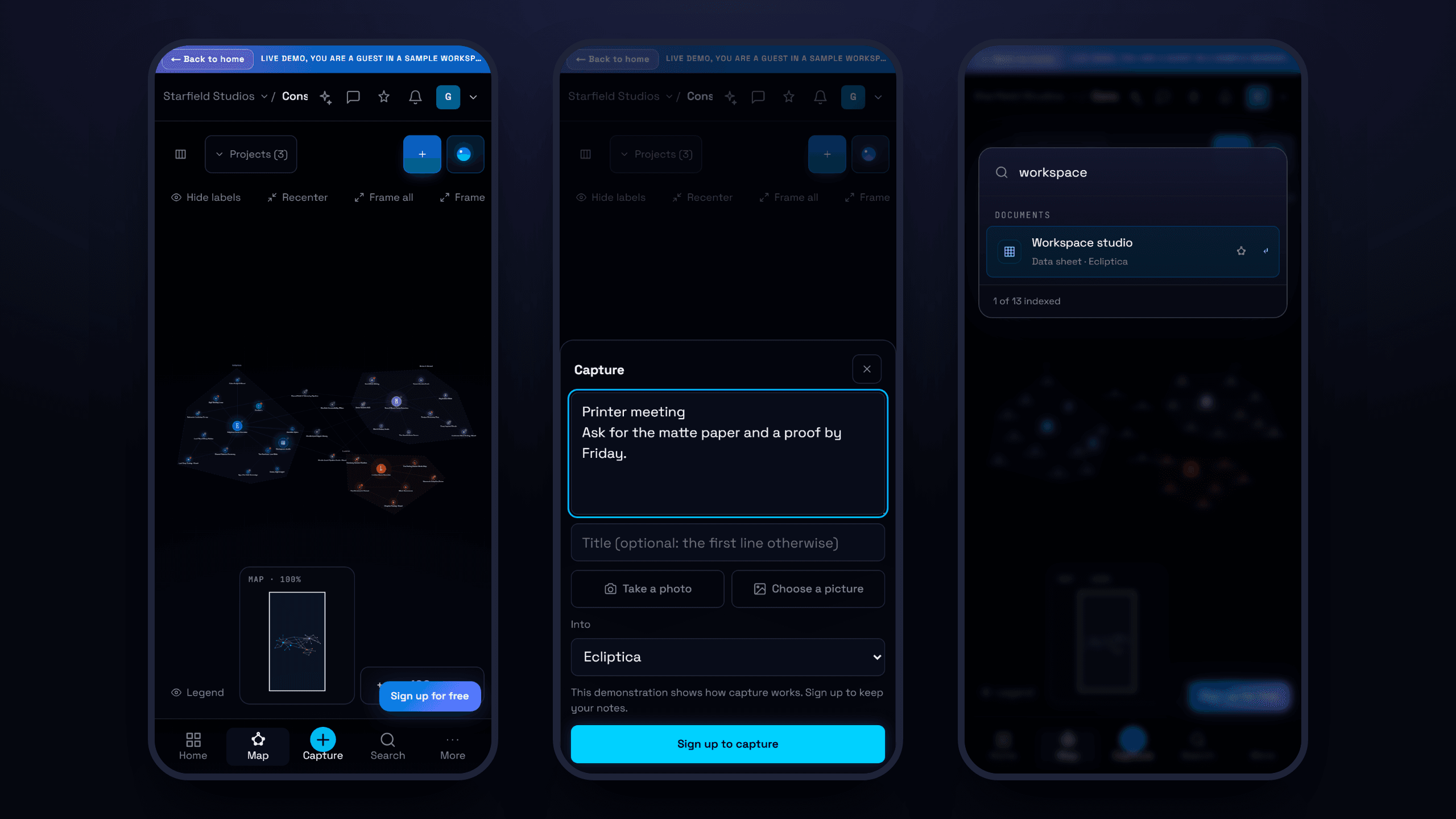
Capture, find, comment and share from your phone.
A tab bar made for thumbs, a capture sheet that takes a note and a photo in seconds, search one tap away, comments that fit the screen, and your phone's own share sheet for links.
Read the story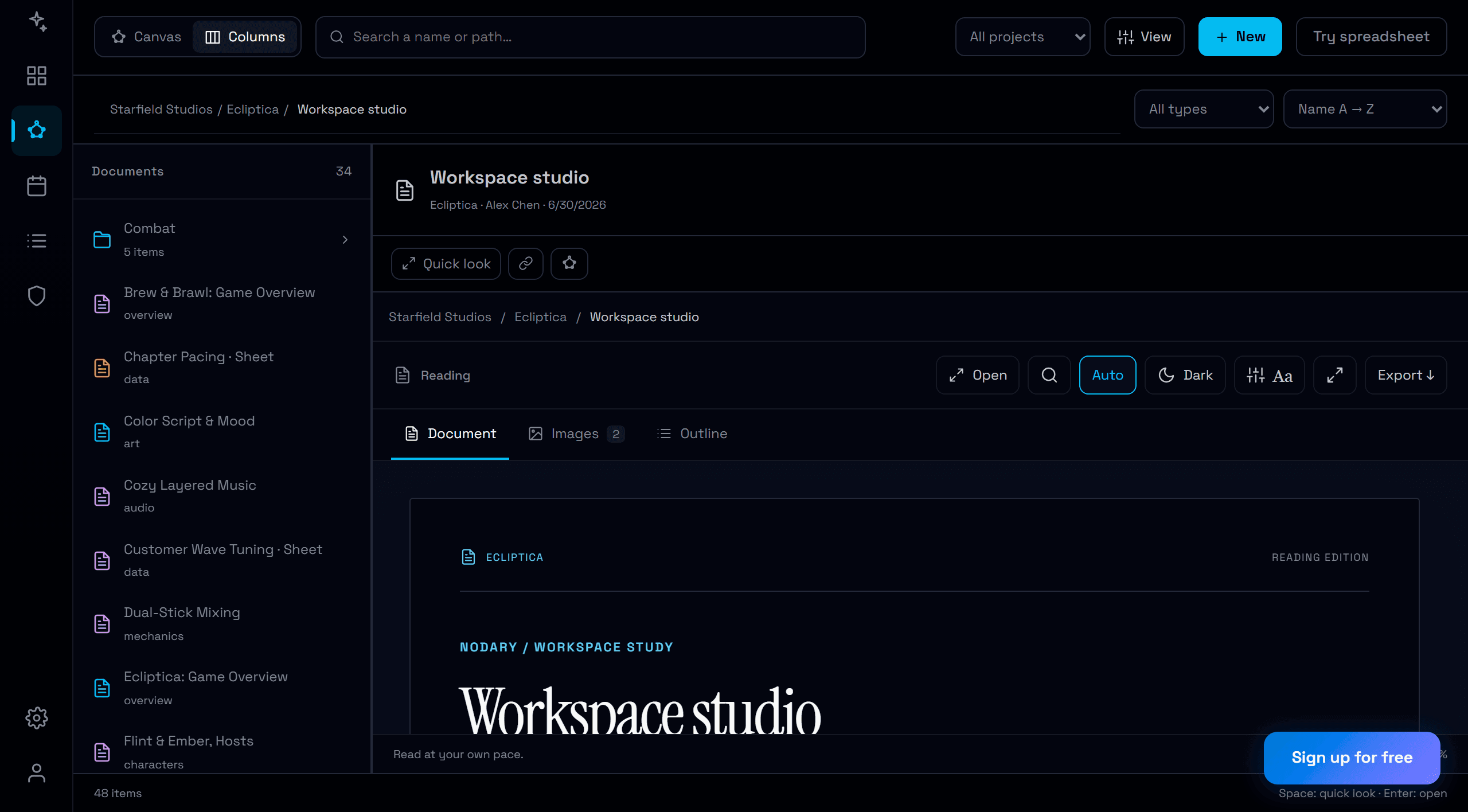
One look, from the map to the page.
Buttons, fields, menus and windows now share the same sizes, corners and text across the map, documents, spreadsheets, boards, print and the AI panel, and main actions look like main actions again.
Read the story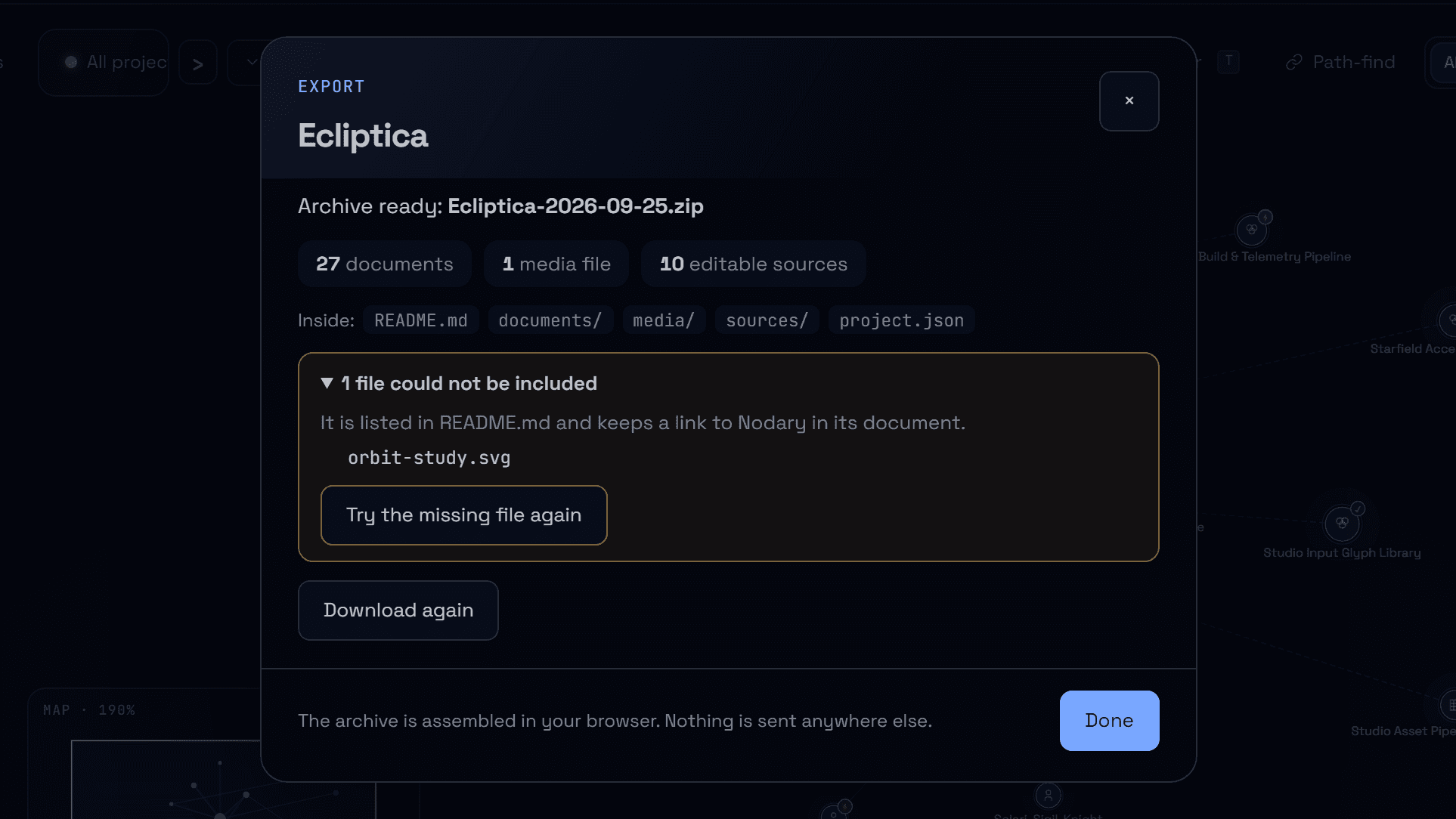
Uploads and imports that survive a bad connection.
Each file shows its own progress, a lost connection pauses the transfer instead of failing it, only what failed is tried again, and an interrupted import picks up where it stopped without duplicates.
Read the story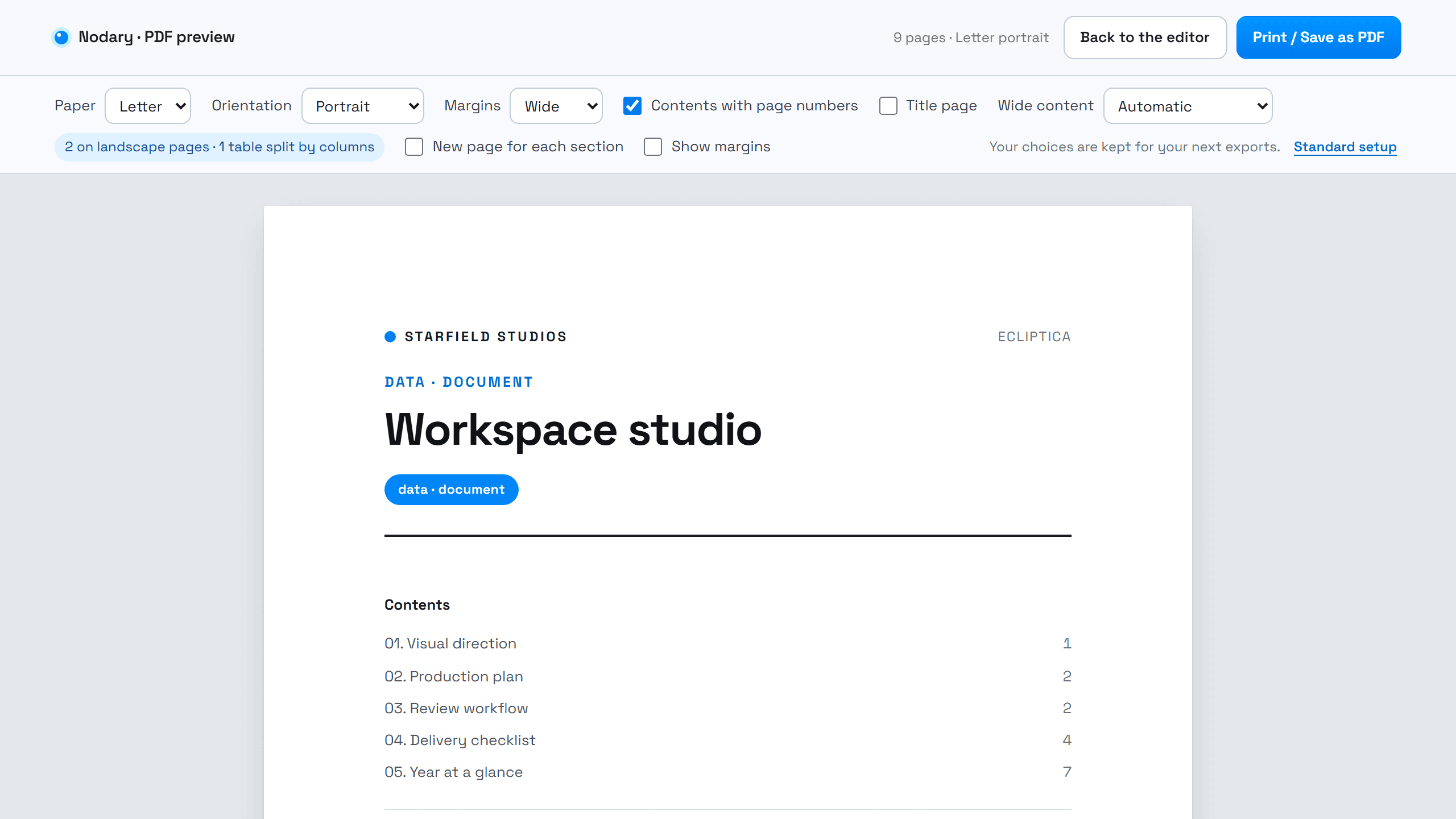
Your export settings, remembered.
Paper, margins, title page, wide content and the project export format now stay as you left them, on every device, and never follow how you like to read on screen.
Read the story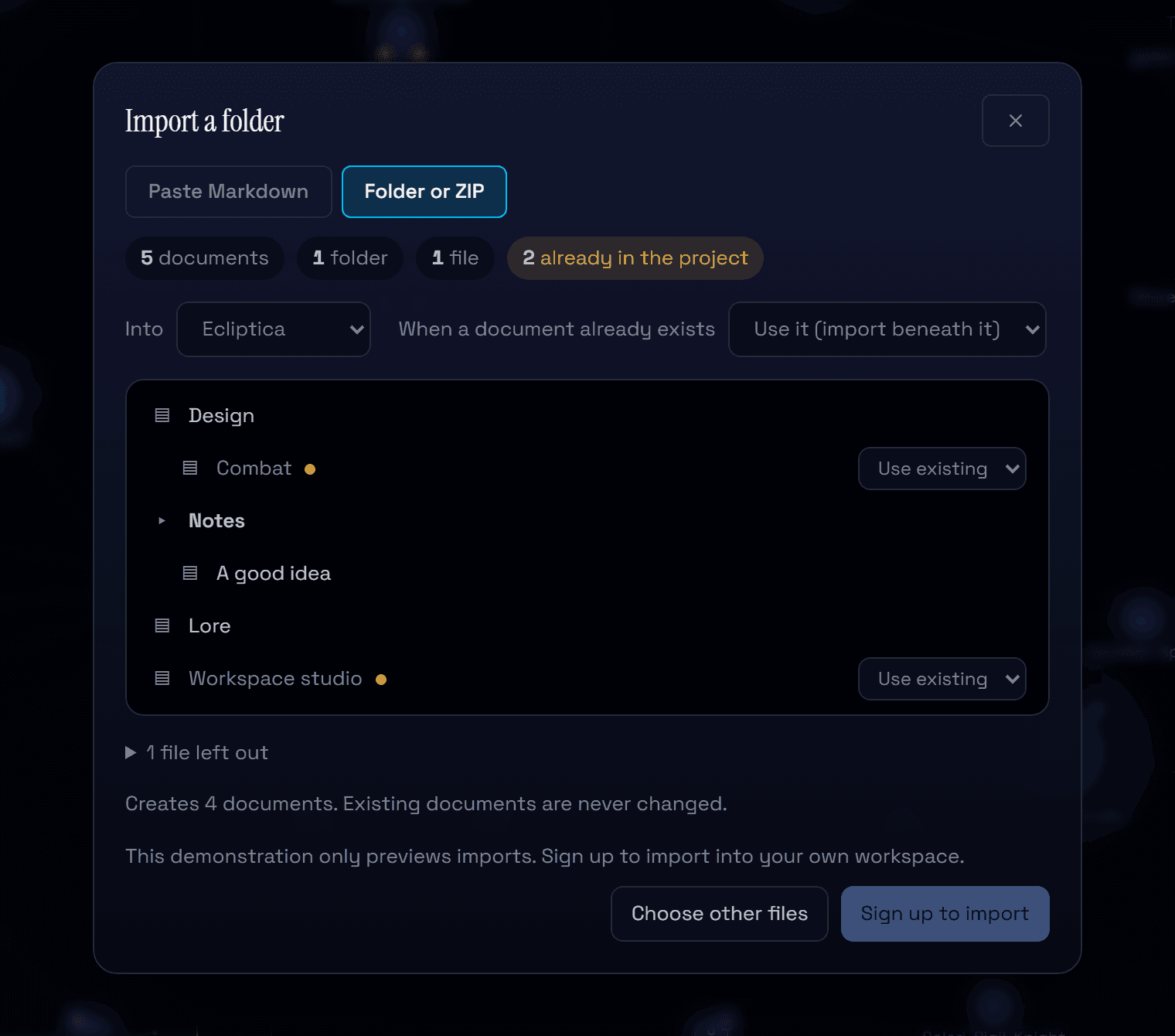
Bring in a whole folder of notes, and see it first.
Import a folder of Markdown or a ZIP, a Nodary archive included: preview the tree, choose what happens to documents that already exist, and know before you start whether it fits your plan.
Read the story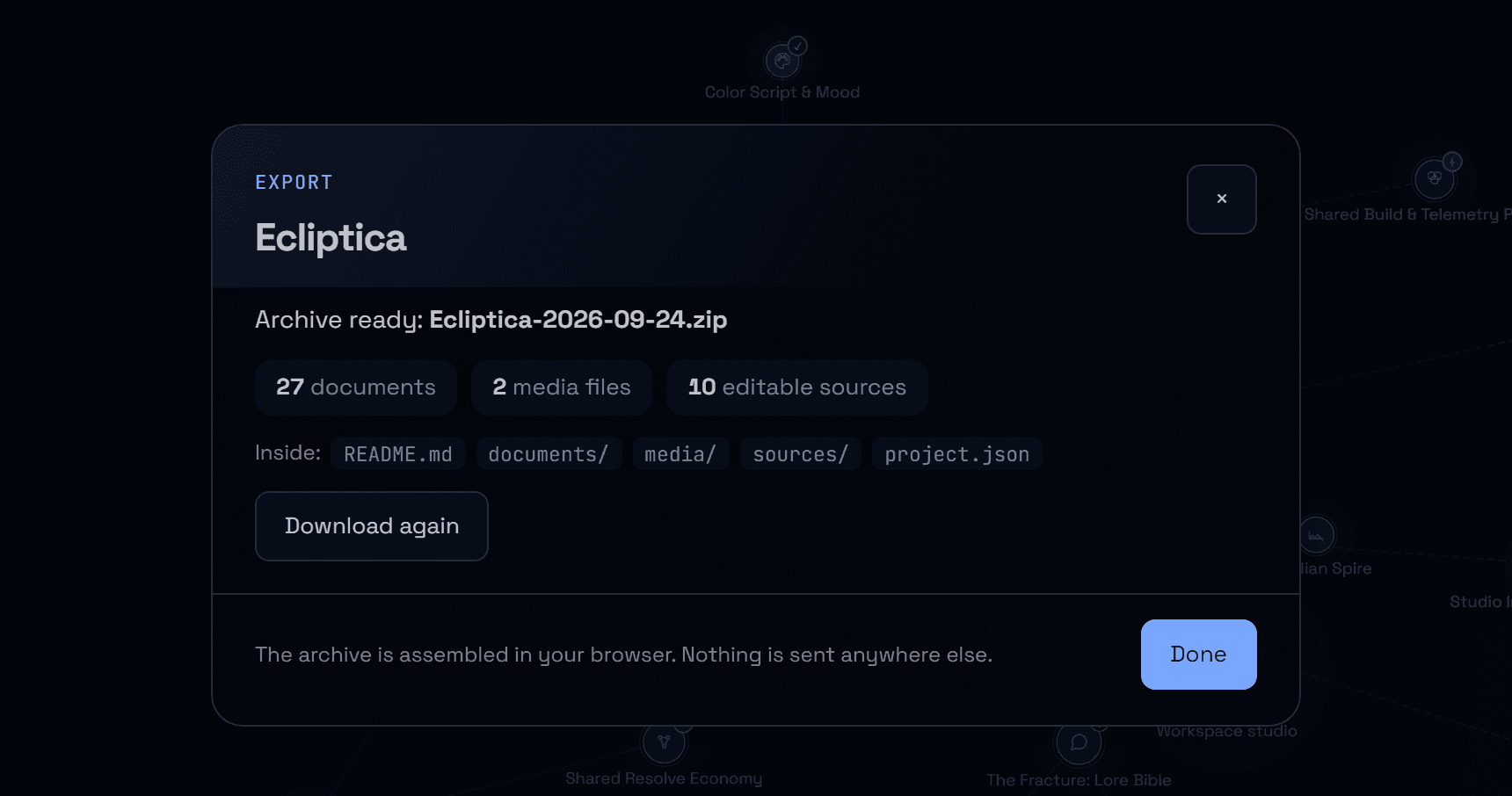
Take a whole project with you, in one archive.
Export a project as a ZIP: every document in Markdown with its images and files, editable sources for diagrams, boards and spreadsheets, and links that still work offline.
Read the story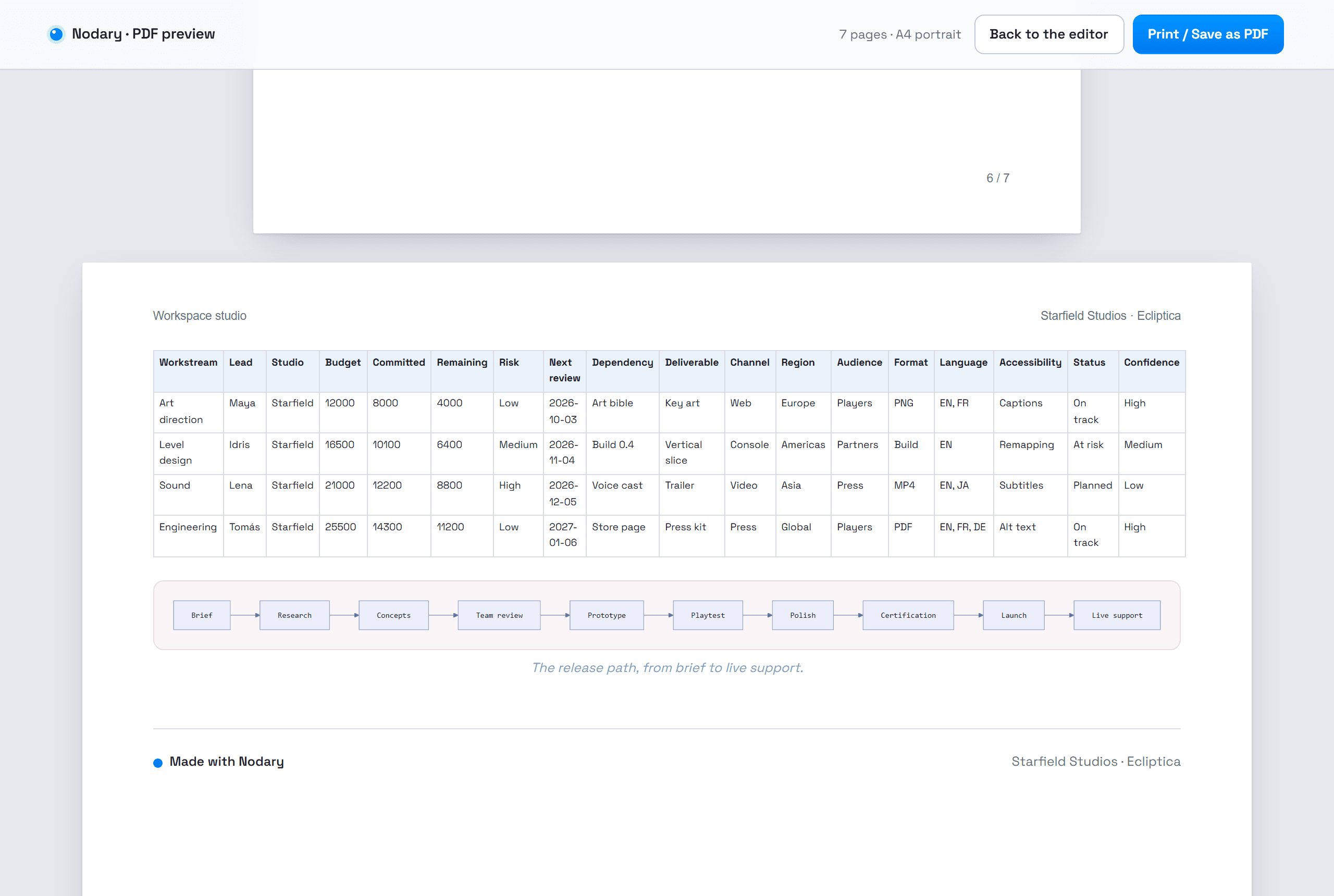
Wide tables and diagrams that stay readable on paper.
A table or diagram too wide for the page now moves to a landscape page, shrinks a little, or splits into parts that repeat its first column, instead of cutting words in half.
Read the story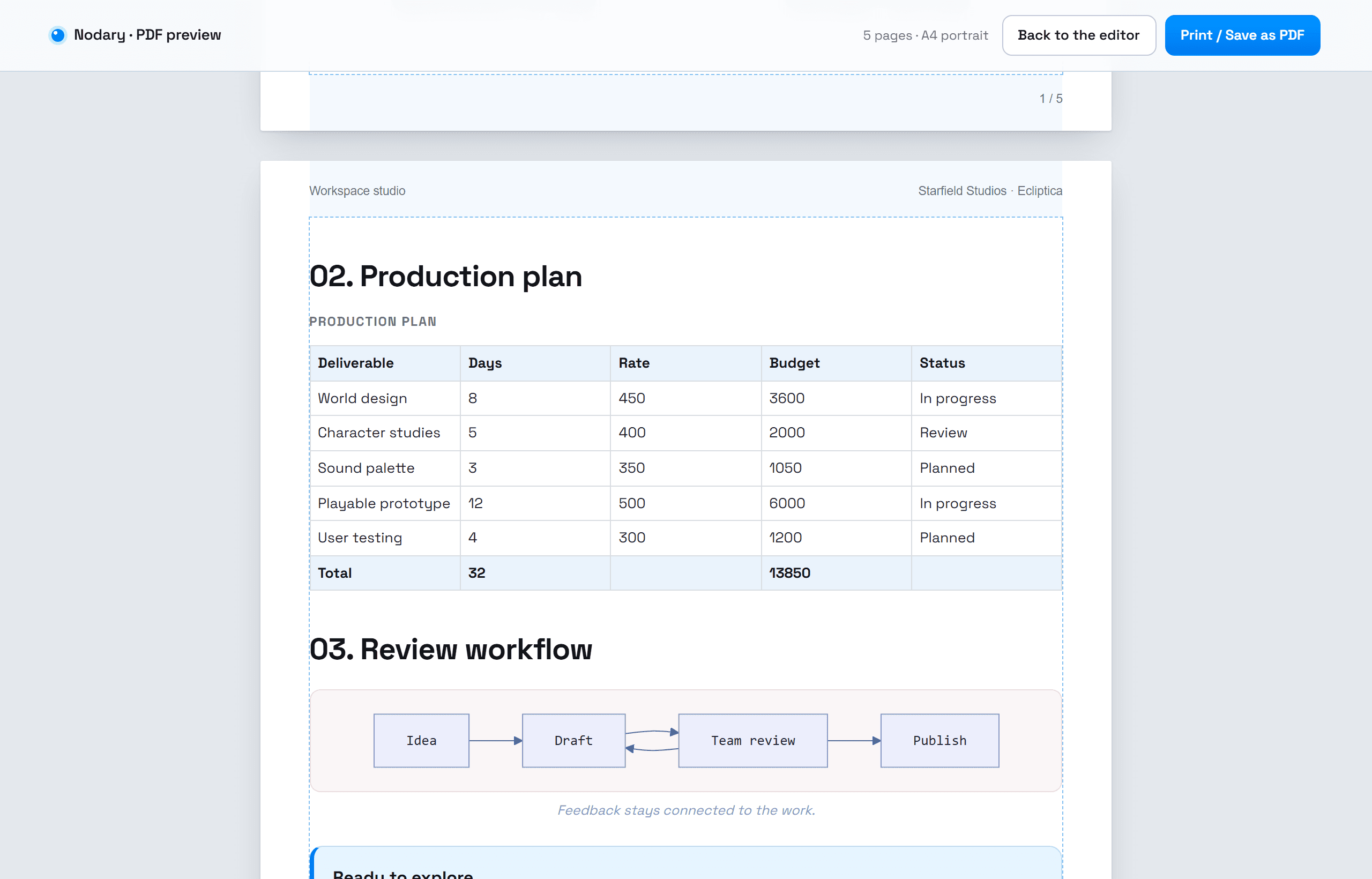
See the real pages before you export.
The PDF preview now shows the actual pages: paper, margins, running headers, page numbers, a contents list with page numbers and section breaks. What you see is what prints.
Read the story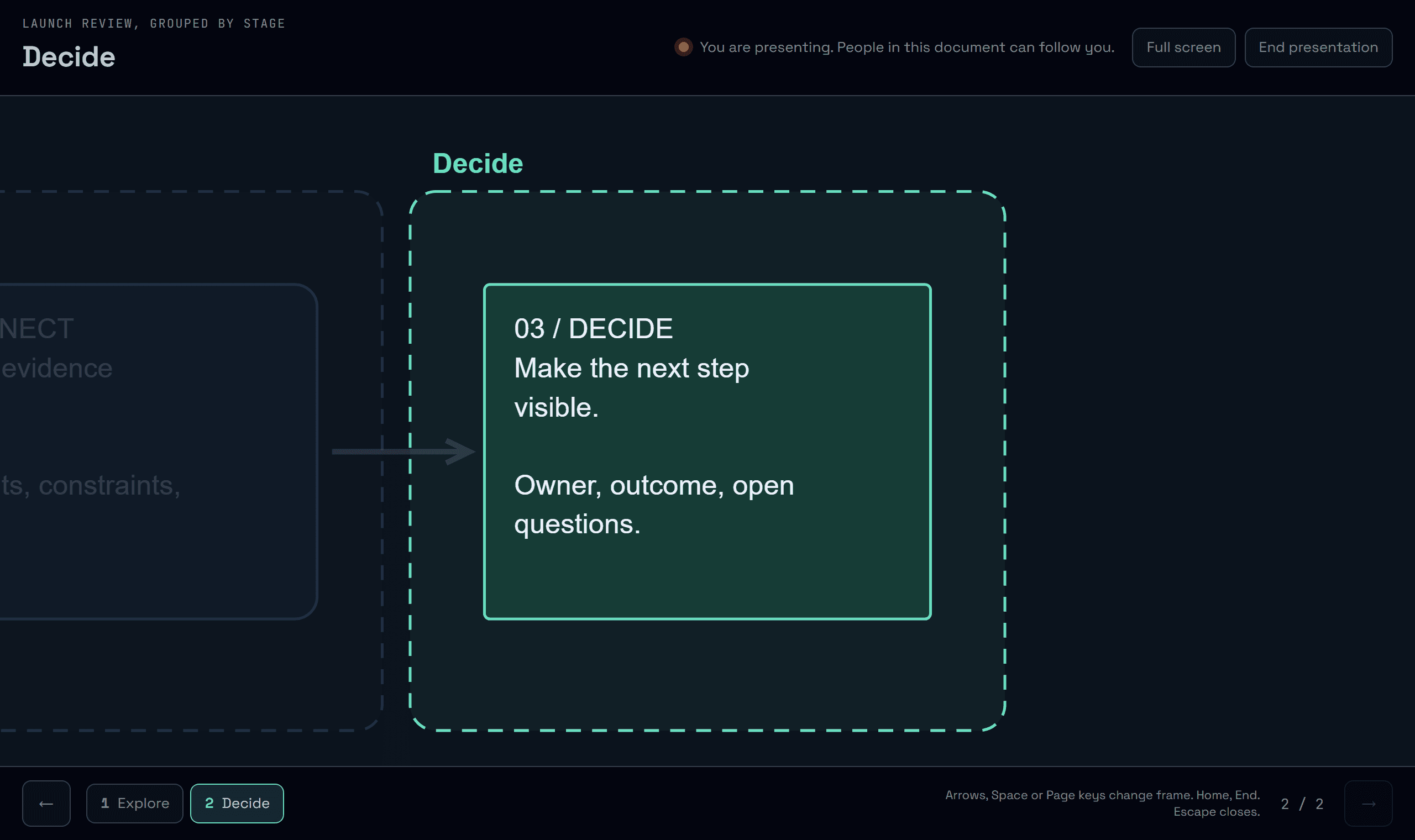
Present a board, frame by frame.
Walk through a board one frame at a time from the keyboard. People in the document can choose to follow you, and step away whenever they like.
Read the story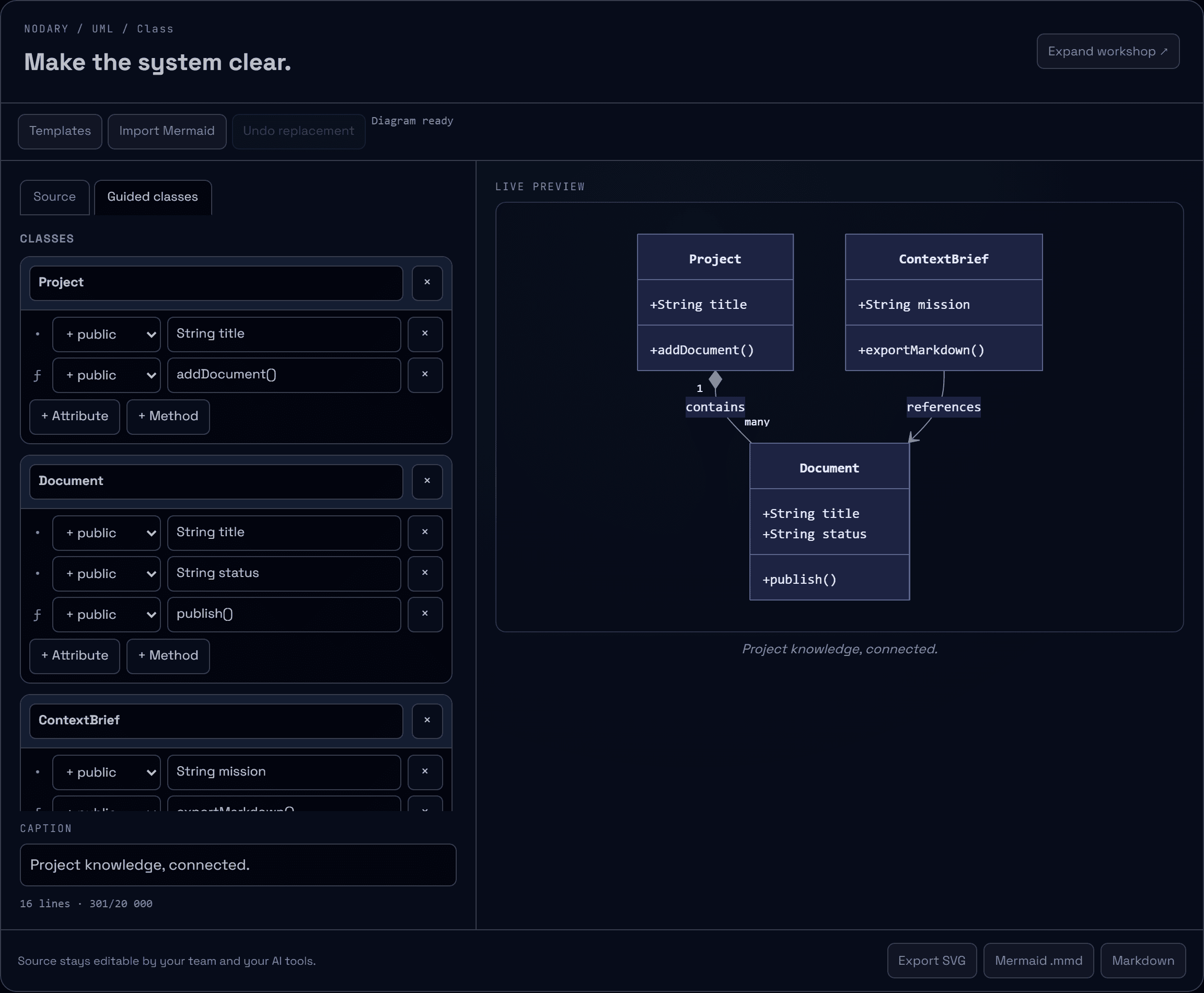
Class diagrams without the syntax.
Edit UML classes, attributes, methods and relations in a form while the Mermaid source stays yours: every line the form does not touch is kept exactly as written.
Read the story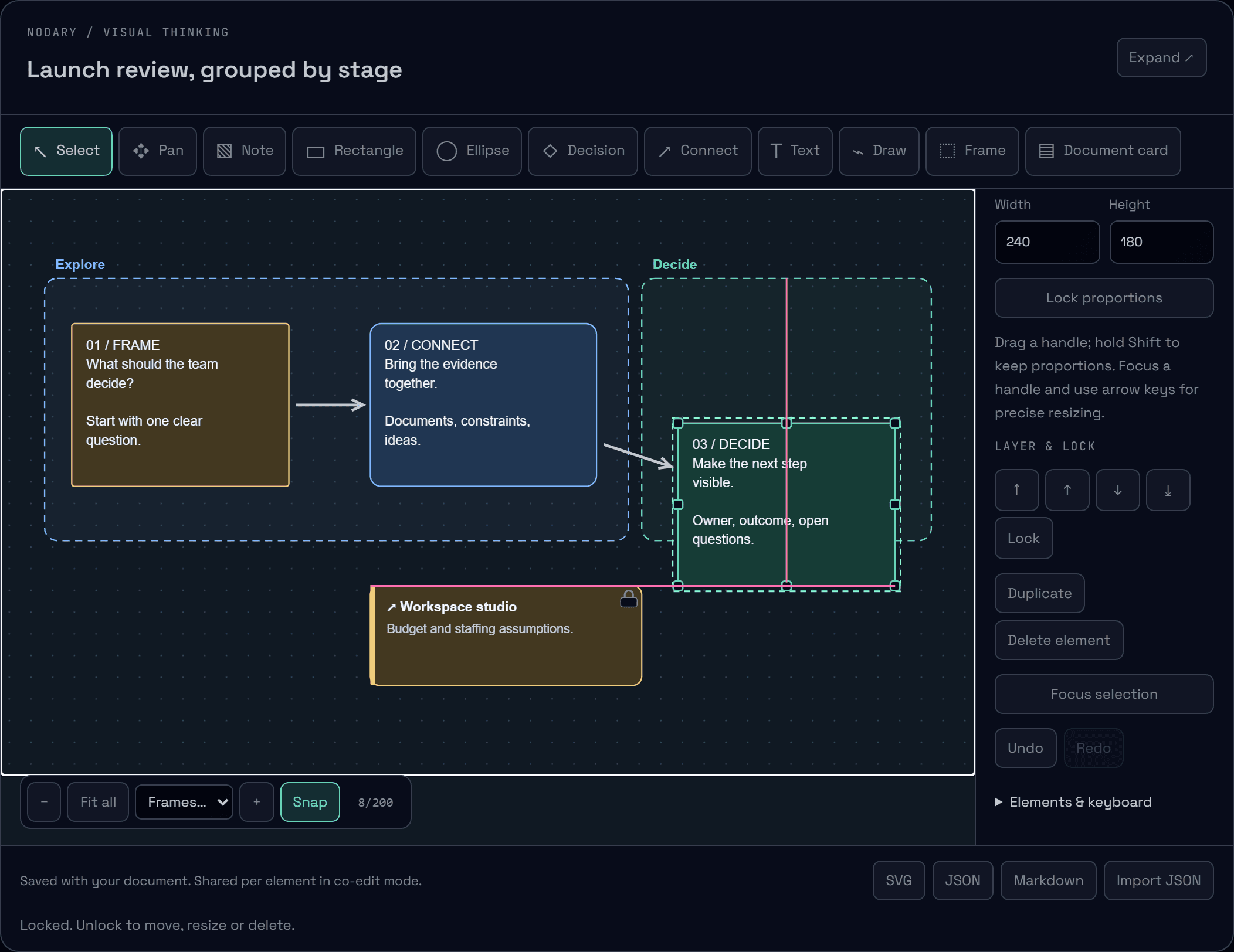
Boards that line up. Pieces that stay put.
Shapes now snap to their neighbors’ edges, centers and spacing while you move them, with visible guides. Lock what must not move and choose what sits in front.
Read the story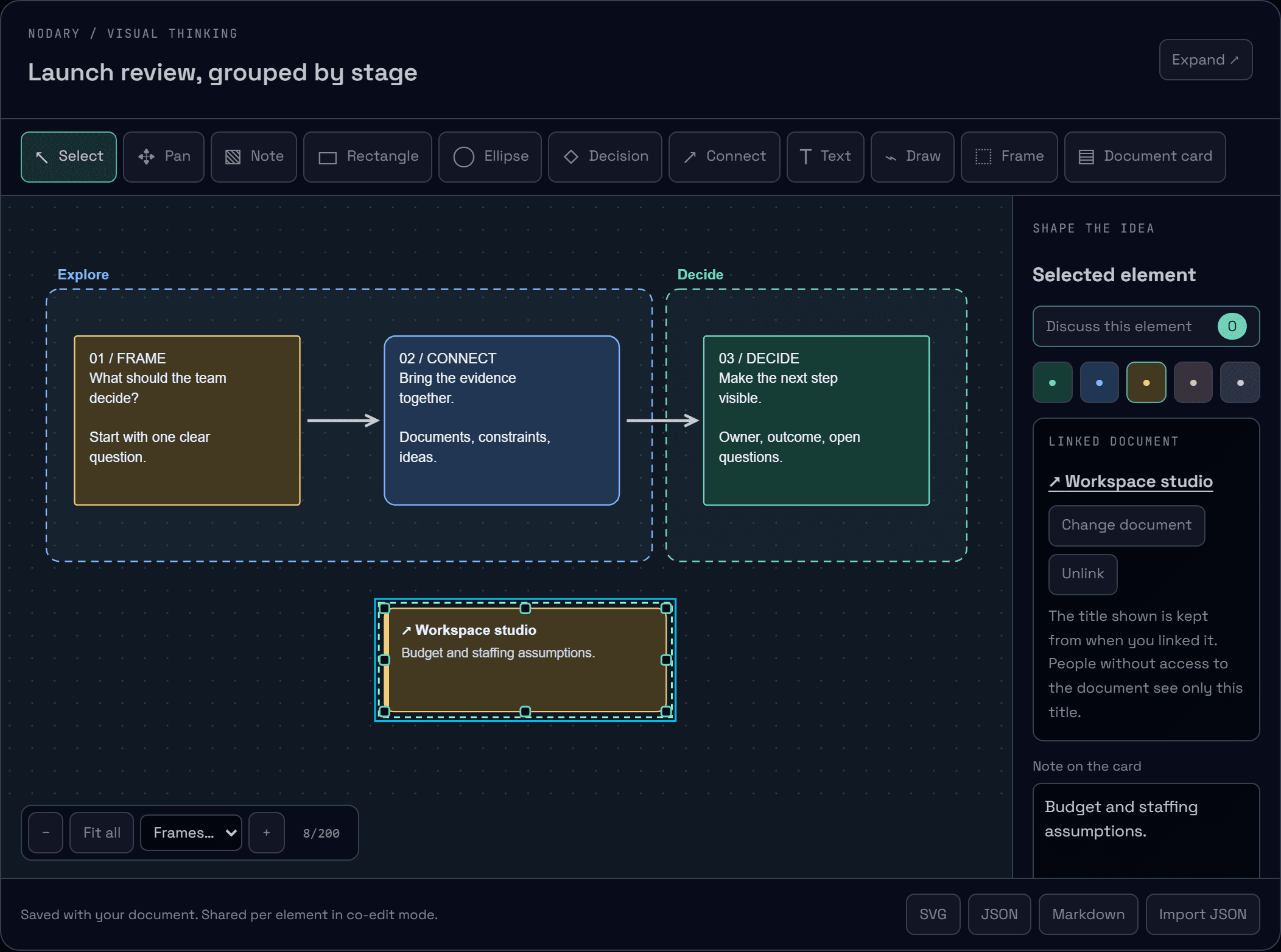
Boards with structure. Ideas with their sources.
Group a board into named frames you can jump to and move as one, and pin document cards that open the source behind an idea.
Read the story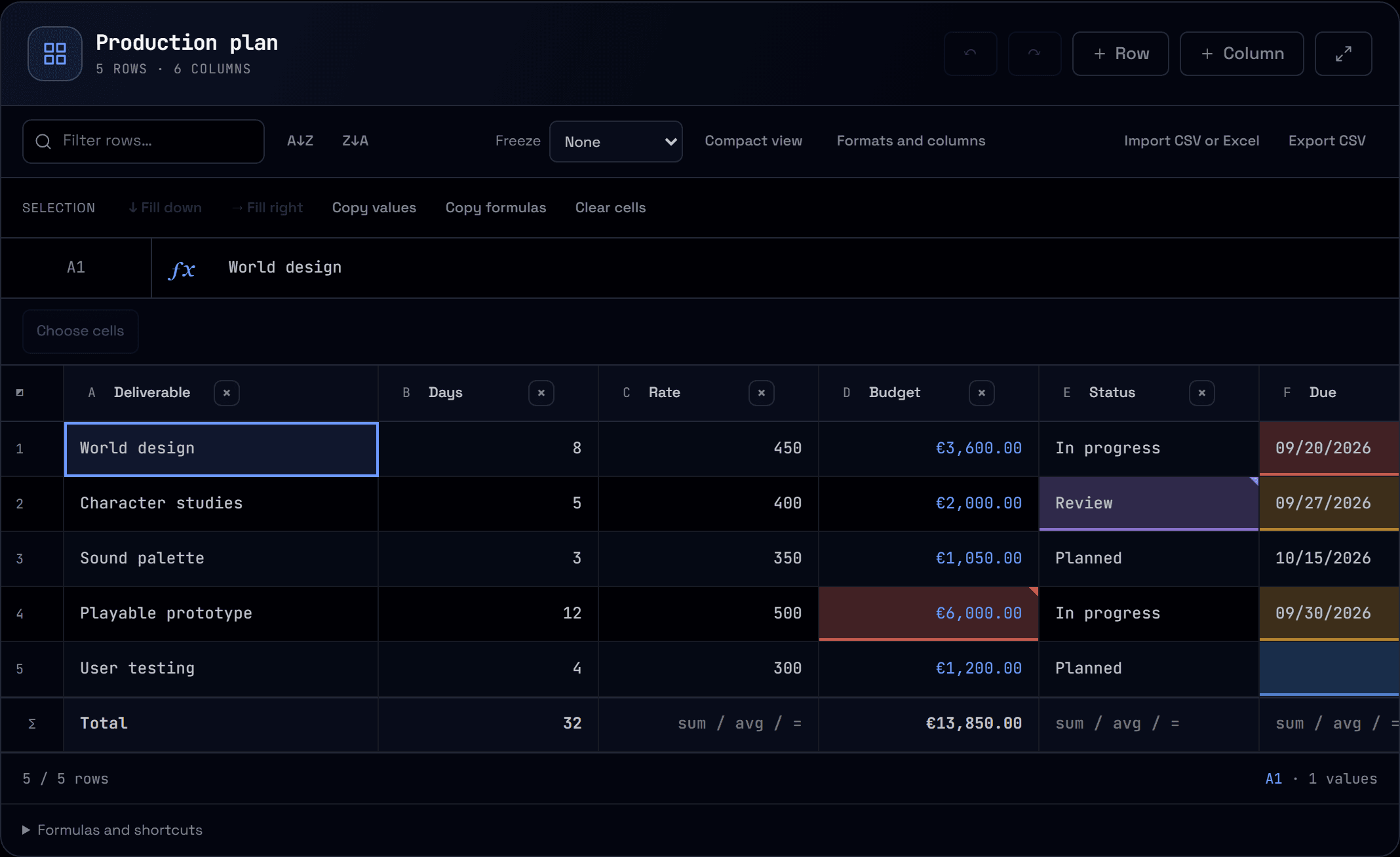
See what needs attention first.
Color past dates, upcoming deadlines, missing values and numbers over a threshold. Rules read calculated values, follow their column and appear in readers and printouts.
Read the story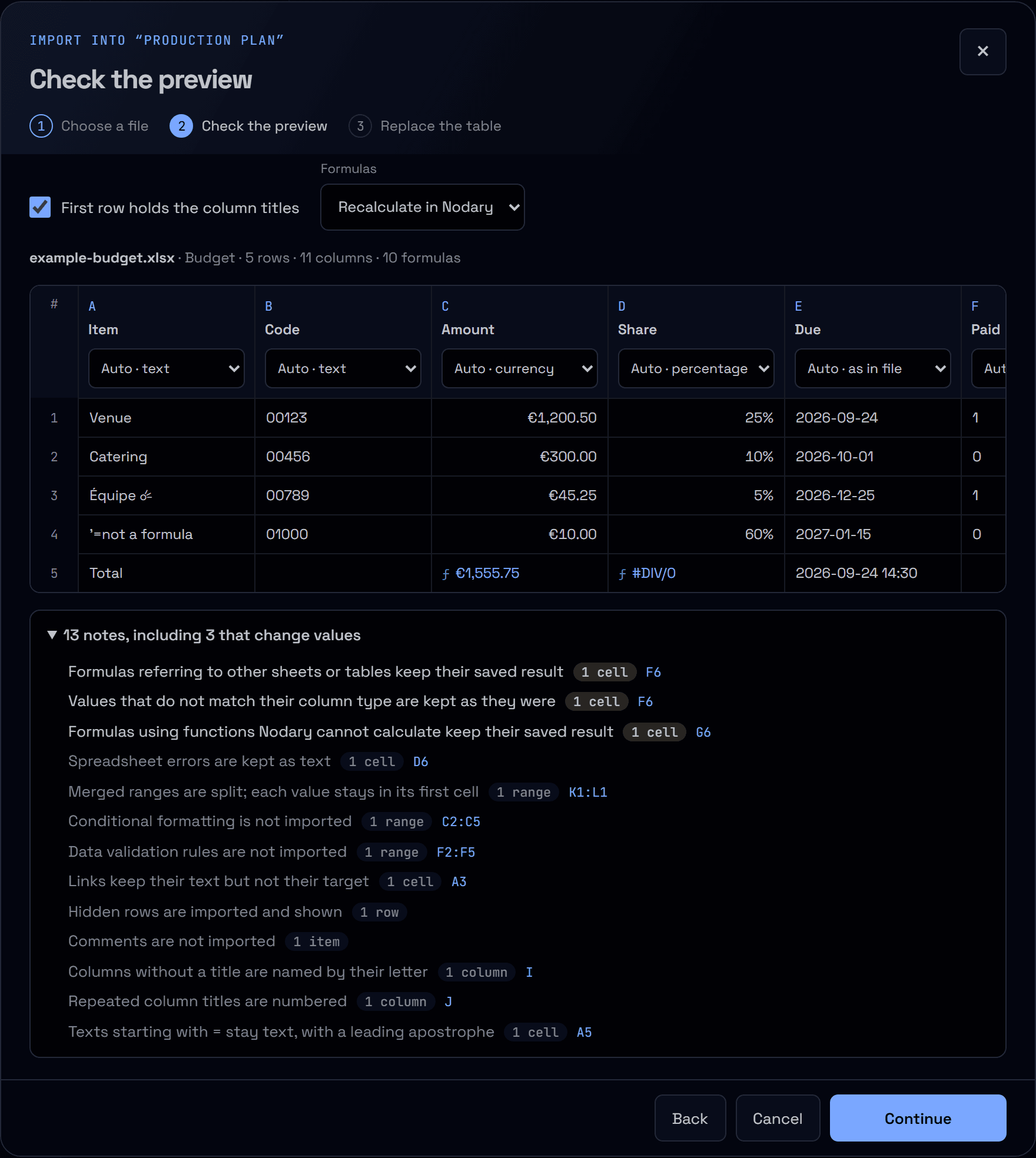
Bring your data in. Keep what matters.
Import a CSV or Excel workbook with a preview first. Choose the sheet, check each column’s type, keep leading zeros and see exactly what cannot come across before anything is replaced.
Read the story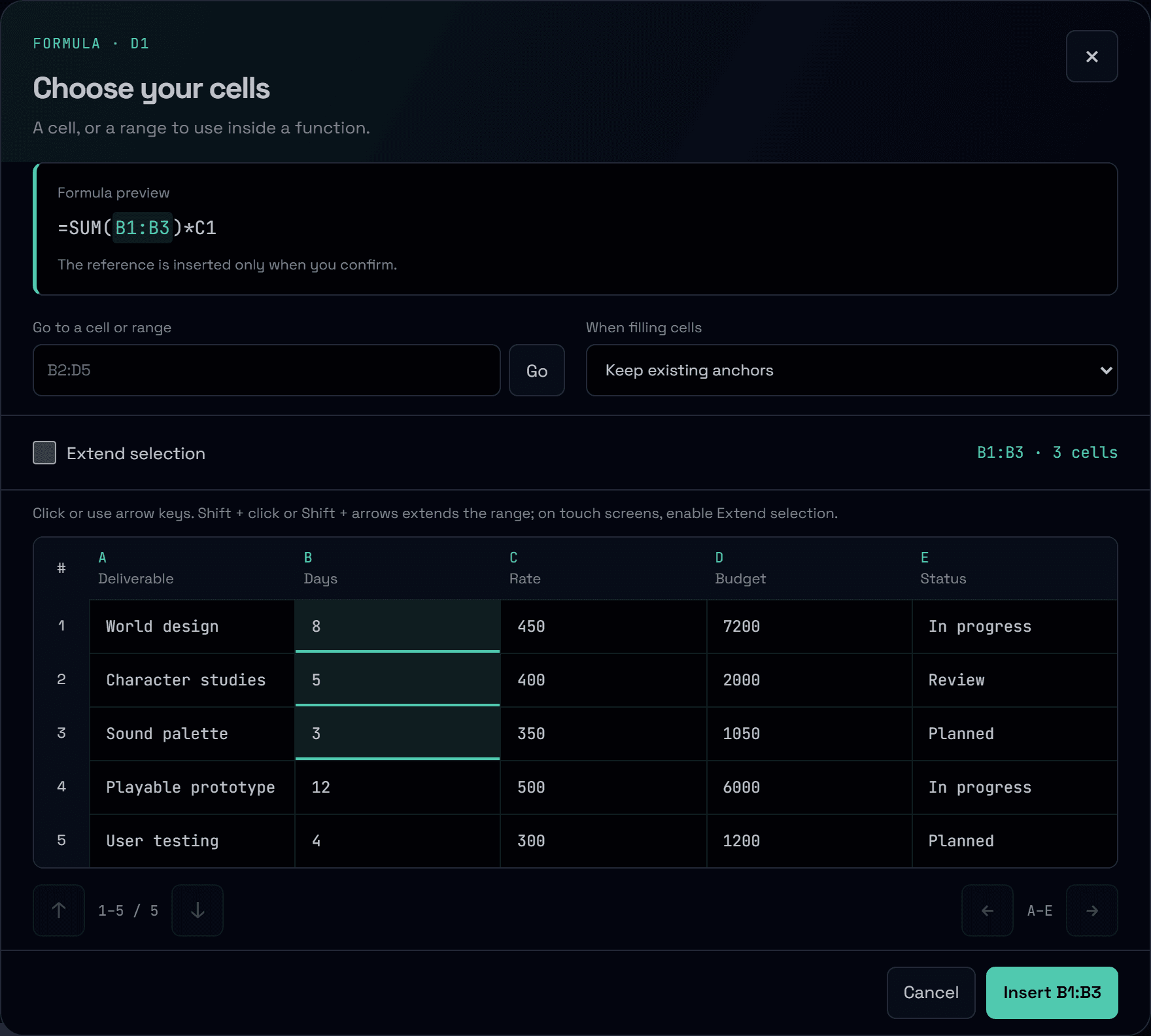
The right cells. A clearer calculation.
Choose the cells behind a formula, preview the reference before inserting it and turn an error code into a useful explanation. Build calculations with your data in view.
Read the story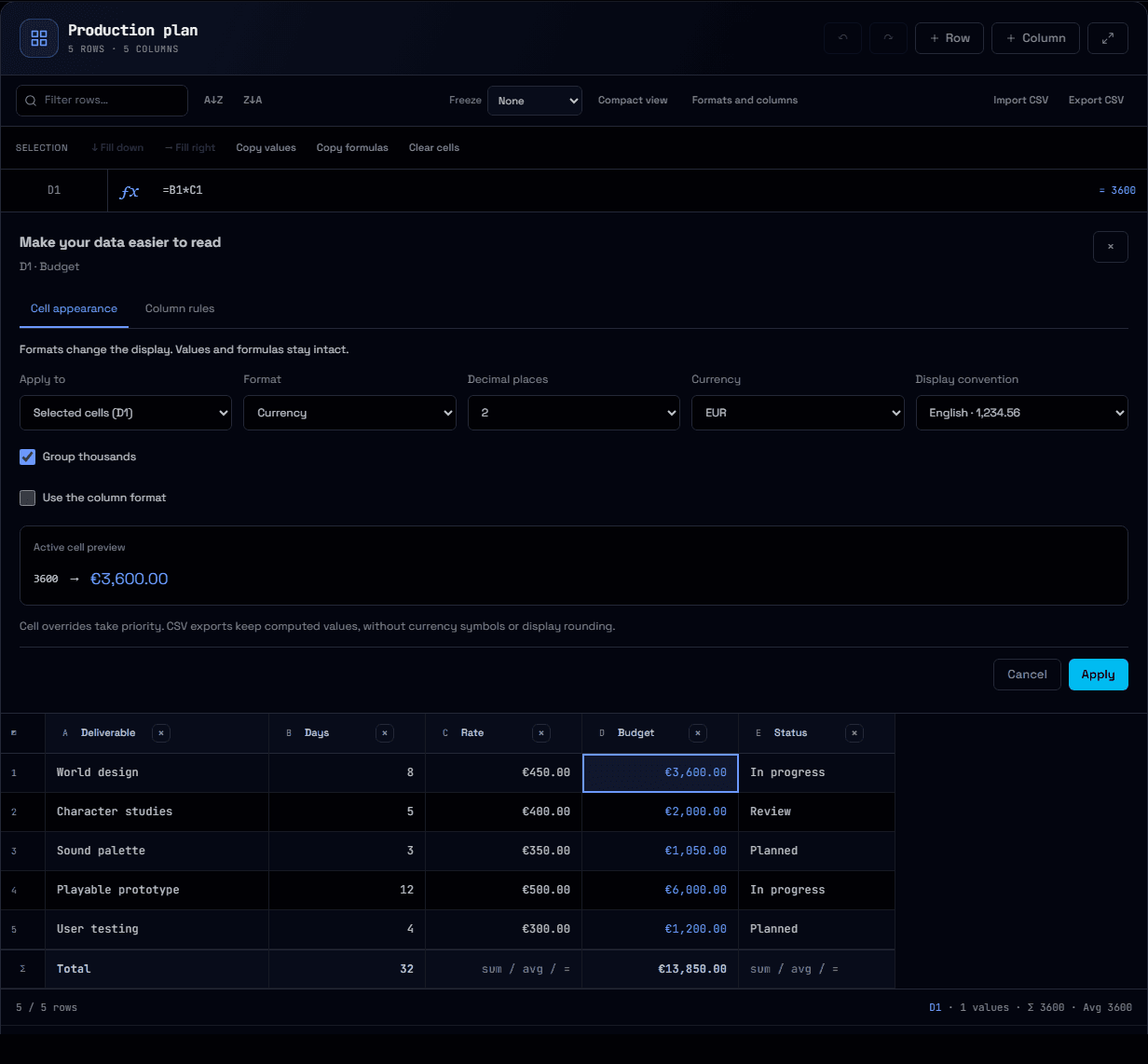
Clear numbers. Useful choices.
Give budgets their currency, ratios their percentages and statuses a choice list. Preview formats, guide input and review unexpected values while keeping your formulas and original data.
Read the story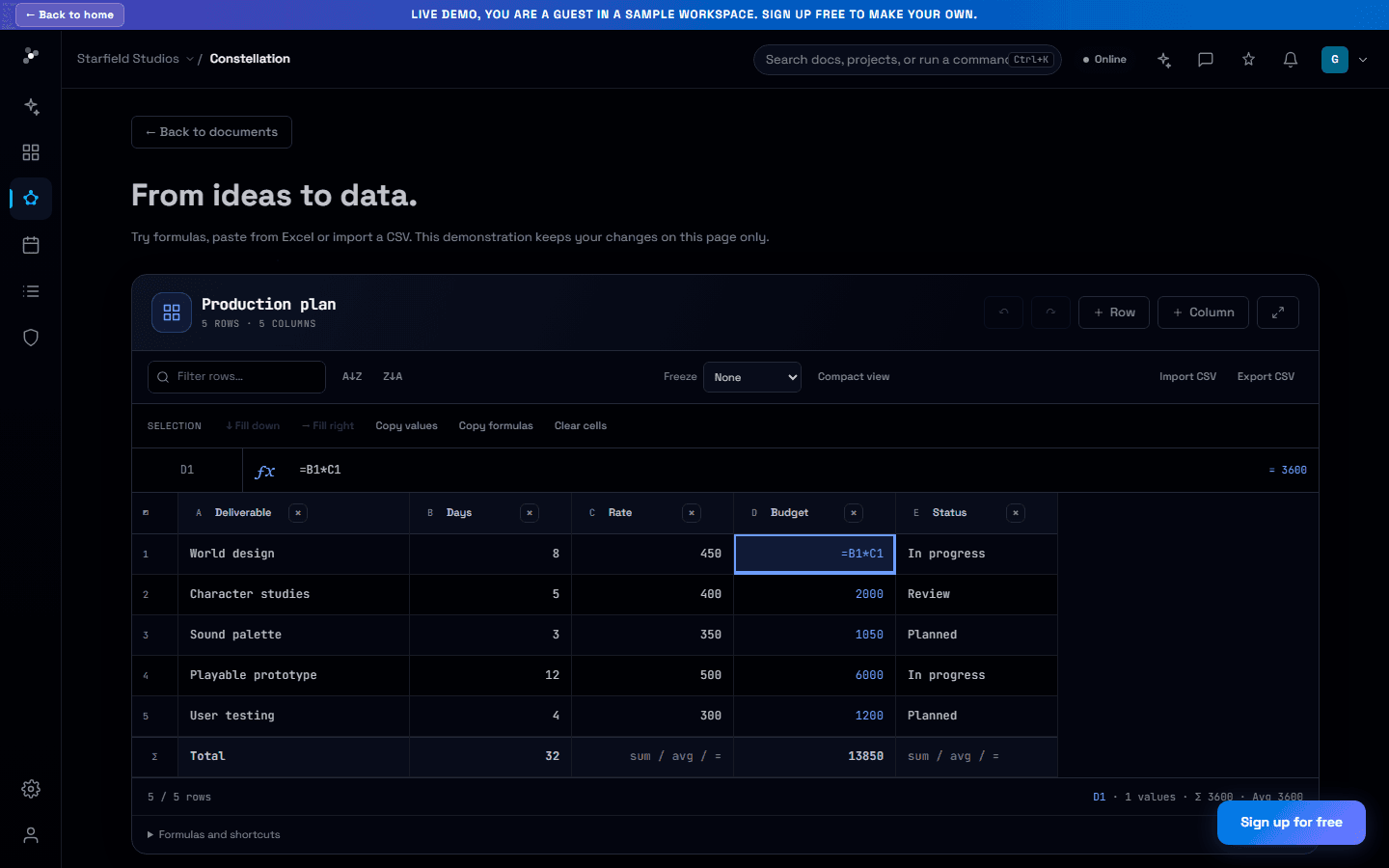
One spreadsheet. Room for everyone’s changes.
Update a budget while a teammate adds a note. Changes to different cells now combine, and surviving rows keep their identity when the sheet changes around them.
Read the story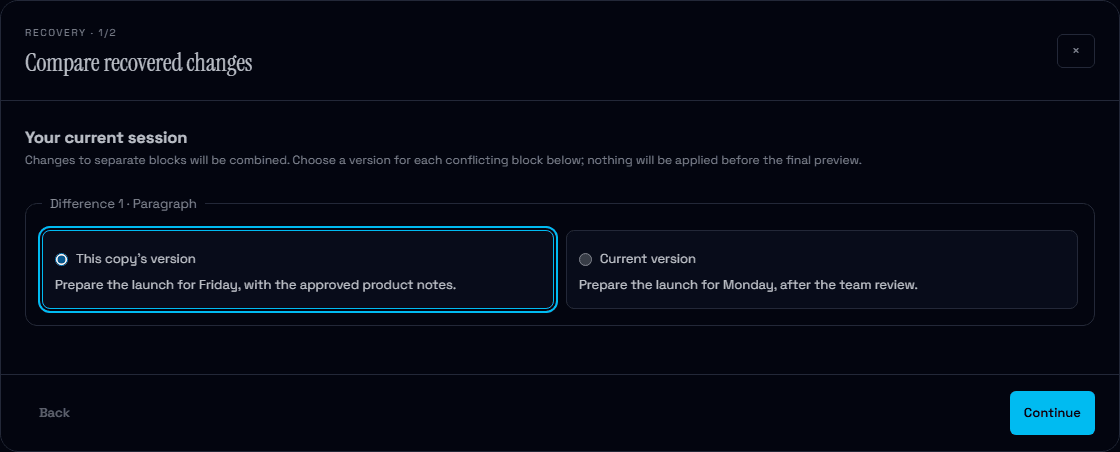
Your work stays within reach.
See what is saved online, keep a local copy when the connection drops and compare recovered changes before applying them. Clearer saving, with more control when two versions meet.
Read the story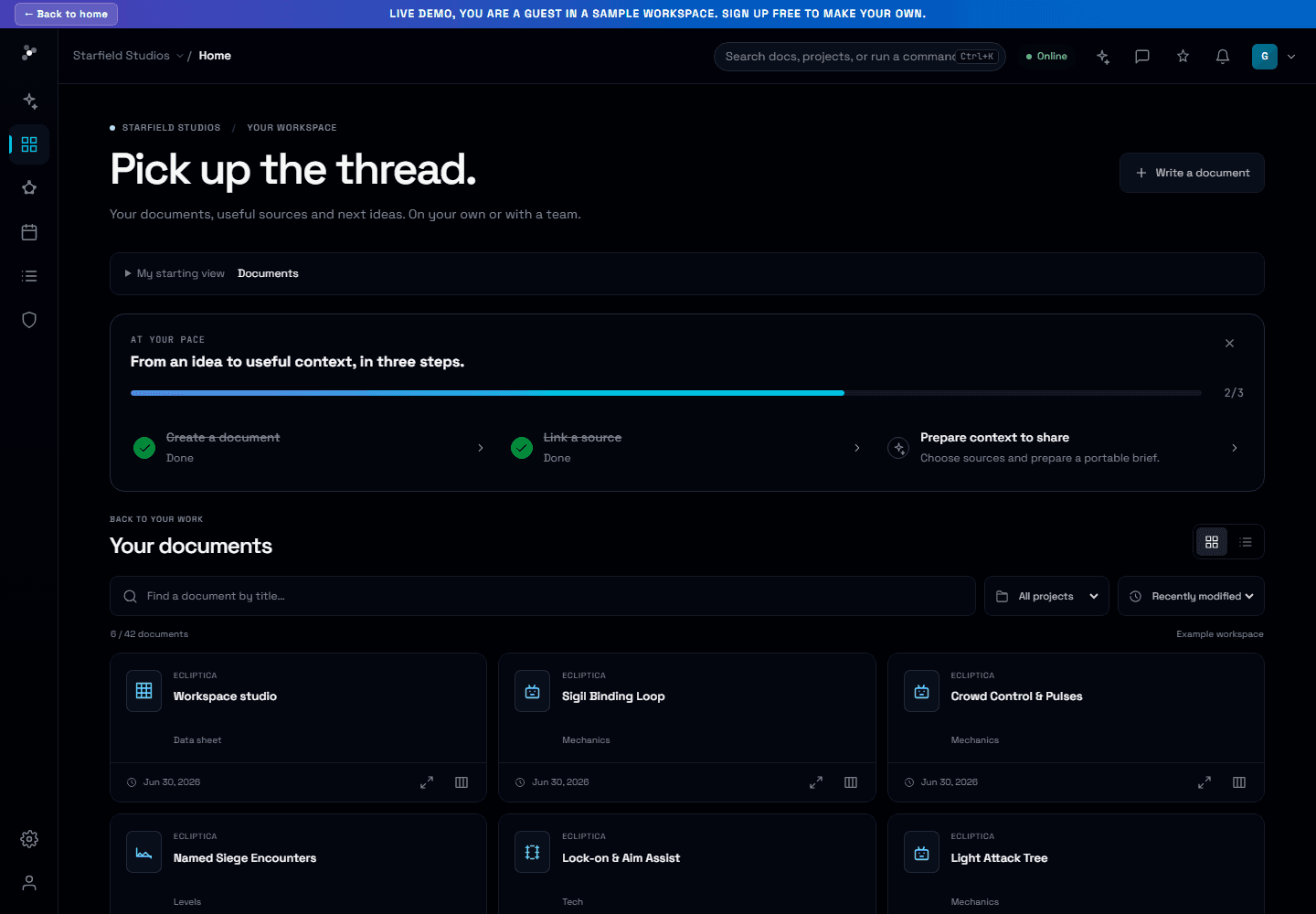
An idea is enough to begin.
Write your first document without setting up a project. Follow three practical steps, choose your starting view and use new missions for travel, studies, job searches and creative work.
Read the story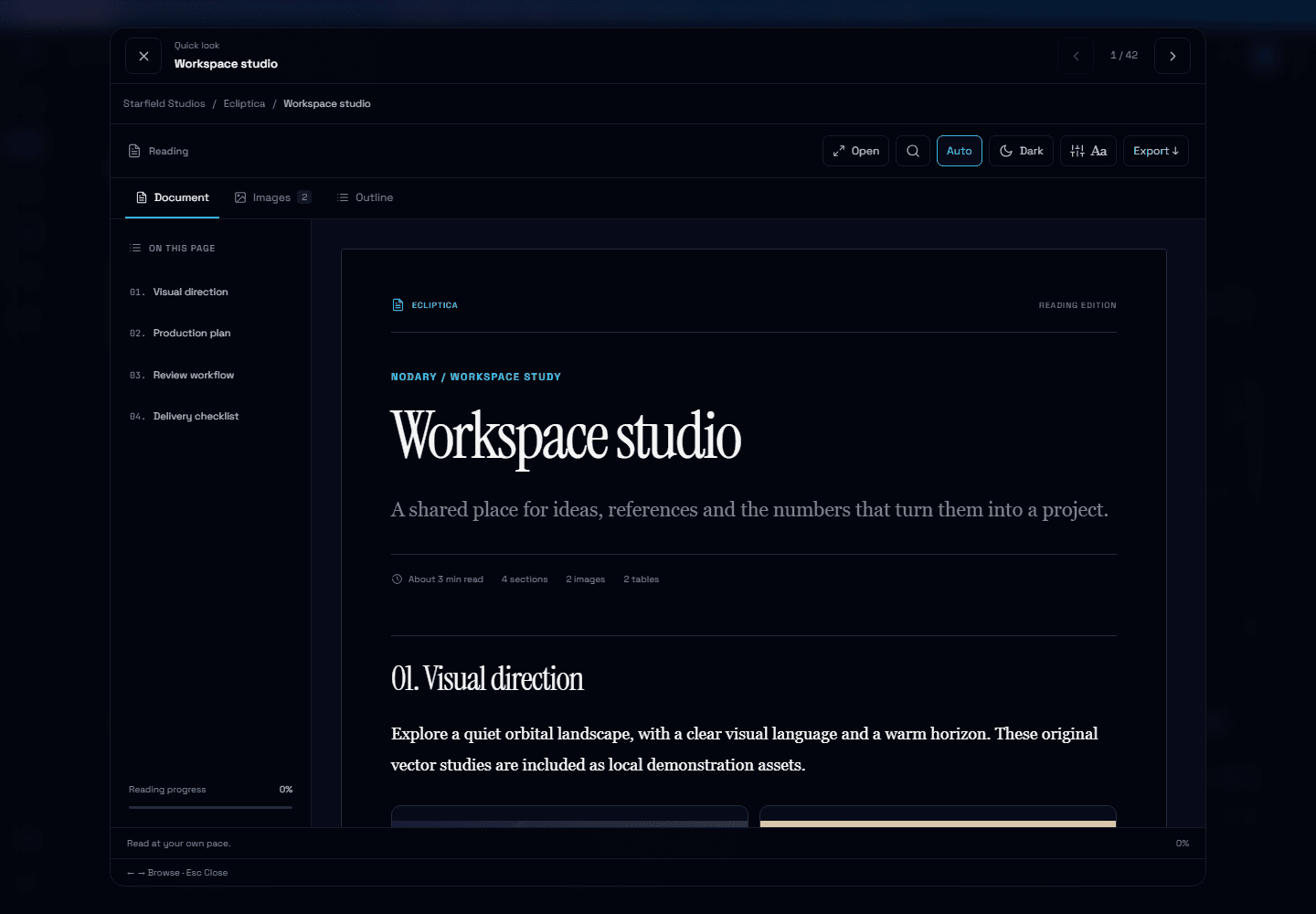
Back to the passage. On to the next idea.
Preview documents from home, browse with the arrow keys and return to your reading position. A clear document path keeps the project and its folders within reach.
Read the story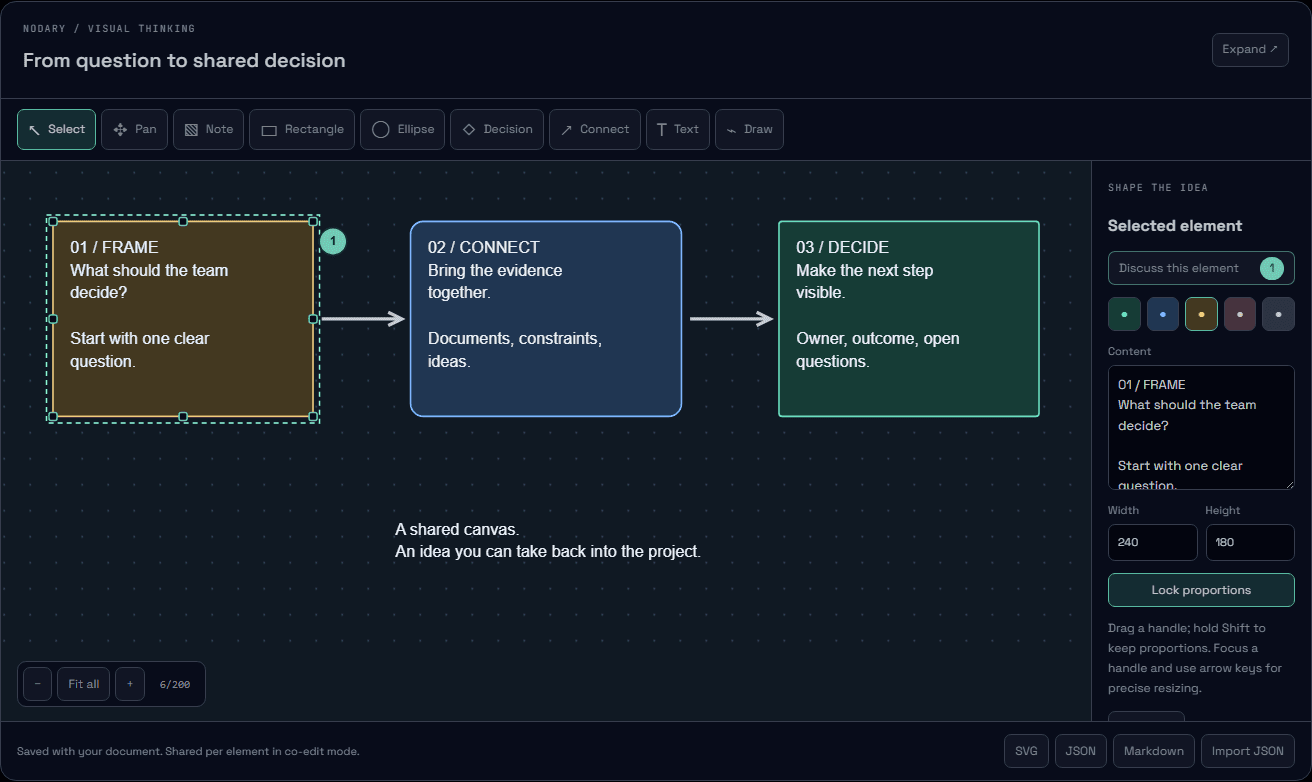
Keep feedback close to the idea.
Resize a shape directly, discuss the decision it represents and return to the right element from its thread. Board feedback now stays attached as your ideas move.
Read the story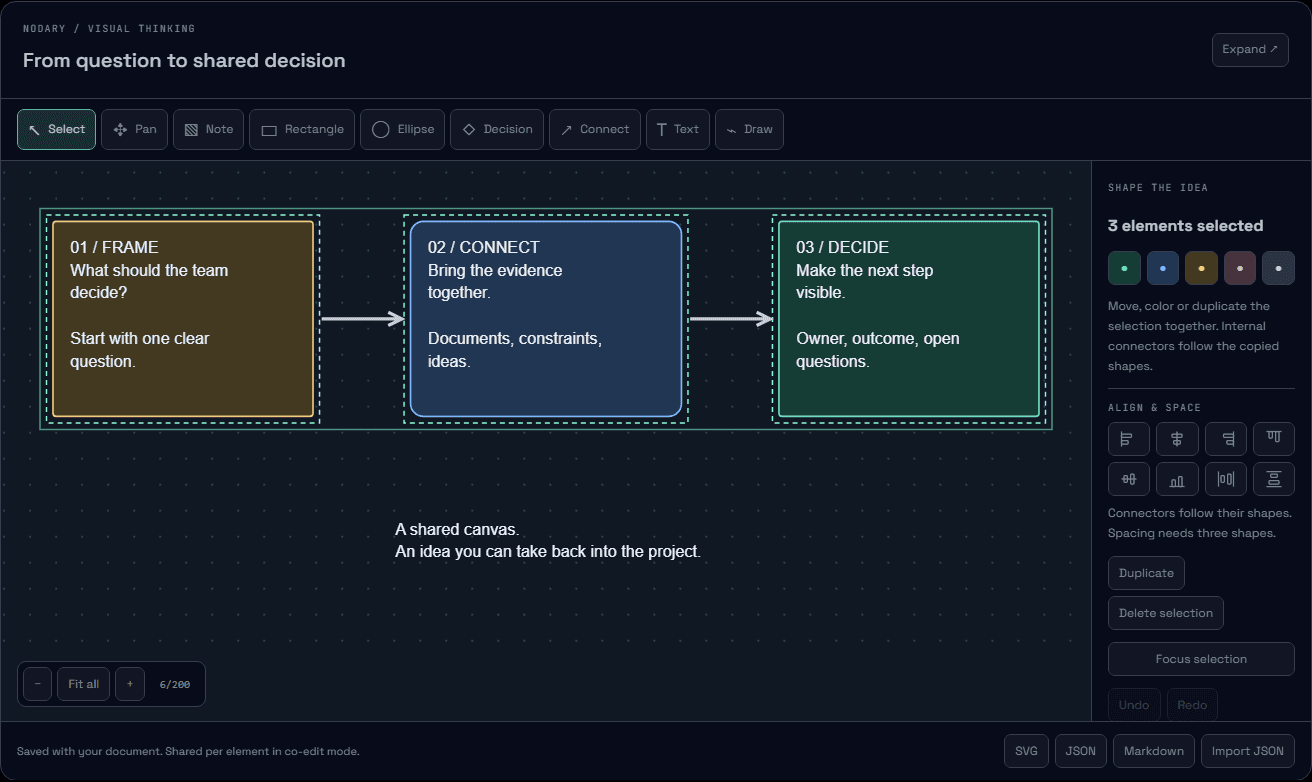
Shape the whole idea together.
Select a set of notes, move a connected flow and give every idea its space. Boards now offer group editing, alignment and duplication that keeps internal connections intact.
Read the story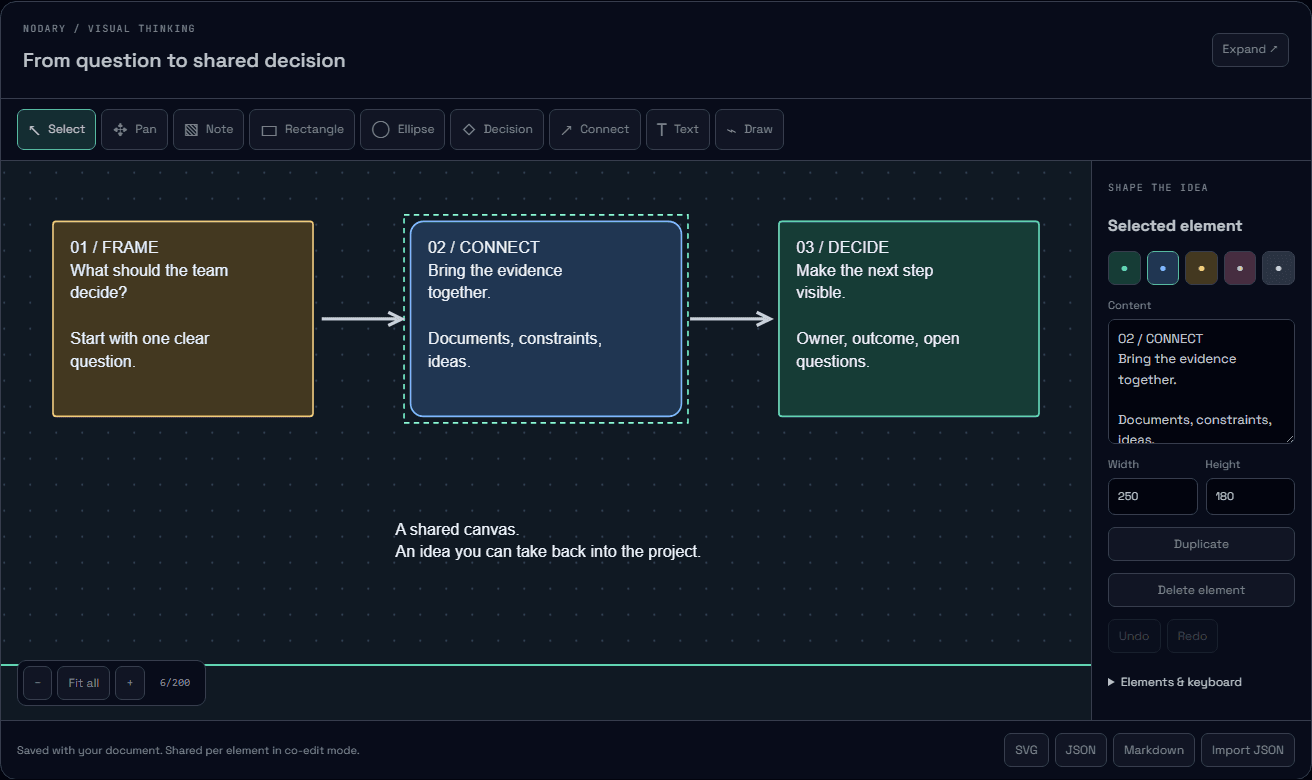
Give the idea shape. Keep the context.
Sketch on a board inside your documents, connect decisions and explain systems with a new UML workshop. Keep the source editable and take your work with you.
Read the story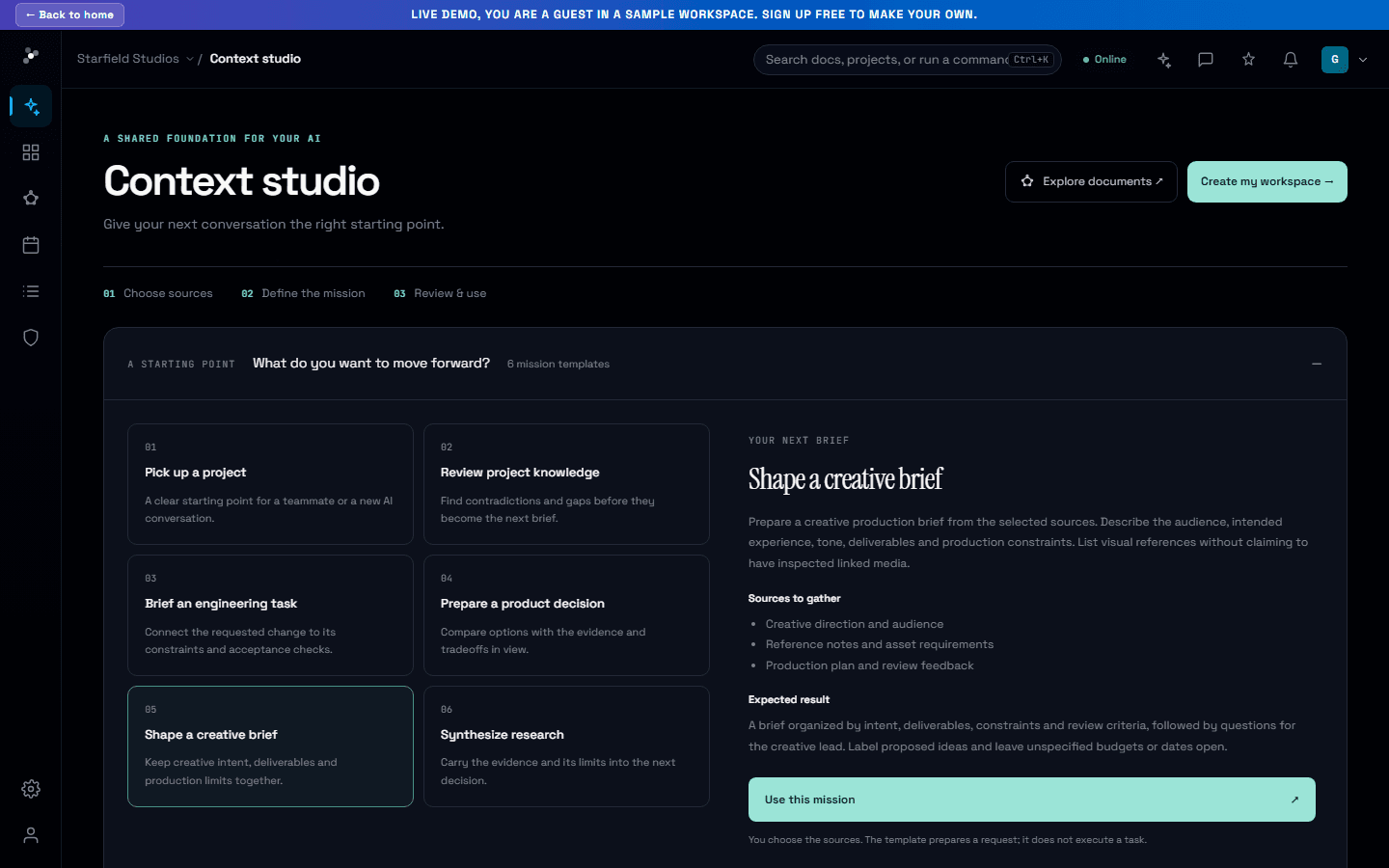
Good context starts with a clear mission.
Six mission templates turn a project task into a useful starting brief. Choose the work, gather the sources and shape the result you want from your next AI conversation.
Read the story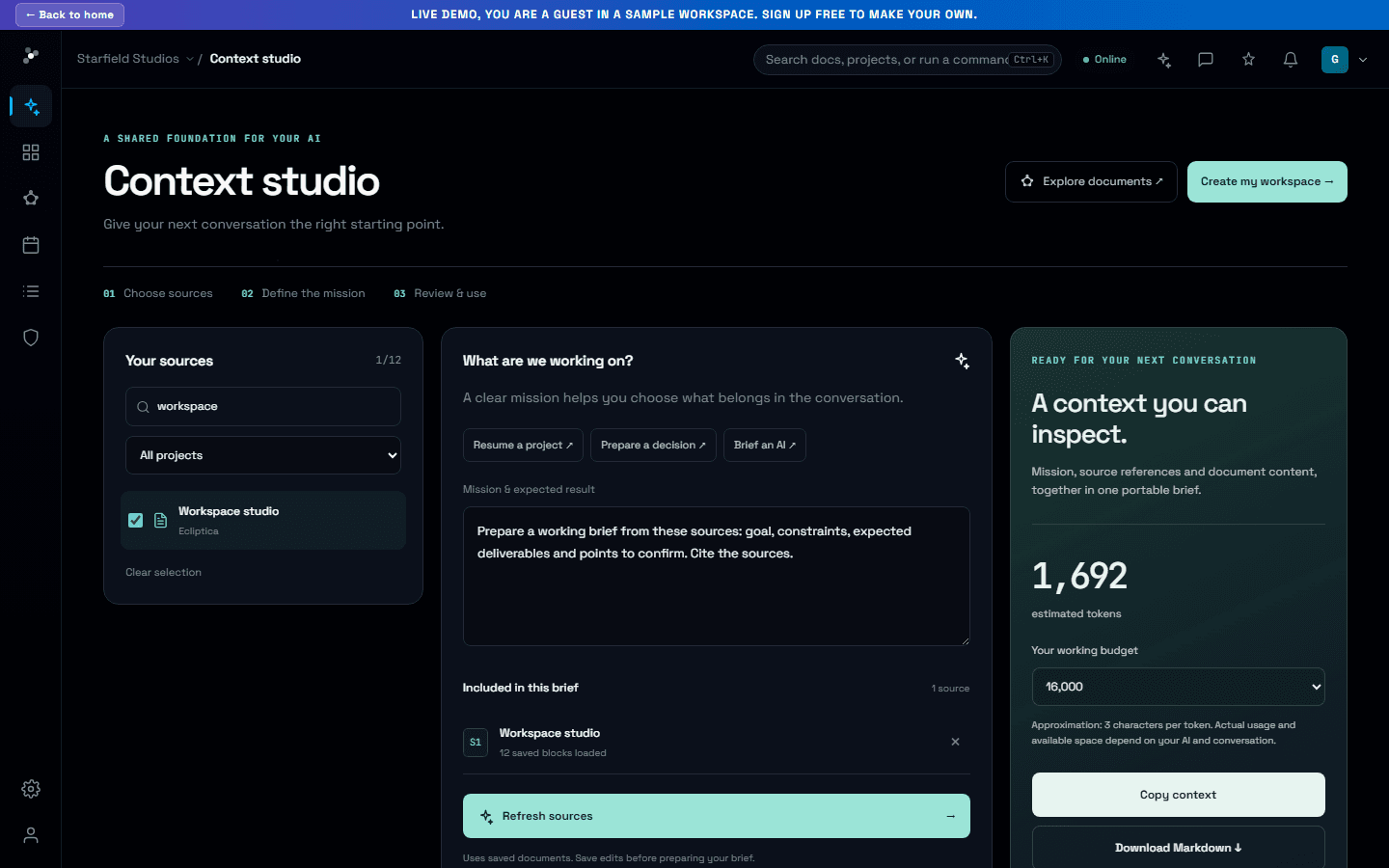
Your next project starts with the right context.
Six practical guides connect your team’s work to Nodary: from creative briefs and product decisions to research handoffs and authenticated MCP access. Read, explore and take the guide with you in Markdown.
Read the story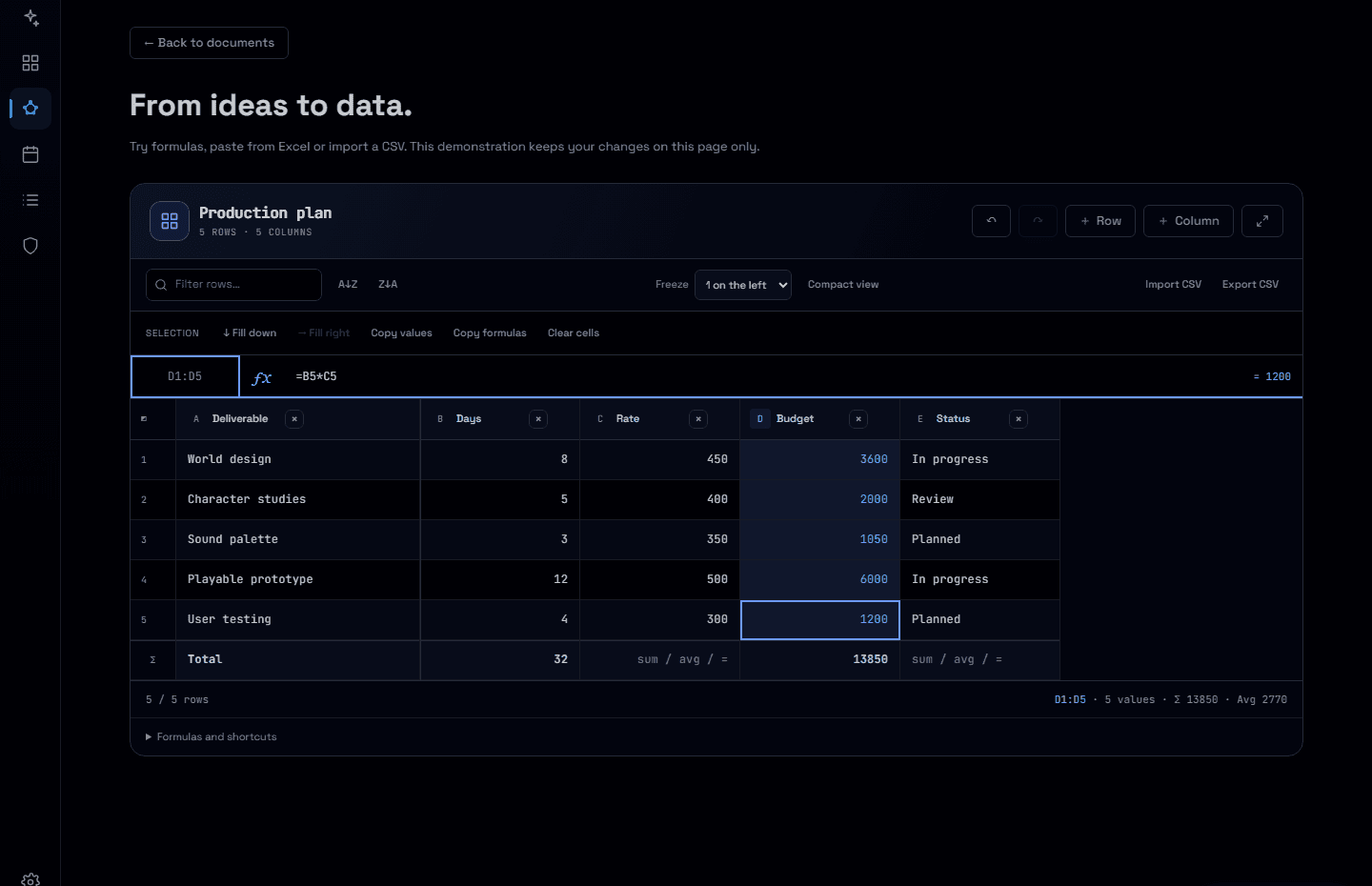
More room to work with your numbers.
Resize and freeze columns, act on visible ranges and build formulas with examples. Your project spreadsheets get a clearer workspace, from the first cell to the final CSV.
Read the story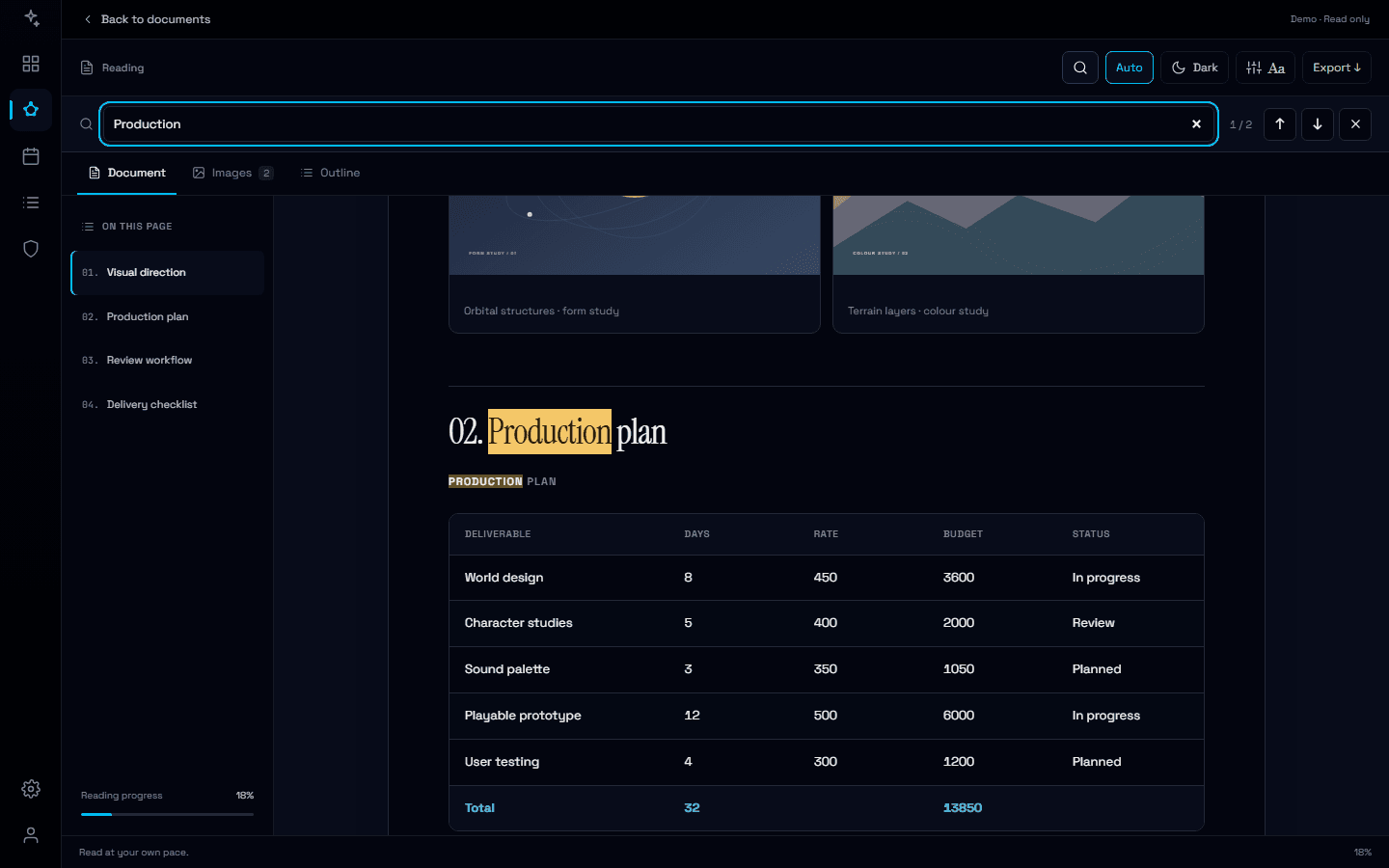
Find the detail. Keep the context.
Search inside a document, follow highlighted matches and jump straight to the right passage or table row, even from a quick preview.
Read the story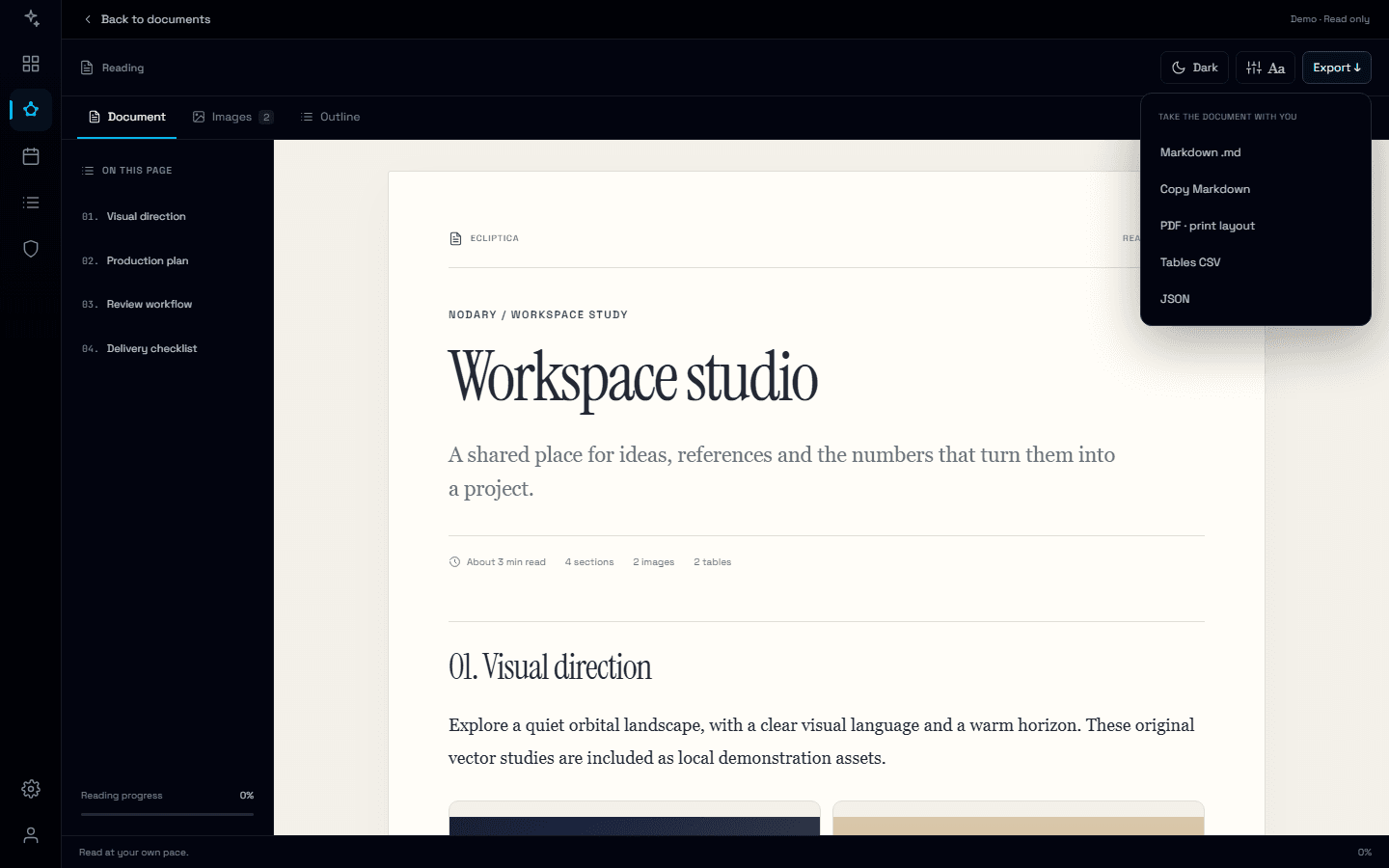
Shared edits. Ready to read, ready to use.
Collaborative saves now commit the merged document and its readable content together, keeping saved sources consistent for reading, exports and AI context.
Read the story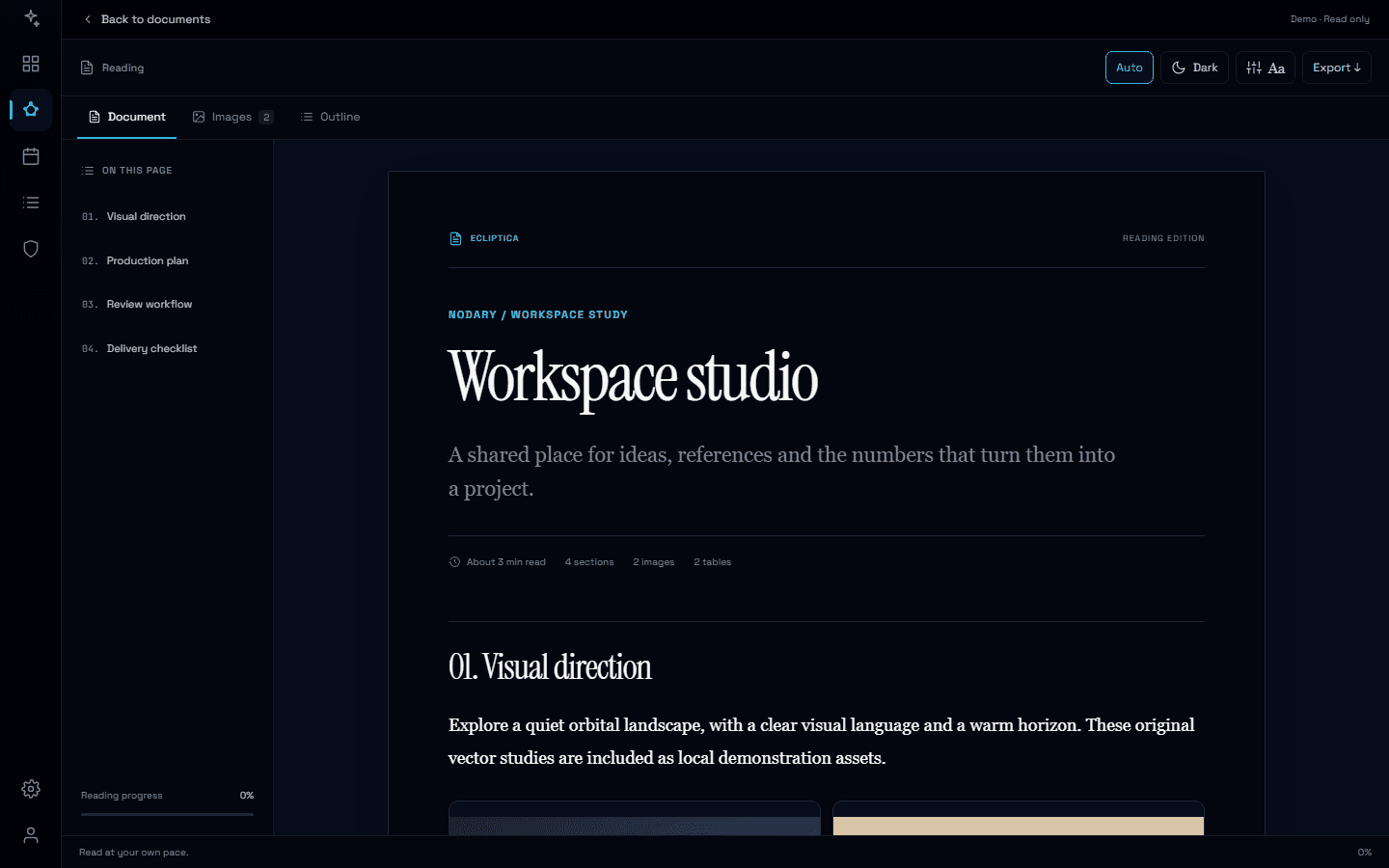
A little less interface. A lot more document.
Meet the new reading experience: thoughtful typography, a visual library, complete exports and a dark mode that is yours to choose.
Read the story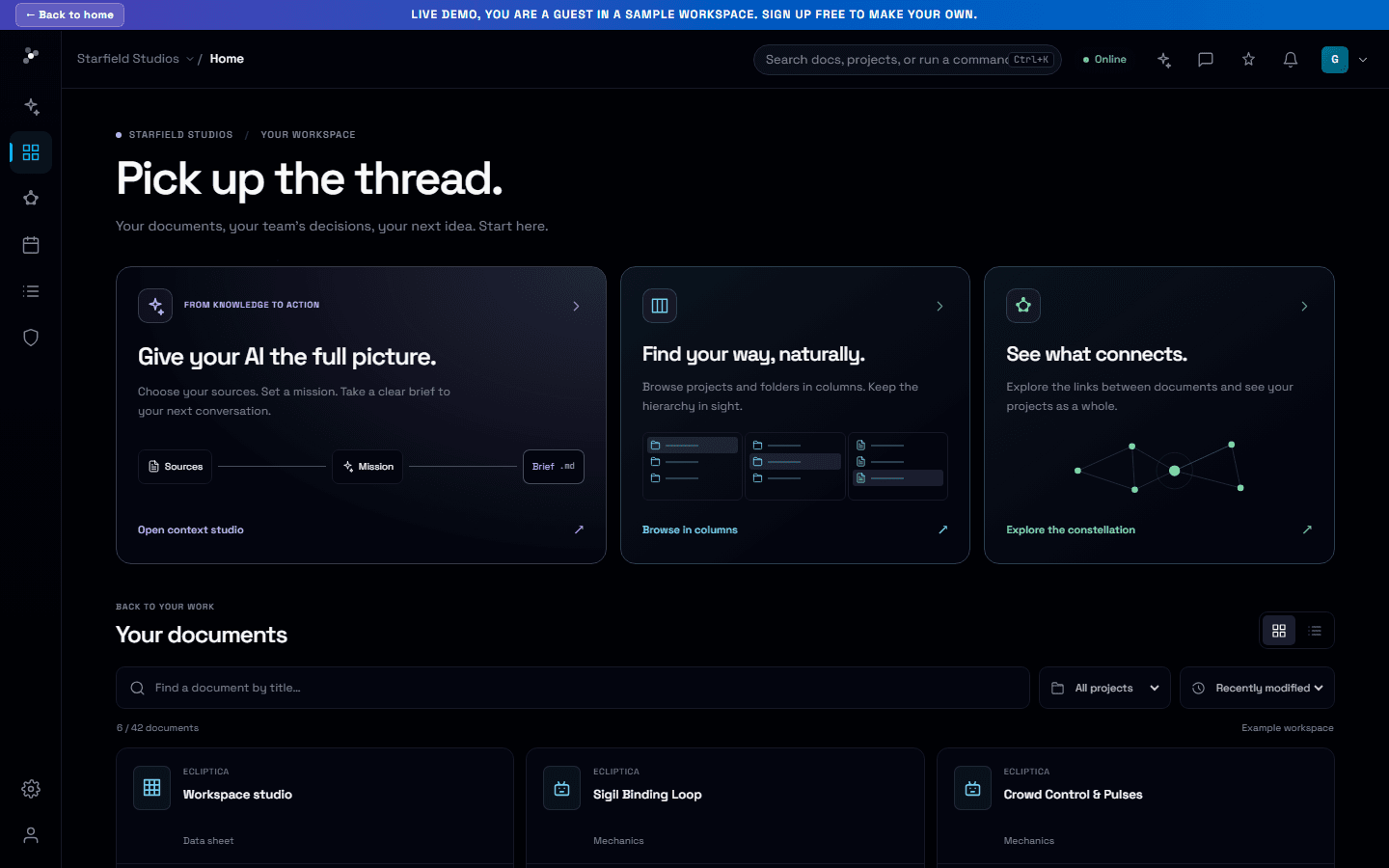
Your work, one step closer.
A new home puts documents within reach, with search, project filters and direct paths into your project’s context.
Read the story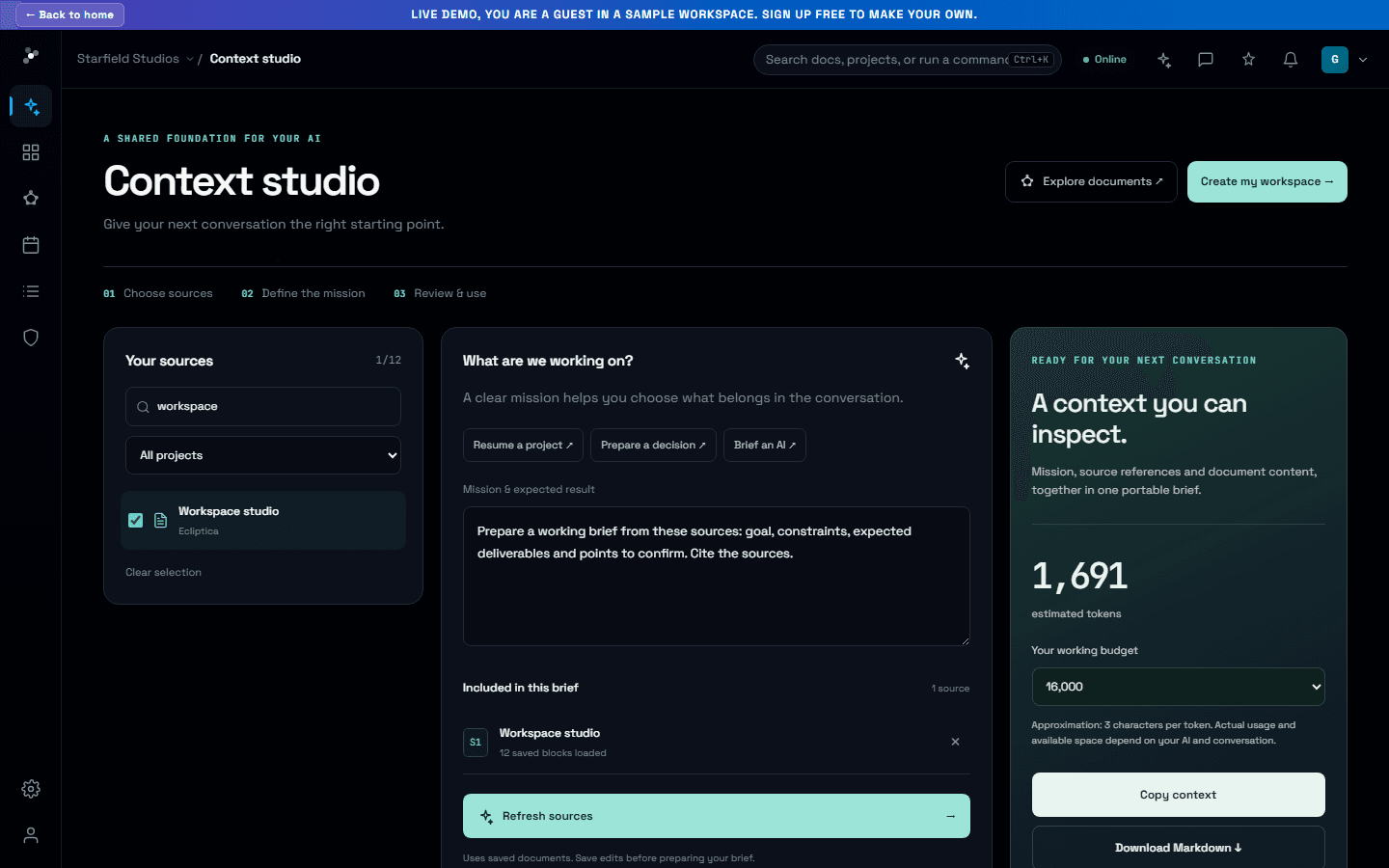
A better starting point for your next AI conversation.
Choose the project sources that matter, write the mission and prepare a portable context brief with references you can check.
Read the story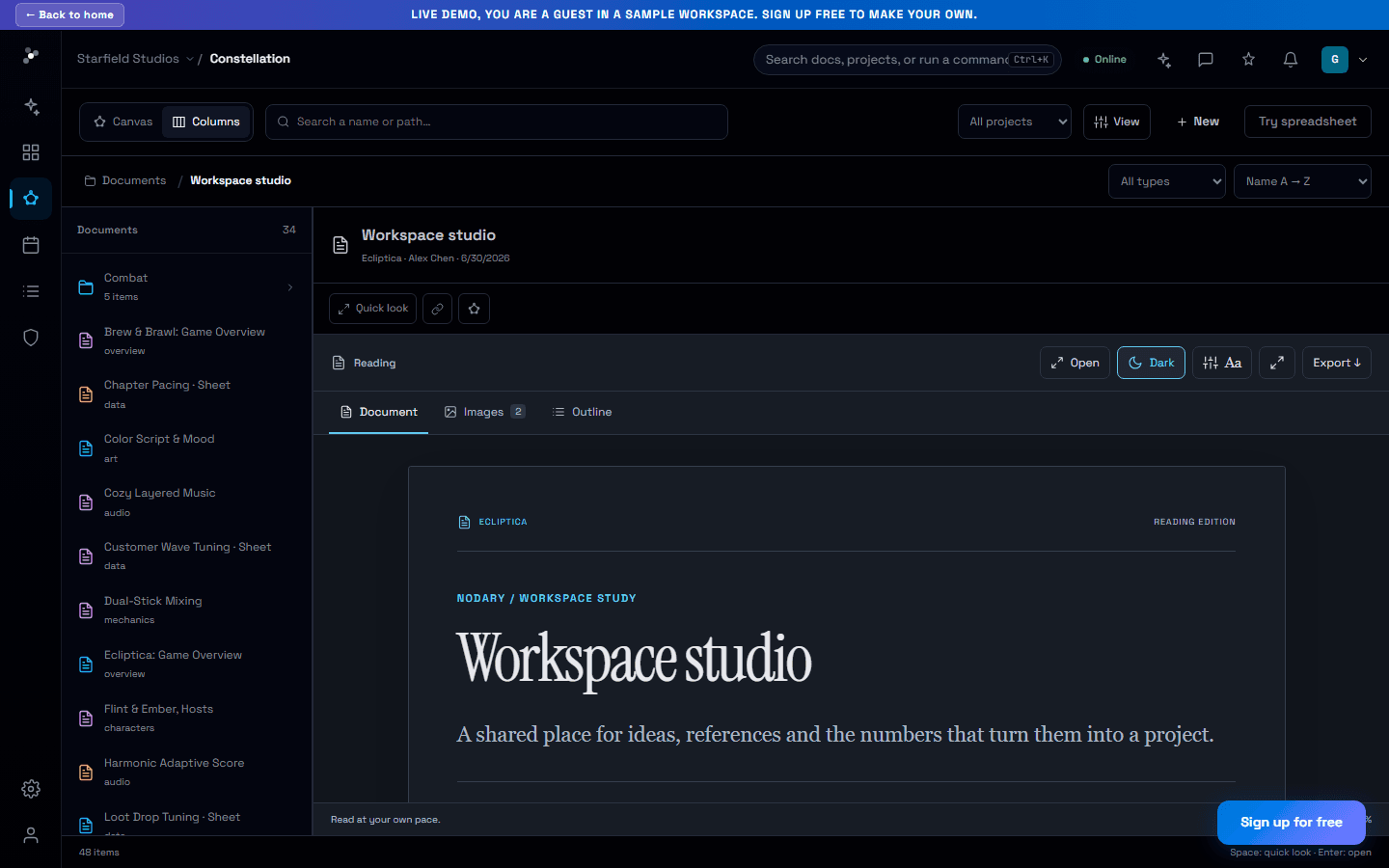
See the connections. Follow the path.
Explore the same constellation through a familiar column browser, with nested folders, quick previews and a clear route back to the map.
Read the story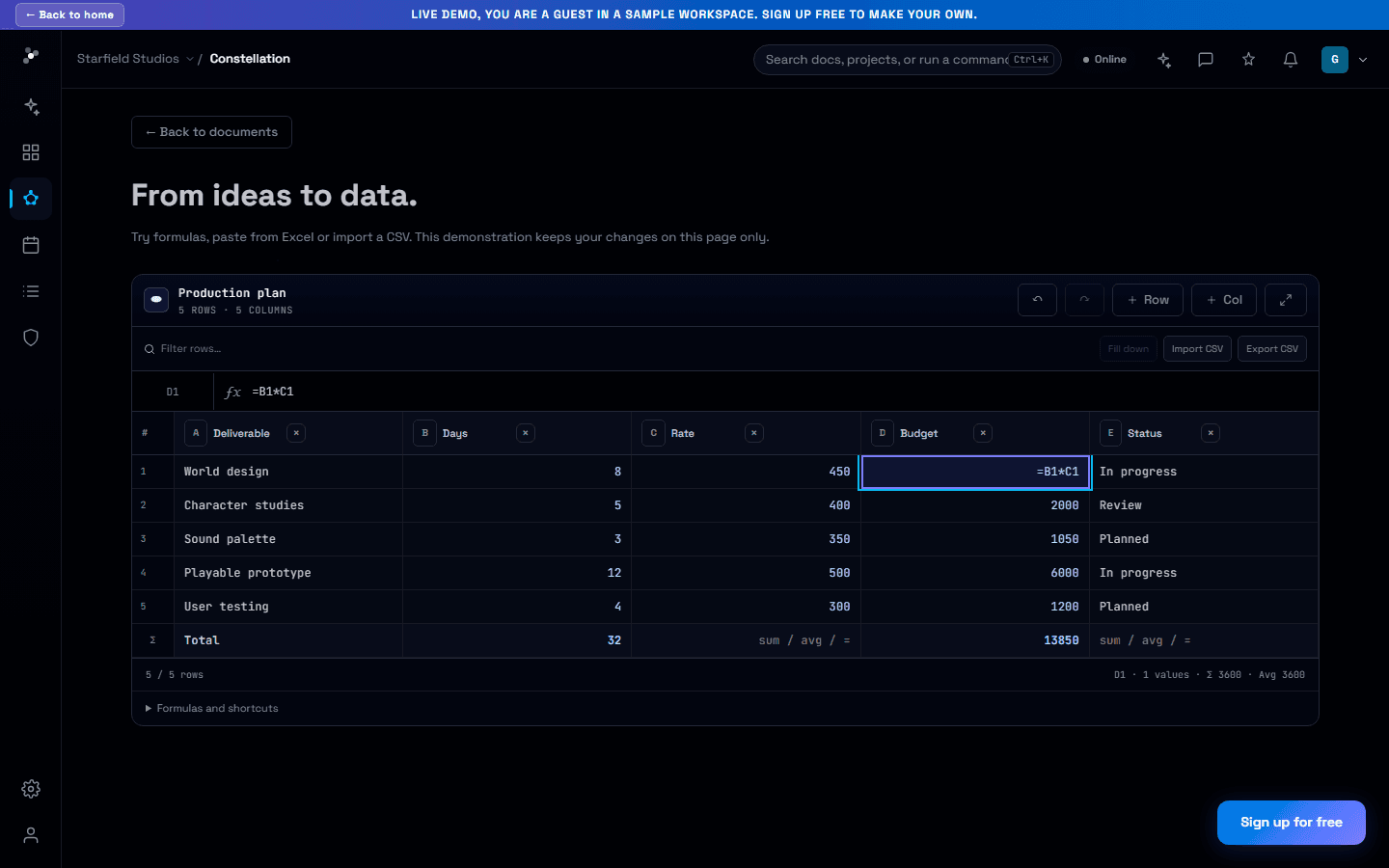
Keep the numbers next to the decisions.
Work through budgets and plans with a formula bar, range selection, matrix paste and CSV exchange inside your project documents.
Read the story