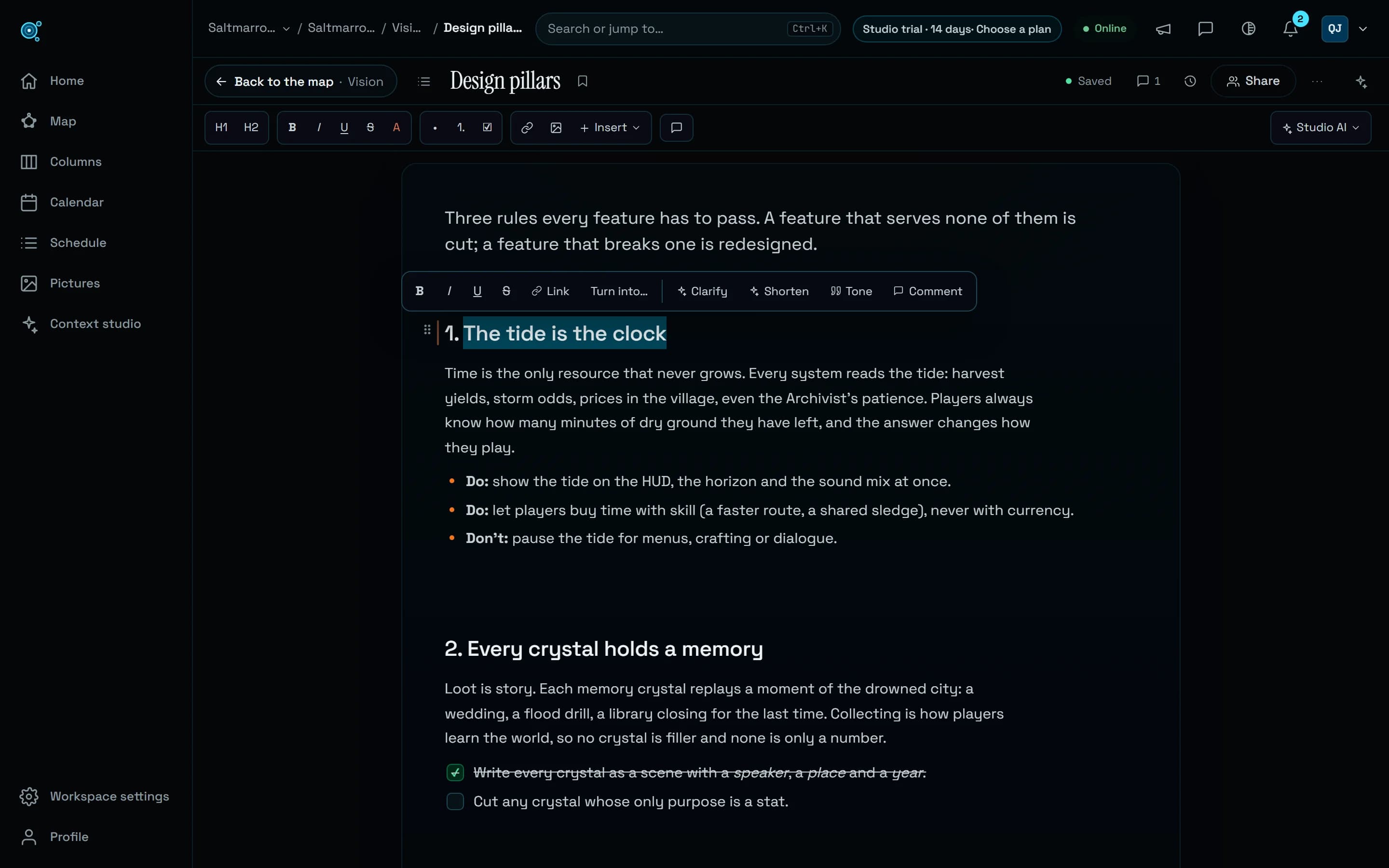
Rename a workspace or a project where you see its name.
Press F2 on a project’s or a workspace’s name, or choose Rename in its menu, and the name becomes a field where it stands: on Home, in the top bar, on the map, in Columns or from Ctrl+K. Every open tab follows, and the team’s history keeps each rename.
Renaming took a detour. A project was renamed from a dialog on Home that only the workspace’s owners and admins could open, so the people who edit a project had no way to rename it, and no screen renamed a workspace at all. A new name then reached teammates only when their page reloaded. Teams asked for something simpler: a name is now renamed where you see it, by the people who look after it.
The name becomes a field
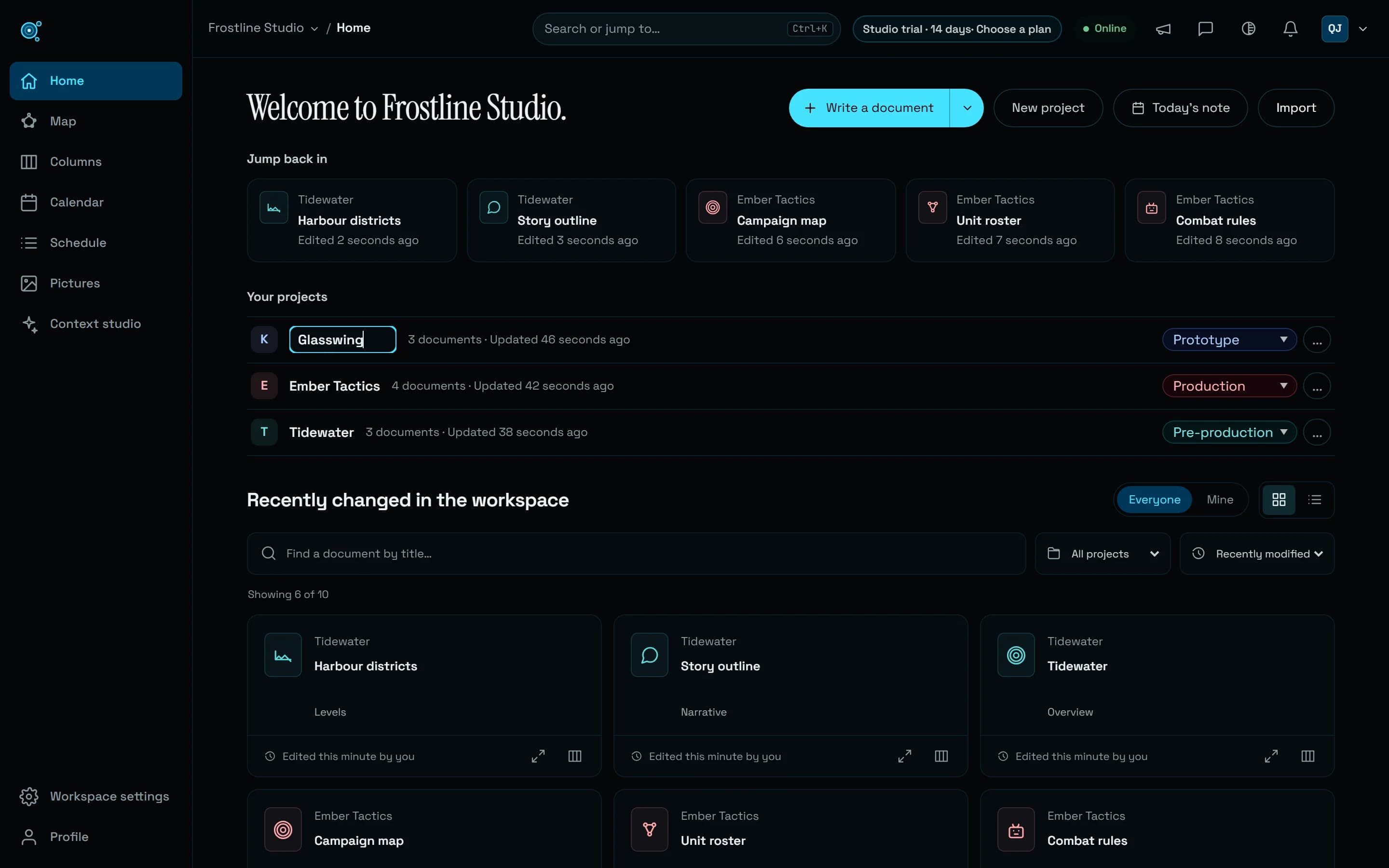
Press F2 on a project’s or a workspace’s name, or choose Rename in its menu, and the name turns into a field where it stood, already selected. Type the new name and press Enter, or click elsewhere: leaving the field saves too. Escape keeps the current name, and so does leaving the field empty. Spaces at either end are trimmed, and a name that shows nothing is refused. The field tells you as you type when a name runs past its limit, 100 characters for a workspace and 200 for a project. If a name cannot be saved, the field keeps what you typed and says why under it: press Enter to try again, or leave the field to keep the current name. Switching to another app or tab leaves the field as it was for your return. On a phone, the field is large enough to tap and does not zoom the page.
Projects, renamed by the people who edit them
Anyone who can edit a project can now rename it, not only the workspace’s owners and admins. On Home, under Your projects, Rename comes first in a project’s menu, and F2 works on its name. On the map, the project menu offers Rename project for the project in view, and F2 on that menu’s button turns the name into the field. In Columns, a pencil sits beside the project picker once a project is chosen, and F2 works on the picker. From anywhere, Ctrl+K (Cmd+K on a Mac) and the word rename find Rename project: with one project you can edit, the field opens at once; with several, you choose among the ones you can rename. Commenters and readers see the name without these controls. A project’s colour and its other details stay under Color and details, in the same menu on Home, for the workspace’s owners and admins.
The workspace, renamed by its owners
A workspace’s name stays with its owners, like its billing and its deletion. In the top bar, open the workspace’s name and choose Rename workspace, or press F2 on it: the name in the bar becomes the field. Workspace settings now shows the workspace’s name at the top of the page, with a pencil for its owners. In All workspaces, from the same menu in the top bar, a pencil sits beside each workspace you own, and F2 works on its card. Ctrl+K and rename find Rename workspace too. Admins and members see the name without these controls. Only the name changes: the workspace’s short name and its links stay the same, so invitations and shared links keep working.
The heart star keeps up
Every project has a heart star, the document at the centre of its map, born with the project’s name. When the project is renamed, its heart takes the new name too, as long as its title is still the old project name, so the centre of the map never shows a name the project has left behind. A heart you named otherwise, such as Overview, keeps its name, and a locked heart keeps its title, as any locked document does.
Every tab follows, and the history keeps each rename
The new name shows at once where you typed it, and in the open tabs of everyone who sees it, without a reload: the top bar and the browser tab’s title, Home, the map, Columns, the way back from a document, the workspace picker and favourites. A restricted project’s new name reaches only the people who see that project. Each rename is a line of its own in Workspace settings, under Audit log: who renamed what and when, the new name and the one it replaced. A heart star that took the new name is recorded there too, as a document renamed.
Agents rename too
Studio AI and agents connected over MCP rename under the same rules. rename_workspace renames the workspace, for its owners only, and in a connection that reaches several workspaces it renames the one the call names. update_game renames a project for the people who edit it, and says when the heart star took the new name. A name that is empty or too long is refused in words an agent can act on, and each rename lands in the Audit log like any other.
Try it in your workflow
- On Home, under Your projects, open a project’s menu and choose Rename, or press F2 on its name.
- Type the new name and press Enter: the row takes it at once, and so does the project’s heart star if it still had the old name.
- If you own the workspace, open its name in the top bar, choose Rename workspace, type a new name and press Enter.
- Open Workspace settings, then Audit log: each rename is there, with the name it replaced.
A workspace is renamed by its owners only, and a project by the people who can edit it. The Audit log is open to the workspace’s owners and admins. A workspace’s short name and id never change: an agent that named the workspace by its old name uses the new one, the short name or the id. A rename does not change the name on invoices. In a workspace whose payment failed, nothing is renamed until the payment goes through. A tab that only shows Workspace settings takes a teammate’s rename when you come back to it or open another page. The live demo renames nothing: it shows where the names stand. Renaming needs a workspace of your own, Free included.