Write by hand, with the keys you already know.
A new document has a line to type on, bold and links stay in lists and tables, a bubble formats what you select and the shortcuts of other editors work. The way back from a document names where it goes, and gets there.
People who write in Nodary without Studio AI told us it was not intuitive, and they were right. A new document had no line to type on, so the first words typed after the title were lost. Bold and links in a list, a checklist, a quote or a table were dropped the next time someone edited the line. Selecting words offered AI rewrites but no Bold, and a selection stopped at the edge of each block. The way back from a document was the browser’s Back, with no word on where it led. All of this has changed.
A line to type on
A new document now opens with a line to type on: type the title, press Enter and keep going, and the words land in the first paragraph. A click below the last block, even under a table or a picture, carries on writing there. While the page is empty, the first blocks (text, heading, list, checklist, table and picture) wait under that line, the others under More blocks, with the templates below; a template takes the place of the empty line. A blank document made with Write a document opens with Studio AI’s column closed, unless you already chose how the panels open. The “.” key on its own no longer switches Focus mode on: it is Ctrl+Shift+. (Cmd+Shift+. on a Mac).
Marks that stay, and a bubble that makes them
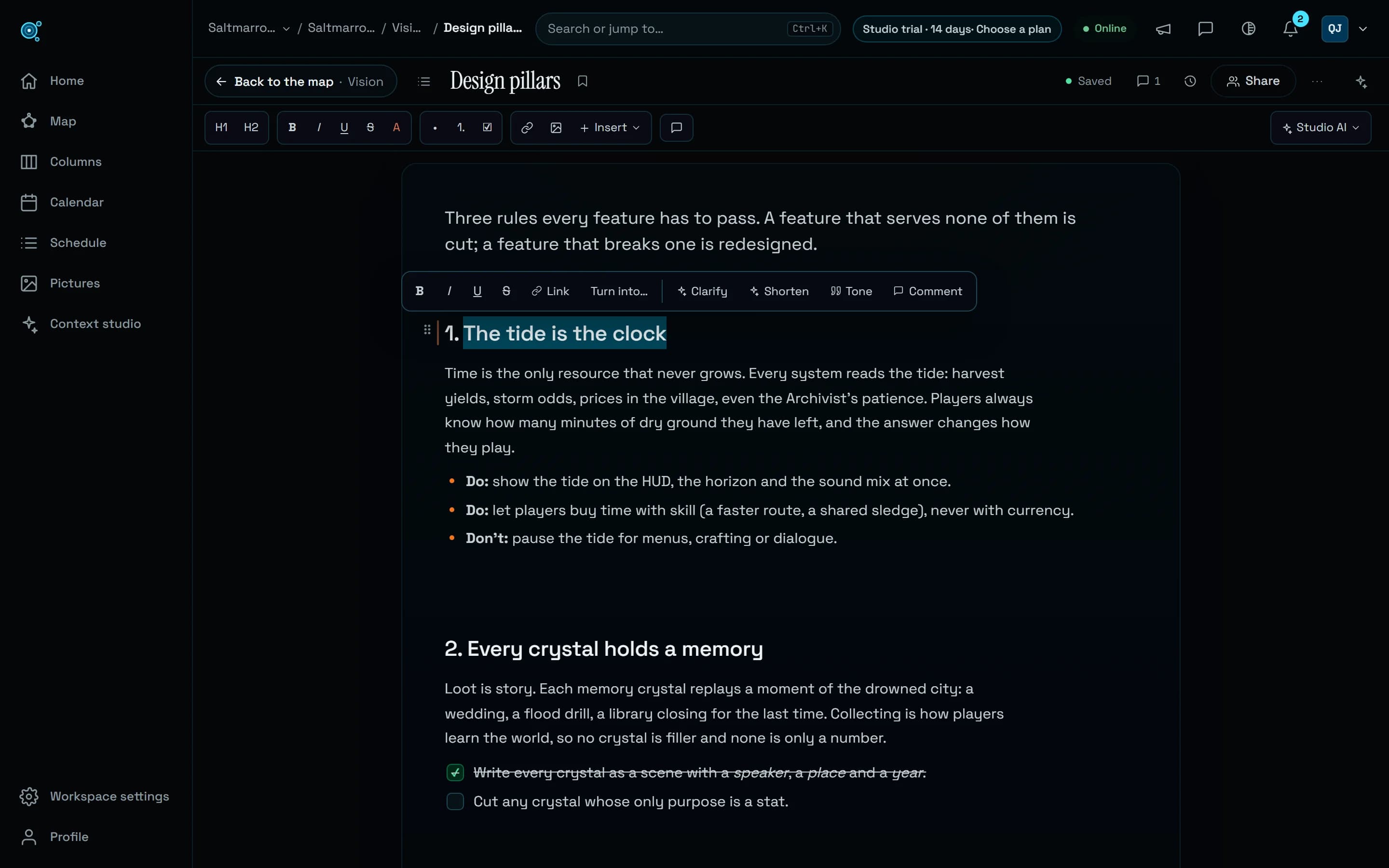
Bold, italics and links now stay in list items, checklists, quotes, callouts and table cells, whether you typed them, pasted them or Studio AI wrote them. Select words anywhere in a document, a single letter included, and a bubble offers B, I, U, S, Link and Turn into first, then Clarify, Shorten, Tone and Comment. It sits above the words, or under them when above would cover the format bar, and the words stay selected while you click. Underline, strike and highlight are kept in paragraphs and headings; where a field cannot keep them, their buttons are greyed and say why. Inline code is a mark of its own: select the words and press Ctrl+E (Cmd+E on a Mac).
The format bar turns the line you are on
The bullet list, numbered list and checklist buttons, H1 and H2, and Quote and Callout from Insert now turn the line the caret is on, in place, keeping every word and the caret where it was. Press the same button again and the line is a paragraph again. They used to add an empty block below. When a turn would lose something, such as a checklist’s ticks or a quote’s author, the Turn into window opens first and says what. No block is a trap any more: Enter on the empty last line of a quote or a callout goes on in a paragraph after it, a new code block takes typing at once and Ctrl+Enter (Cmd+Enter) leaves it, and Escape puts the focus on the block, from where Enter writes after it.
The shortcuts of other editors
At the start of a line, # and a space make a heading, ## or ### a section heading, - or * a bullet list, 1. or 1) a numbered list, [] a checklist, and > or " a quote. ``` then Enter opens a code block, in a language if you name one (```ts), and --- or *** draws a divider, the writing carrying on below it. Inside a line, **bold**, *italic* or _italic_ and ~~strike~~ become marks as you close them, and an address followed by a space becomes a link; each is its own Undo step. Identifiers, sums and addresses keep their signs: snake_case, 2*3*4 and https://x.io/_next_/static stay as typed. Ctrl+K (Cmd+K) on selected words makes them a link, and still opens the command palette when nothing is selected. Backspace at the start of a heading makes it a paragraph before anything else. The keyboard help (?) lists every key, in the app’s 12 languages.
Whole blocks, and one menu each
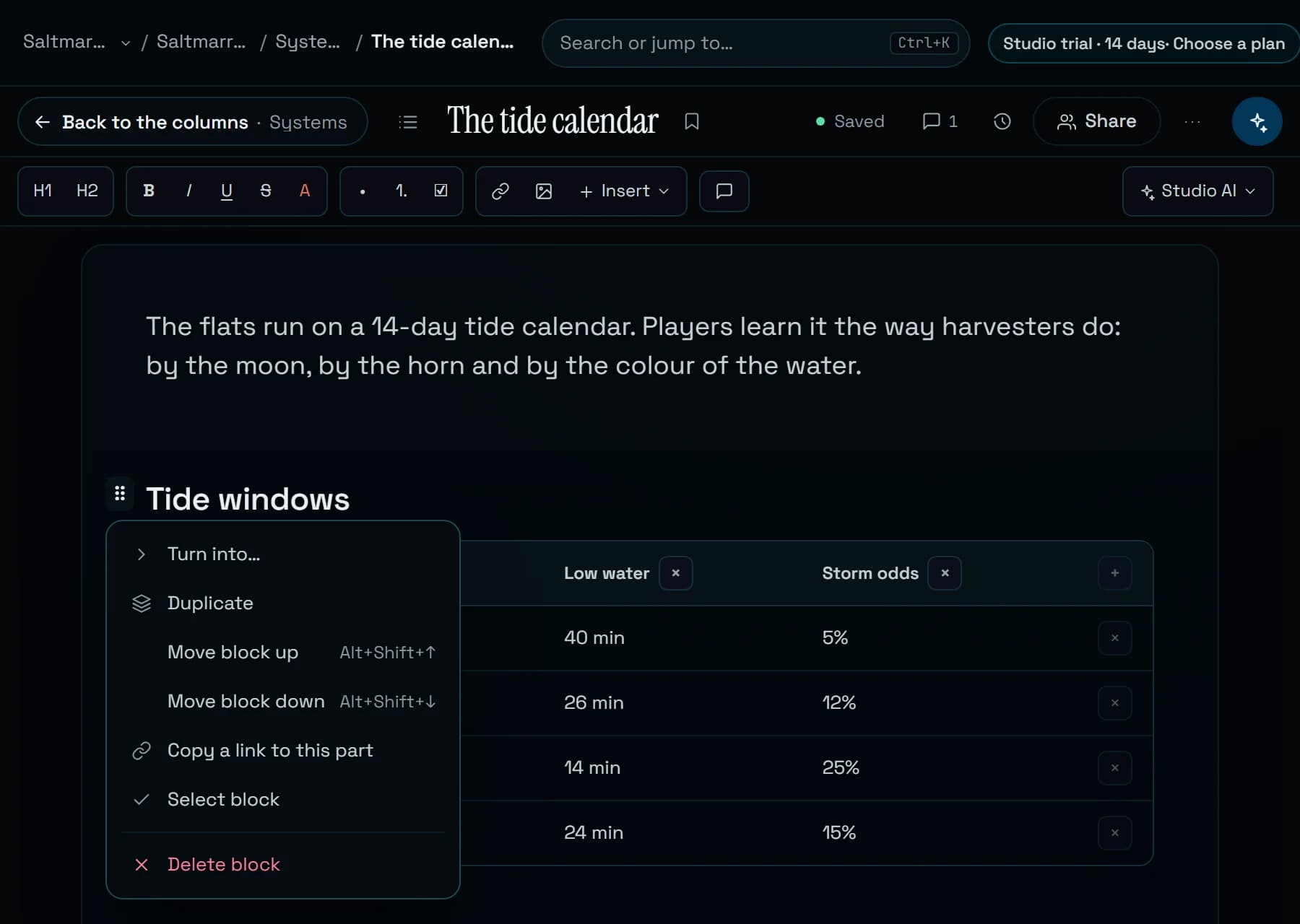
Each block used to be a field of its own, so a selection stopped at its edge. Now drag from one block’s words into the next, press Shift+↓ or Shift+↑ at the edge of a block, or press Ctrl+A twice (Cmd+A), and whole blocks are selected. Backspace deletes them, with Undo; Ctrl+C and Ctrl+X copy and cut them; Ctrl+B and Ctrl+I mark all their words; Alt+Shift+↑ or ↓ moves them; Escape lets them go. Copied blocks arrive whole in another Nodary document, sheets, boards, diagrams and pictures included, and as Markdown and HTML in other apps. Each block also has one menu, on the ⠿ handle in its margin, instead of the row of six icons that sat over the line above: Turn into, Duplicate, Move block up, Move block down, Copy a link to this part, Select block and Delete block. A drag on the handle still moves the block, and on a phone the format bar and the block’s buttons no longer overlap.
The way back says where it goes
A document now starts with a control that says where Back leads: Back to the map, with the folder or the project after it, Back to the columns, Back to the document you came from, or to the page you came from, such as Home or the calendar. It goes there as the browser’s Back does, to the view as you left it: on the map, the project, the folder, the zoom and position, the selected document with its panel, the filters and the colours; in Columns, the selection, the search, the type filter and the scroll of each column. After a chain of linked documents, a second chip goes straight back to the map or the columns where the reading began, and a document opened from a link goes back to its project, in the view you used last, with the document selected. Alt+Left (Cmd+[ on a Mac) goes back too, Escape never leaves the document, and each tab keeps its own way back. From Columns, a document opens in a new tab from its row’s menu, which also copies its link, with the middle button or with Ctrl+Enter (Cmd+Enter); a document’s menu on the map offers the same.
Try it in your workflow
- On Home, choose Write a document, type a title and press Enter: keep typing, and the words go into the first paragraph.
- Type ## and a space for a heading, then - and a space for a list, and write **bold** inside an item.
- Select a few words to see the bubble, then drag from one paragraph into the next and press Ctrl+C (Cmd+C) to copy both blocks into another document.
- Open a document from the map or from Columns, then use Back to the map or Back to the columns at the top: the view comes back as you left it.
Lists do not nest: Tab keeps the caret where it is rather than indenting. ### makes the same section heading as ##, since there are two levels of heading. Underline, strike and highlight are kept in paragraphs and headings only, and a callout’s title, a spec list, a quote’s author and a link’s words keep plain text. Blocks pasted from another workspace arrive with their pictures and files left empty, decisions on pictures are not copied, and a cut leaves in place any block a paste would not bring back exactly, and says so. Duplicate is offered for blocks of words, lists, tables and code, not for sheets, boards or pictures. The live demo is read only: open a document from its map and come back with the control at the top. Writing needs a workspace of your own, Free included.