Clear numbers. Useful choices.
Give budgets their currency, ratios their percentages and statuses a choice list. Preview formats, guide input and review unexpected values while keeping your formulas and original data.
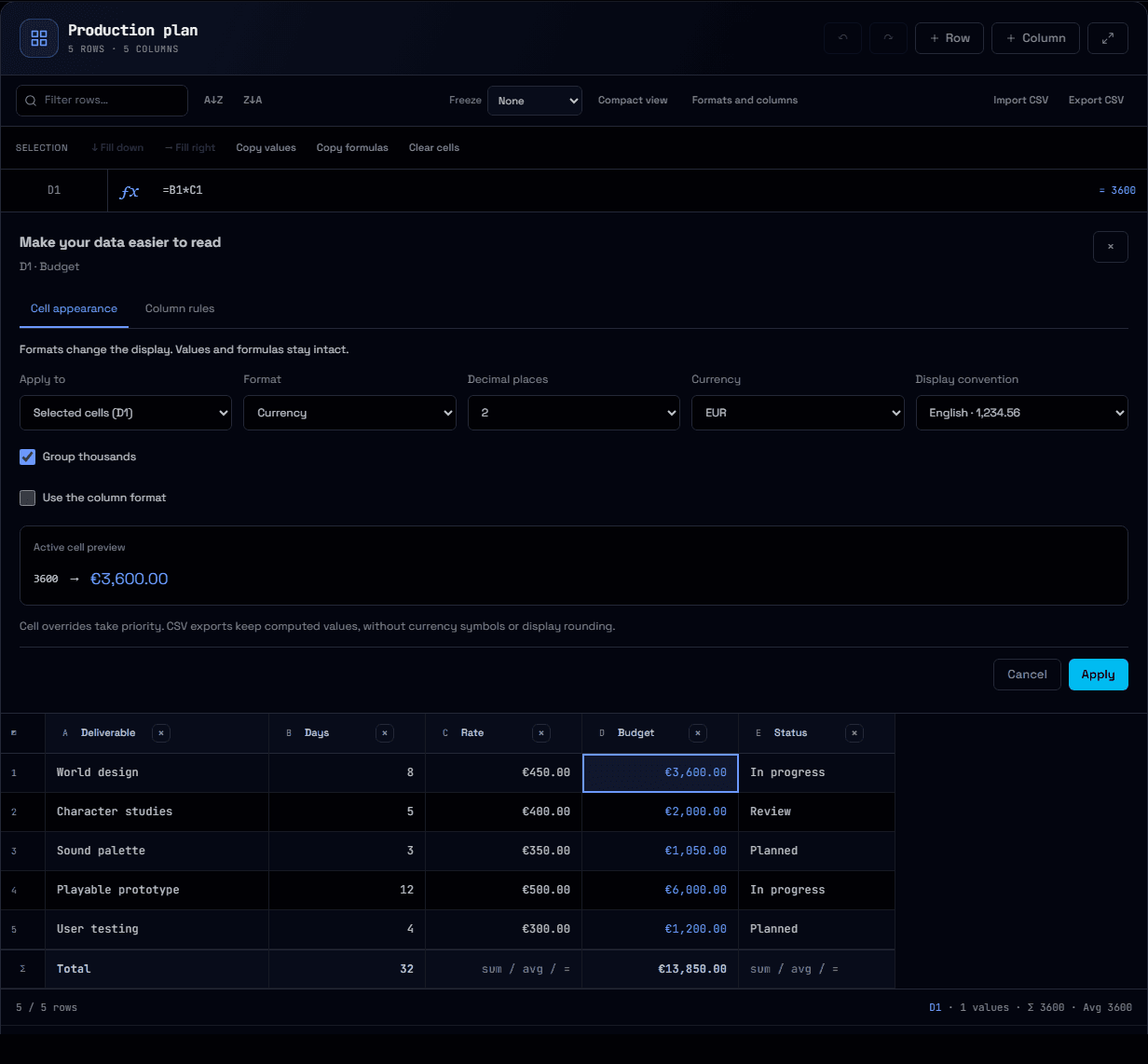
A budget should look like a budget. A progress ratio should read as a percentage. A status should offer the choices your team actually uses. Nodary spreadsheets now separate how values look from what your formulas calculate.
Preview the display before applying it
Select cells and open Formats and columns. Choose numbers, currency, percentages or dates, adjust decimal places and preview the active cell. Apply the format to the selection or make it the default for whole columns, including future rows. A cell can override its column or return to the column’s format. The stored number or formula is unchanged.
Give each column a purpose
Column rules offer free input, text, numbers, dates, checkboxes and choice lists. Set numeric or date bounds and flag empty values when needed. The panel previews how many cells need attention. Existing and pasted values remain available, even when they do not match a rule; a review control takes you to the next one. Select a cell to use its choice list, calendar or checkbox control, or edit its raw input in the formula bar.
Keep calculations and exports useful
Display conventions can be French or English, with an explicit currency that stays the same. Enter 25% to store 0.25 in a percentage-formatted numeric cell. Dates use YYYY-MM-DD internally; checked and unchecked values use 1 and 0. Readers, Markdown and document printing show formats, while CSV and Copy values retain computed values without display rounding or currency symbols.
Keep the format with the data
Formats follow stable cell and column identities. A format and a value are separate collaboration changes, and undoing a local format can keep a teammate’s value. Different cells and columns can carry their own settings. When draft recovery detects competing settings on the same target, it offers a choice.
Try it in your workflow
- Open the example below and select a budget cell.
- Choose Formats and columns, preview another currency or precision, then Apply.
- Select a Status cell and try the choice list. Open Column rules to adjust the available choices.
- Export CSV to keep the calculated values, or use the document’s Markdown or print export to retain their presentation.
The example is local to the page and resets on reload. Editing saved documents requires edit access. Validation highlights values and preserves input; it does not block saving or perform bulk conversion. Dates are canonical calendar strings, not Excel serial dates. Choice lists support up to 100 entries. Rules apply to computed formula results. Concurrent writes to the same format or rule select one complete setting, rather than merging every property. CSV carries values, not formatting or rules; JSON retains the document data. Custom number patterns and conditional formatting are not included in this release.