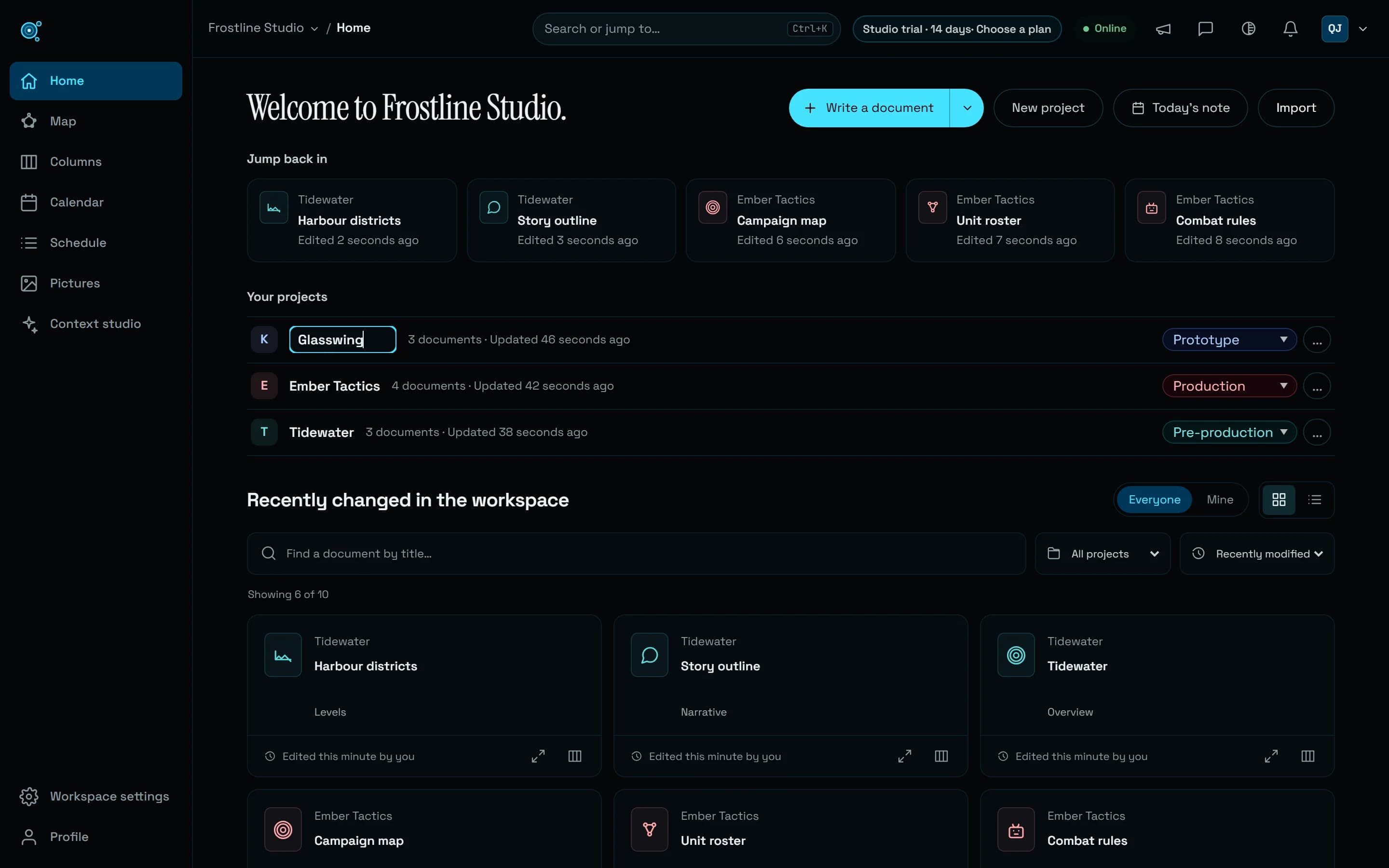
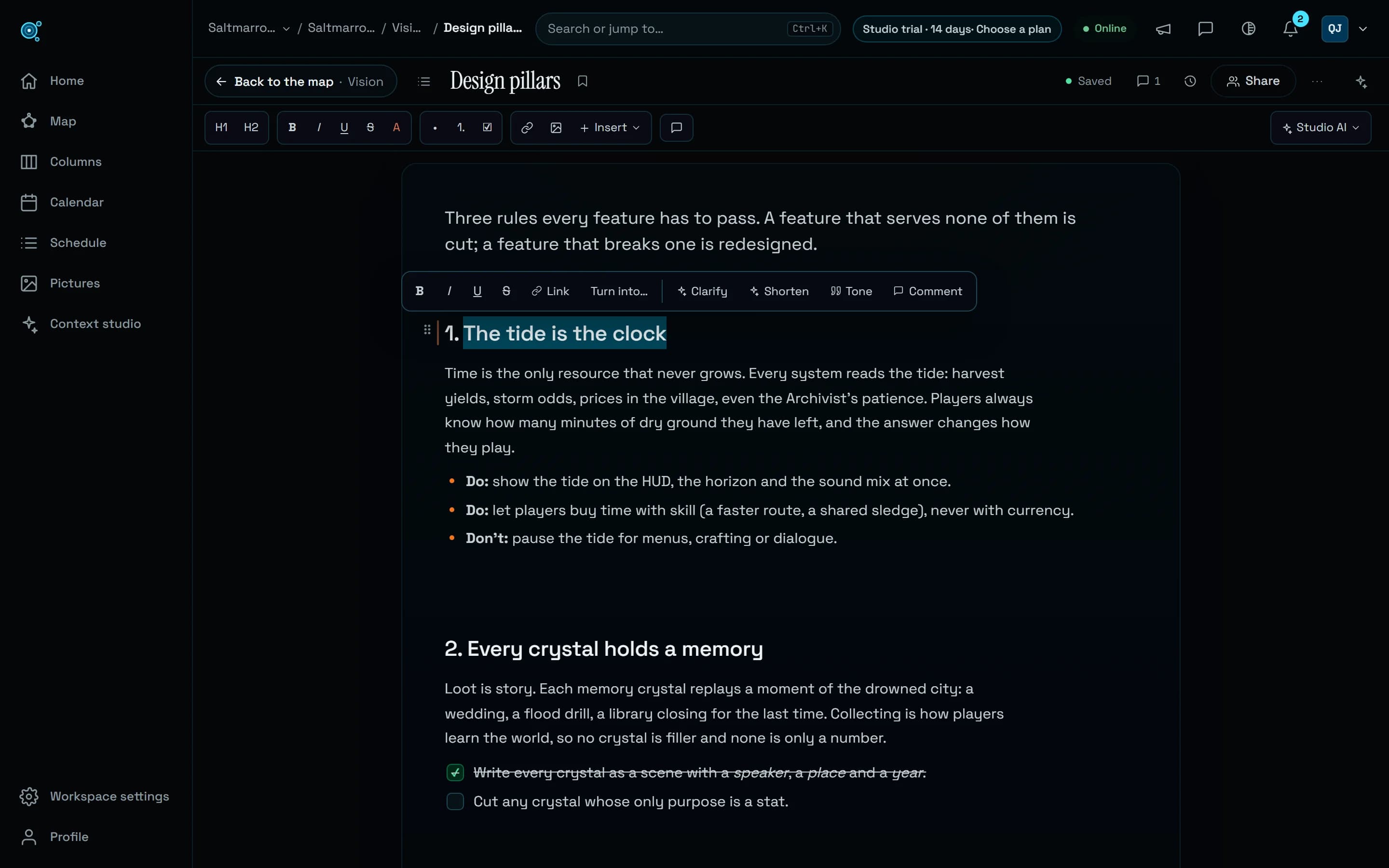
Open on the words. Write from the keyboard.
A document now opens on its text, under one bar. Enter, Backspace, / and Markdown shortcuts do what you expect, and Studio AI rewrites a selection in place, with Undo.
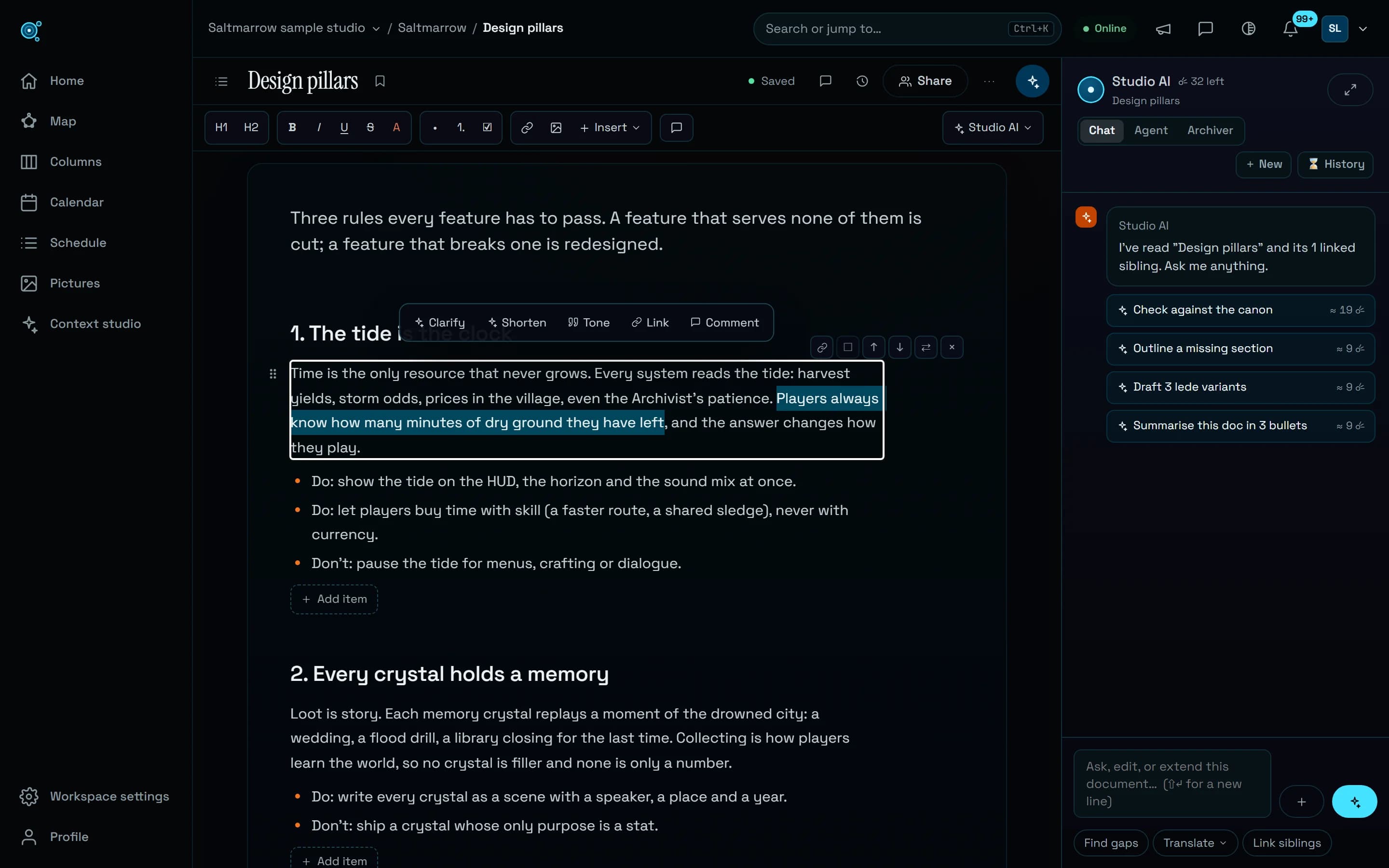
On a 1280 by 720 screen, opening a document used to show none of its text: bars and panels came first. Writing then fought the keyboard, and a section with a list took sixteen actions. The editor now gives the document the room, and lets the keys do what they do everywhere else.
The text first
A document opens under one header line, with its title, a save state that stays in view, comments and Share, and a format bar that fits its column, with Insert and Studio AI menus. At 1440 by 900 the text starts 308 pixels from the top instead of 634, nothing scrolls sideways, and side panels fold away and stay as you left them. Comments are underlined in the text, and a panel takes Studio AI’s place instead of covering the page. In a comment, Enter picks the person you @mention instead of posting, and a notification opens the thread it is about.
Keys that do what you expect
Enter starts a new paragraph or splits the block, Backspace at the start of a block joins it to the one before, and / on an empty line opens the block menu. Type #, ##, -, 1., [] or > and a space at the start of a line for a heading, a list, a checklist or a quote. Each key is one step of Undo, in shared editing too, and a new block starts empty with the caret in it: a section with a list now takes 9 actions instead of 16. Lists show their bullets everywhere, and a list item, a table cell or a callout saves a moment after you stop typing, not only when you leave it.
Tables, pictures and blocks
In a table, Tab and Shift+Tab go from cell to cell and Tab in the last cell adds a row; a removed row or column comes back with Undo. A picture dropped on the document lands where you drop it. A handle, or Alt+Shift+Up and Down, moves the block you are in. On a touch screen, hidden block actions can no longer be pressed by mistake: one row, big enough for a finger, follows the block you write in.
Rewrite a sentence in place
Select words and the bubble offers Clarify, Shorten and a Tone, more formal, friendlier or more direct. Studio AI answers once, with Replace selection and Insert below: no second turn to confirm, the view stays where it is, and Undo puts your words back.
Try it in your workflow
- Open a document and type: Enter for a new paragraph, / on an empty line for any block.
- Type - and a space at the start of a line to begin a list.
- Select a sentence, choose Shorten, then Replace selection.
- In a table, press Tab in the last cell to add a row.
A rewrite is a Studio AI request and uses Comets. Alt+Shift+Up and Down take the place of the macOS shortcut that extends a selection by paragraph. The example opens Saltmarrow’s Design pillars in the live demo, to read: writing needs an account.