See the real pages before you export.
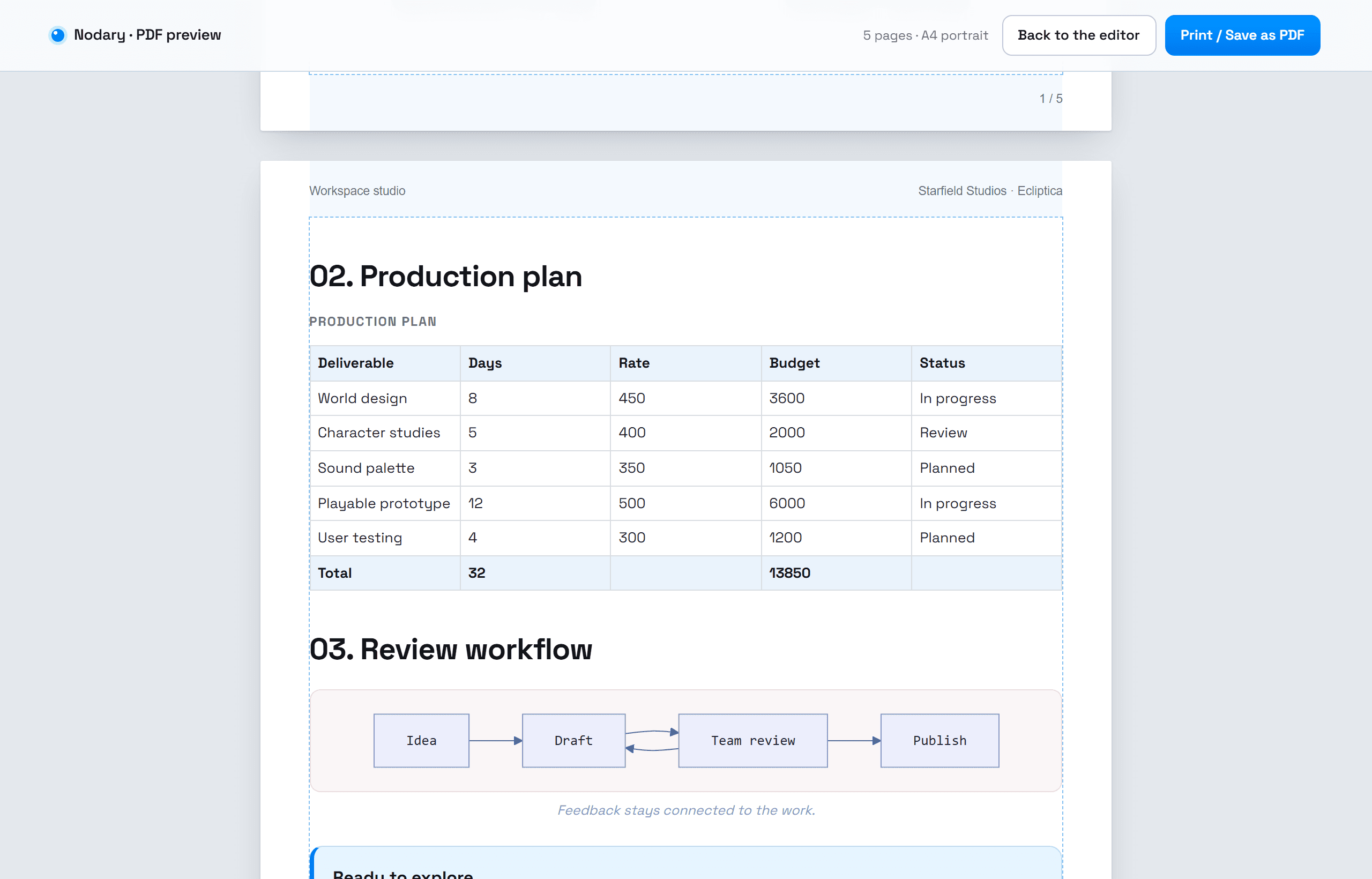
The PDF preview now shows the actual pages: paper, margins, running headers, page numbers, a contents list with page numbers and section breaks. What you see is what prints.
A document that reads well on screen can still print badly: a diagram cut in half, a heading alone at the bottom of a page, a long table that loses its column names. The PDF preview now lays the document out as real pages, so you can see and fix that before sharing it.
Real pages, real numbers
Each page appears at its true size on A4 or Letter, portrait or landscape. From the second page on, the document title and the workspace run along the top, and every page is numbered at the bottom. The contents list shows the page on which each section starts, and its links take you there.
Breaks that respect the content
Diagrams, images, boards and callouts move to the next page whole instead of being cut. Headings stay with what follows them. A table that spans several pages repeats its column names at the top of each one. You can add a title page and start each section on a new page.
What you see is what prints
Print or Save as PDF uses the same pages you are looking at, with the same count. Choose narrow, normal or wide margins and turn on the margin guides to check them. Your choices stay in the page address, so a colleague who opens the same link sees the same setup.
Try it in your workflow
- Open the demonstration document and its PDF preview.
- Look at the contents: each section shows its page.
- Choose wide margins, then turn on Title page and New page for each section.
- Switch to Letter landscape and watch the pages lay out again.
The layout runs in your browser from the document as it is shown, and nothing is sent anywhere. Very long documents can take a few seconds; if the layout cannot finish, the continuous document is shown and prints as before. Page numbers depend on the paper and margins you choose, and on the fonts available to your browser. Tables are split between rows, never inside one. Diagrams are placed as drawings of the same vector source; their text keeps the diagram font where your browser has it.