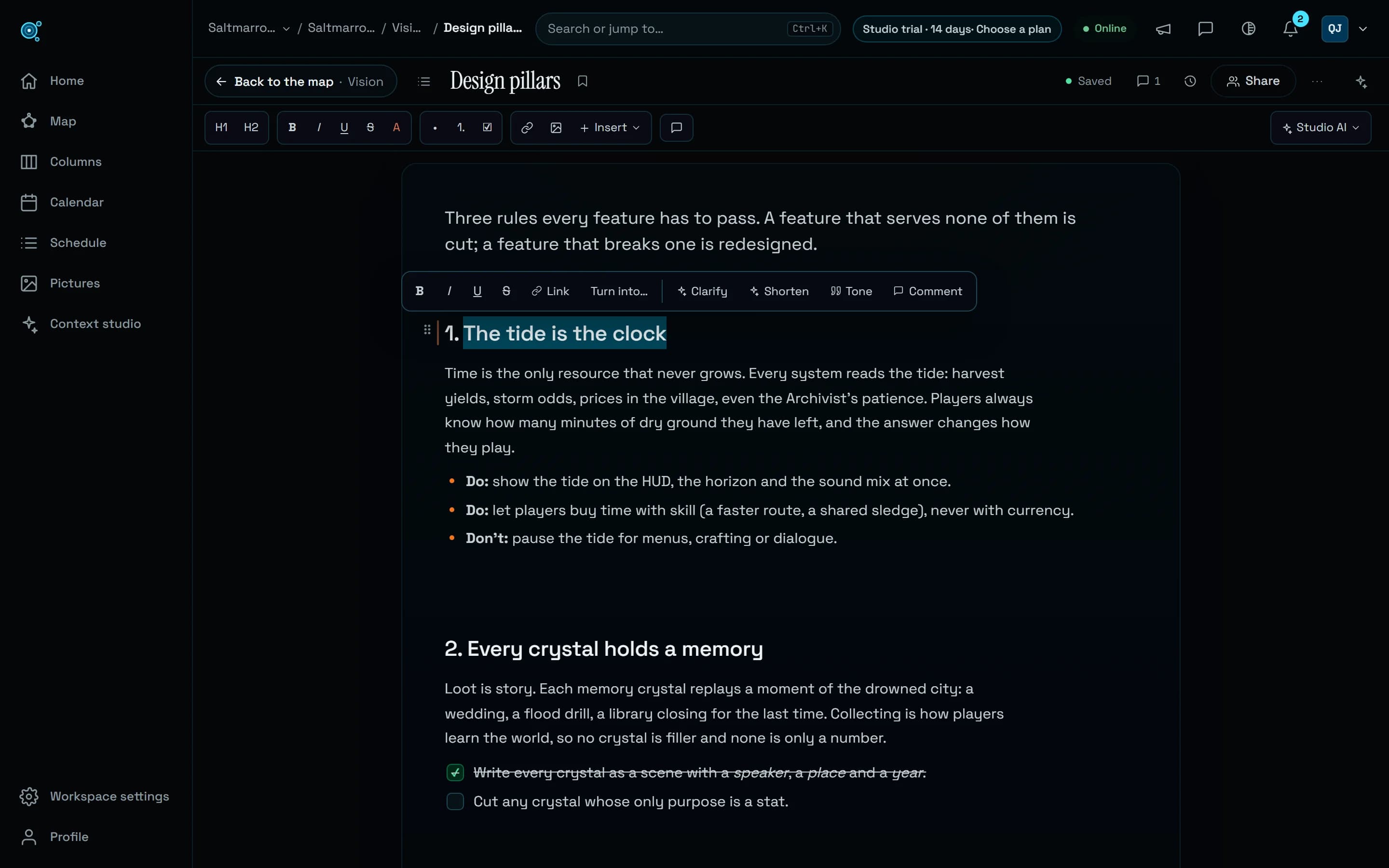
Sheets, diagrams and boards show their result first.
A sheet opens on its grid at the page’s width, a diagram on its drawing, a board ready to write on. Diagram errors are explained in plain words, and keys typed fast across cells land where you typed them.
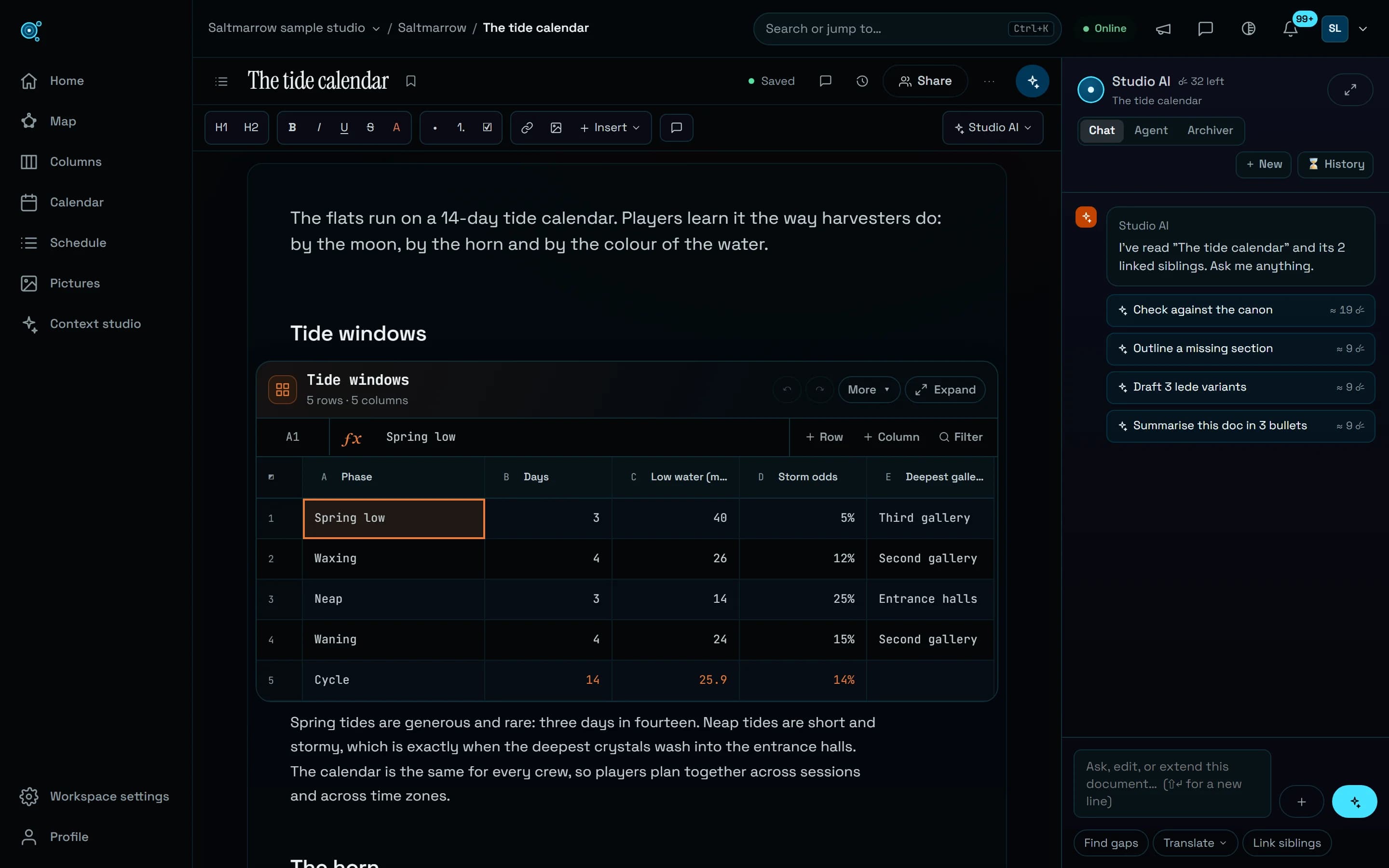
A sheet in a document used to open under rows of tools, with two of its columns in view at 1440 pixels; a diagram’s preview measured 150 by 32 pixels; a board was drawn 236 pixels wide. The modules now give the page to what they hold, and keep their tools one click away.
Sheets: the grid comes first
A sheet is its grid under one slim line: its name, Undo, More and Expand. The formula line, with + Row, + Column, ƒx and Filter, shows while you work in the sheet; String table, Drop rates, Data feed, Freeze, Formats, Import and Export wait in More, and range actions appear only for a range. Wide modules reach past the text’s margins and columns without a set width share the room, so at 1440 pixels a sheet shows five columns where it showed two. Tab on the last cell or Enter on the last row adds a row and puts you in it in the same keystroke. Live views show their results under one line too, their filters folded behind Filters.
Diagrams: the drawing, then the reason
A diagram opens on its drawing at the page’s width; its source, templates and import open with Edit, and Escape closes them. When Mermaid cannot draw a source, one message says why and on which line, for instance that a label with brackets needs quotes, with Fix when the repair is mechanical and Go to line; the source shows its line numbers and marks the line at fault. Templates are written in your language.
Boards: write where the idea is
Double-click a shape or press Enter to write in it: typing a letter starts its words, a new shape is ready to type in, and Escape ends. Shapes grow to fit their words. Drag a dot on a shape’s edge to another shape to connect them, or to an empty spot to add the next step. The tools sit on the canvas’s top edge, each with its letter, from V for Select to F for Frame, so the board takes the page’s width: 696 pixels where it had 236. In a screenplay or a code block, Edit source puts the caret in the source and Escape closes it.
Fast typing, safe cells
Typing fast across a sheet with Tab could lose keys: when a teammate’s change, or your own save coming back from the server, arrived as you moved to the next cell, the sheet was redrawn, the next keys went nowhere and later ones landed in another cell. In our tests, 7 of 13 such sequences failed every time. A change from elsewhere now applies in place without redrawing the cell you type in, your own saves are recognised, the cell you are in follows its row when rows move, filtered or sorted, a renamed column merges, and Undo never takes back a teammate’s cell.
Try it in your workflow
- Open a document with a sheet: the grid is the first thing you see.
- Click into a cell for the formula line, and open More for the sheet’s other tools.
- In the example, double-click a shape on the board and type.
- Switch to UML & diagrams and choose Edit to open the source beside the drawing.
One rare case remains: a refresh that arrives late, after your own save, can still clear cells you had just typed. The example opens the board and diagram workshop of the live demo, where your changes stay in your browser; sheets in your own documents need an account.