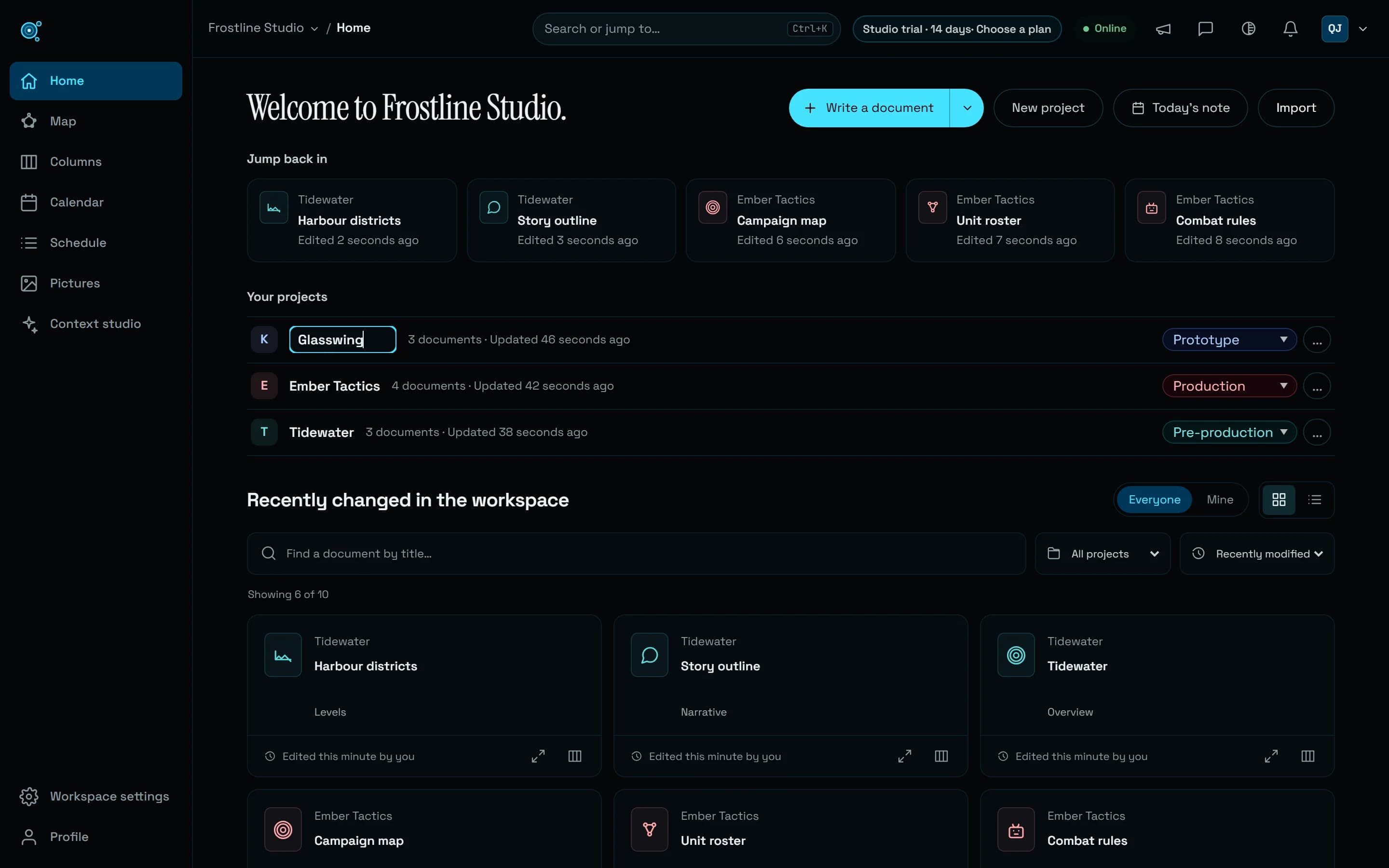
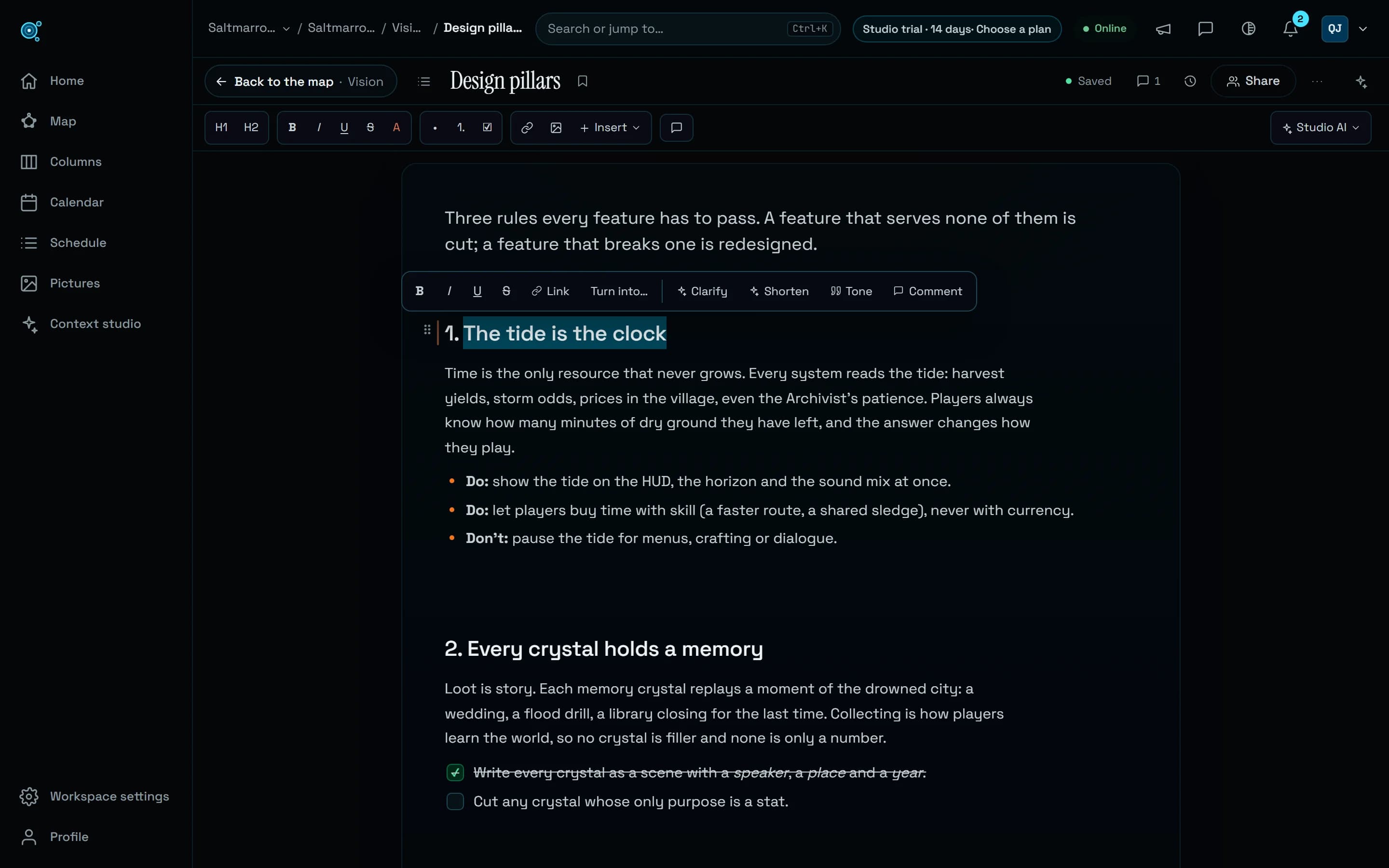
An idea is enough to begin.
Write your first document without setting up a project. Follow three practical steps, choose your starting view and use new missions for travel, studies, job searches and creative work.
A trip to prepare, an idea to explore, a course to understand. Getting started should not require knowing how to organize a workspace. Nodary now makes room for the first document before asking you to structure the rest.
Write first. Organize when it helps.
At signup, naming your workspace is optional: My space is created for you. The welcome screen and home both offer a direct writing action. It creates a real document in your workspace without requiring a project. Existing invitations still take you into the invited team.
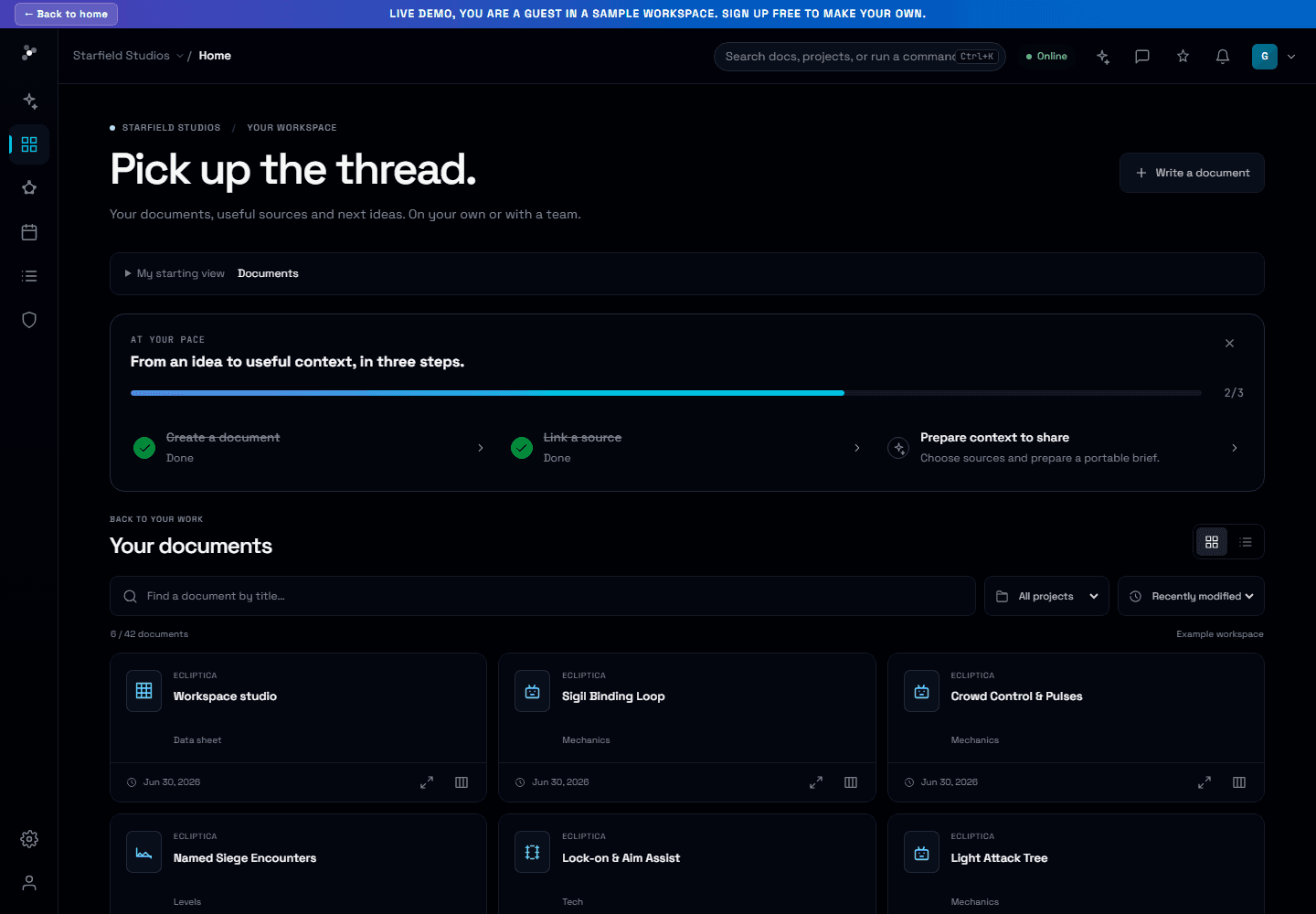
Three steps with a useful result
Create a document, connect a second source and prepare a context brief you can share or use in your next AI conversation. The guide counts real documents and source links. The last step completes after a brief is successfully assembled. Dismiss the guide at any point and reopen it when useful.
Choose where your work begins
Open My starting view on home and choose Documents, Columns or Constellation. Your account remembers the choice when you enter a workspace. Direct document links keep their destination. The documents list now comes before the larger discovery panels, keeping daily work closer.
For projects that are yours
Four new English and French missions cover a trip, studies, a job search and a creative project. Each suggests sources to gather and a concrete result to request. Review and apply a mission, adapt it, choose your documents and prepare the brief. Replacing an existing mission can be undone.
Try it in your workflow
- Open the example below to explore the home and starting views.
- In your own workspace, choose Write a document. You can add projects and folders later.
- Return home and use Link a source to connect two documents, then prepare a context brief.
- In Context studio, open the mission templates and try a personal scenario.
Writing and connecting your own documents require an account with editing access and available workspace capacity. The public example uses sample data; its Write action opens signup. The example’s starting view stays in that browser, separately from your account preference. Guide dismissal and context-completion progress are also local to the browser. Templates prepare a request from the sources you select; they do not research live information, make bookings or submit applications. This release does not import work from the demo into an account.