One spreadsheet. Room for everyone’s changes.
Update a budget while a teammate adds a note. Changes to different cells now combine, and surviving rows keep their identity when the sheet changes around them.
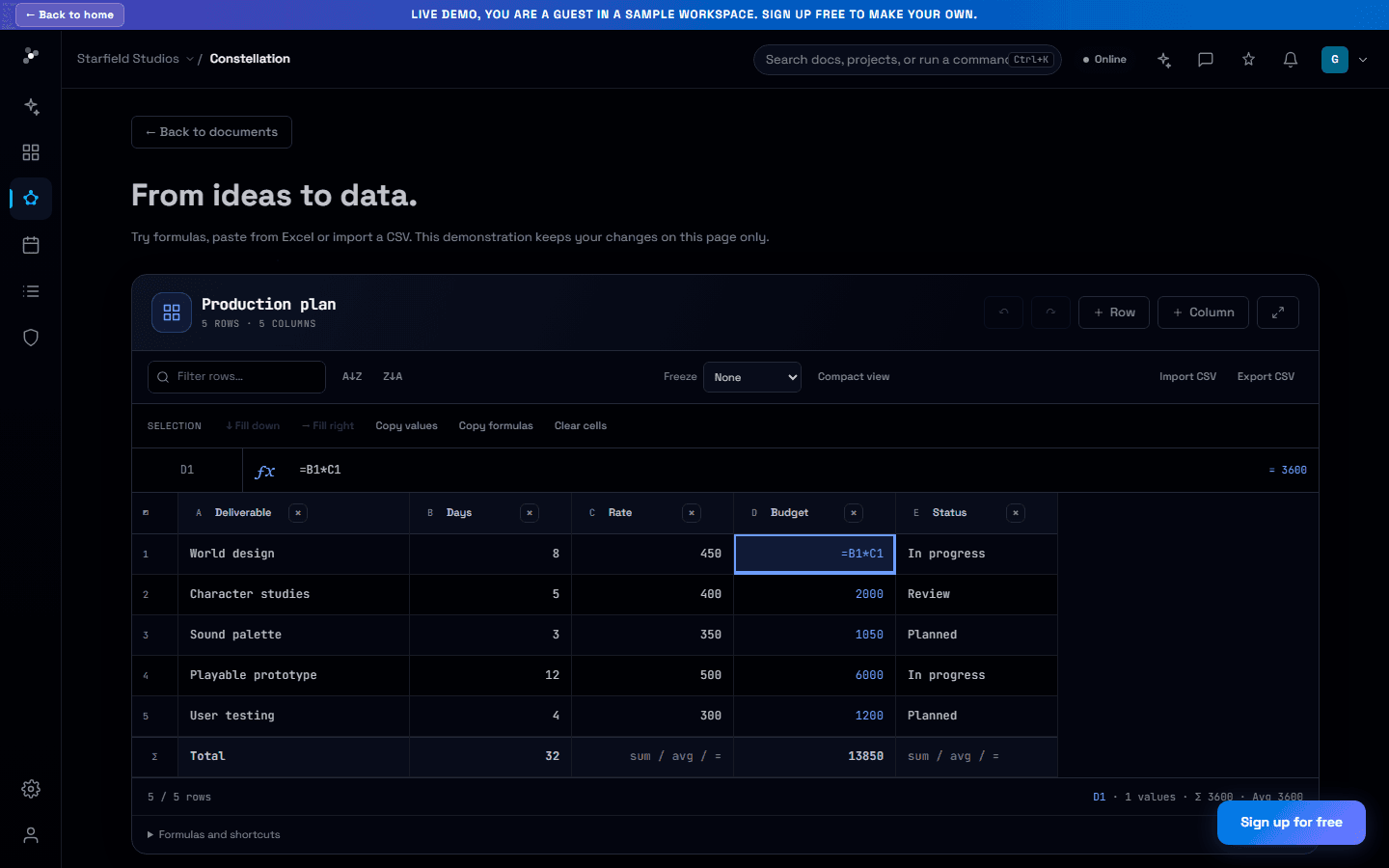
A shared budget is rarely one person’s job. Someone updates the cost, someone else adds a note, and the plan keeps moving. Nodary now combines changes to separate cells inside the same spreadsheet.
Keep both contributions
In collaborative editing, each changed cell is shared separately. Updating a cost and a note from the same starting grid keeps both values, even when the updates arrive later. The classic editor also combines compatible changes to separate cells when saving.
Keep changes on the right row
Rows and columns retain their identity as the sheet changes. Removing the first row while a colleague edits the next one keeps the edit on that surviving row. Concurrent row and column additions in collaborative mode have separate identities, and moving the spreadsheet block keeps its shared cells.
Keep the rest of your workflow
Formulas, column settings and CSV export still use the same spreadsheet. Undo inside the module keeps received changes to other cells. Saving and recovery continues to distinguish a device copy from a confirmed online save, with a downloadable copy when a write cannot be completed.
Try it in your workflow
- Open a document with a spreadsheet in a workspace where you and a teammate can edit.
- Change different cells, leave the input to commit each edit, and wait for Saved online.
- Check the combined values in both sessions. The public example below lets you explore the spreadsheet controls; shared editing requires a signed-in document.
Two simultaneous edits to the same cell retain one complete value in collaborative mode; they do not merge characters inside a formula. The classic editor requests conflict review when both versions change that cell. Deleting a row or column removes its cells, including edits to those deleted cells. Some overlapping structural changes in classic mode still need review. Undo checks changes already received. If an older tab asks for the updated editor, keep that tab open, download any pending copy and open the document in a new tab. The public demonstration is local and resets on reload.