Bring your data in. Keep what matters.
Import a CSV or Excel workbook with a preview first. Choose the sheet, check each column’s type, keep leading zeros and see exactly what cannot come across before anything is replaced.
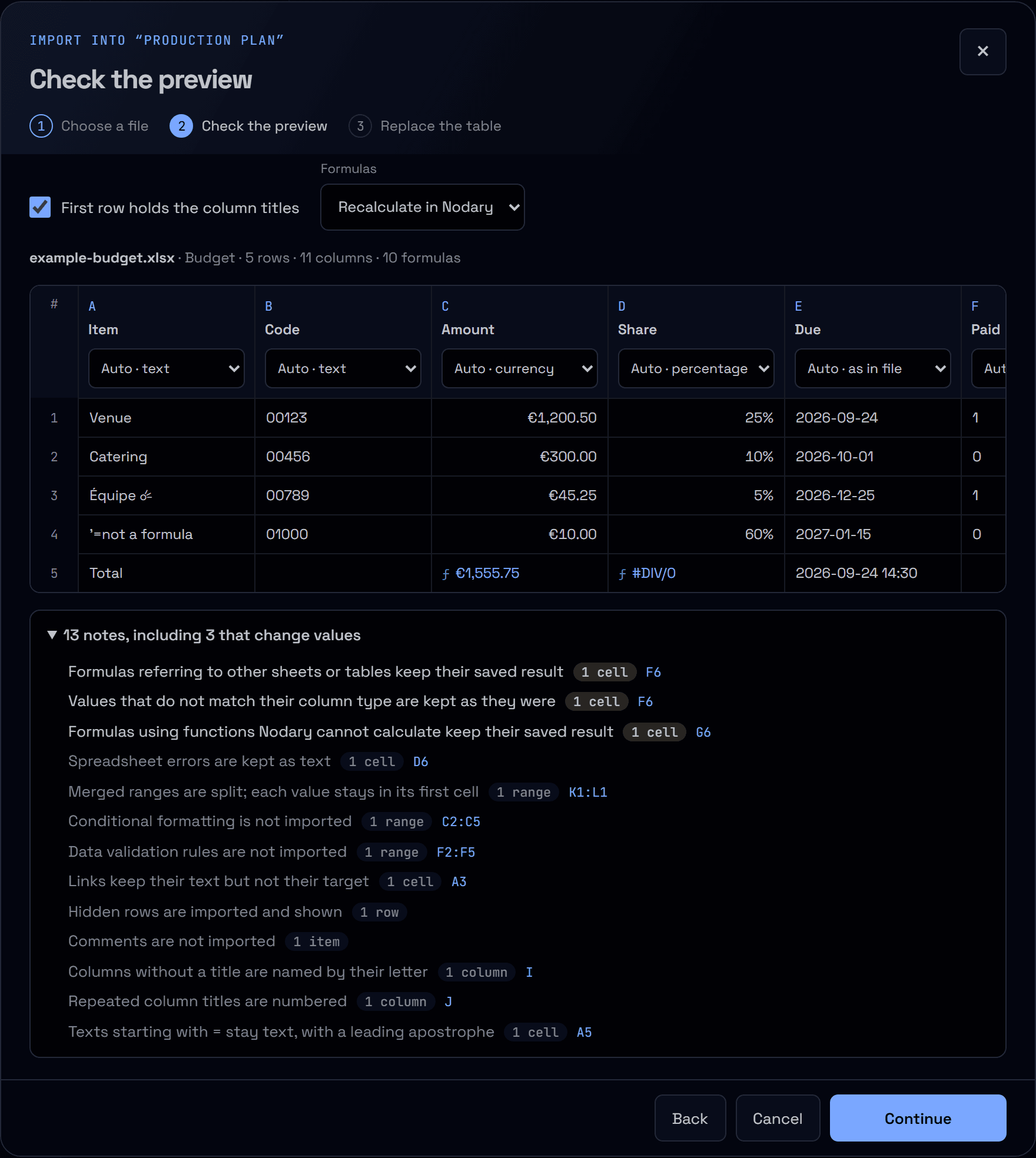
Your numbers often start somewhere else: an export from another tool, a budget in Excel, a list someone emailed. Importing them should not mean hoping the dates, codes and formulas survive. Nodary now shows you the result before your table changes.
Choose the file, then the sheet
Open Import CSV or Excel in any spreadsheet, choose or drop a file, and pick the worksheet you need; hidden sheets are labelled. CSV files are read with their delimiter detected from several rows, including quoted commas and line breaks. Files are read in your browser, off the page’s main thread, and you can stop a long read at any time.
See each column before it lands
The preview shows the first rows with their final formats: currencies, percentages, dates and checkboxes. Every column states what was detected and can be switched to text, number, a day/month or month/day date, or a checkbox. Codes such as 00123 stay text so their zeros are kept, and dates like 03/04/2026 are never guessed: choose their order and the preview updates.
Formulas you can trust
Recalculate supported Excel formulas in Nodary, rebased to the imported rows, or keep the results saved in the workbook. A formula using a function Nodary does not calculate, or another sheet, keeps its saved result and is named with its cell. When Nodary finds a different result than the file, the preview says where.
Nothing silent, nothing replaced by surprise
Merged cells, comments, charts, conditional formatting, validation rules, links and macros are listed with counts and example cells, instead of disappearing. The last step compares the current table with the imported one. If the table changes meanwhile, for example after a teammate’s edit, the replacement stops until you accept the current version. Undo in the table brings back the previous one.
Try it in your workflow
- Open the example below; the import opens on its own.
- Choose Try the example workbook, look at its three sheets, then continue with Budget.
- Read the notes, switch a column’s type or keep Excel’s saved results, and watch the preview update.
- Continue to compare both tables, replace, then undo to return to the original.
Supported files: CSV and TSV up to 4 MB, XLSX up to 10 MB. Excel 97-2003 (.xls), OpenDocument and password-protected workbooks are not read; save them as .xlsx or CSV. A table holds at most 50,000 cells: larger ranges are refused, never truncated. Workbooks are also bounded in internal parts and decompressed size, and reading stops after 20 seconds. Formulas are recalculated by the Nodary engine and its supported functions, not full Excel compatibility; references to other sheets, named ranges and structured table references keep their saved result. Text starting with = is kept as text with a leading apostrophe. An import replaces the whole table, including its formats, column rules and totals; the table name stays. Styling, merged layouts, comments, charts, images and macros are not imported, and macros are never run. The demonstration keeps changes on this page only.