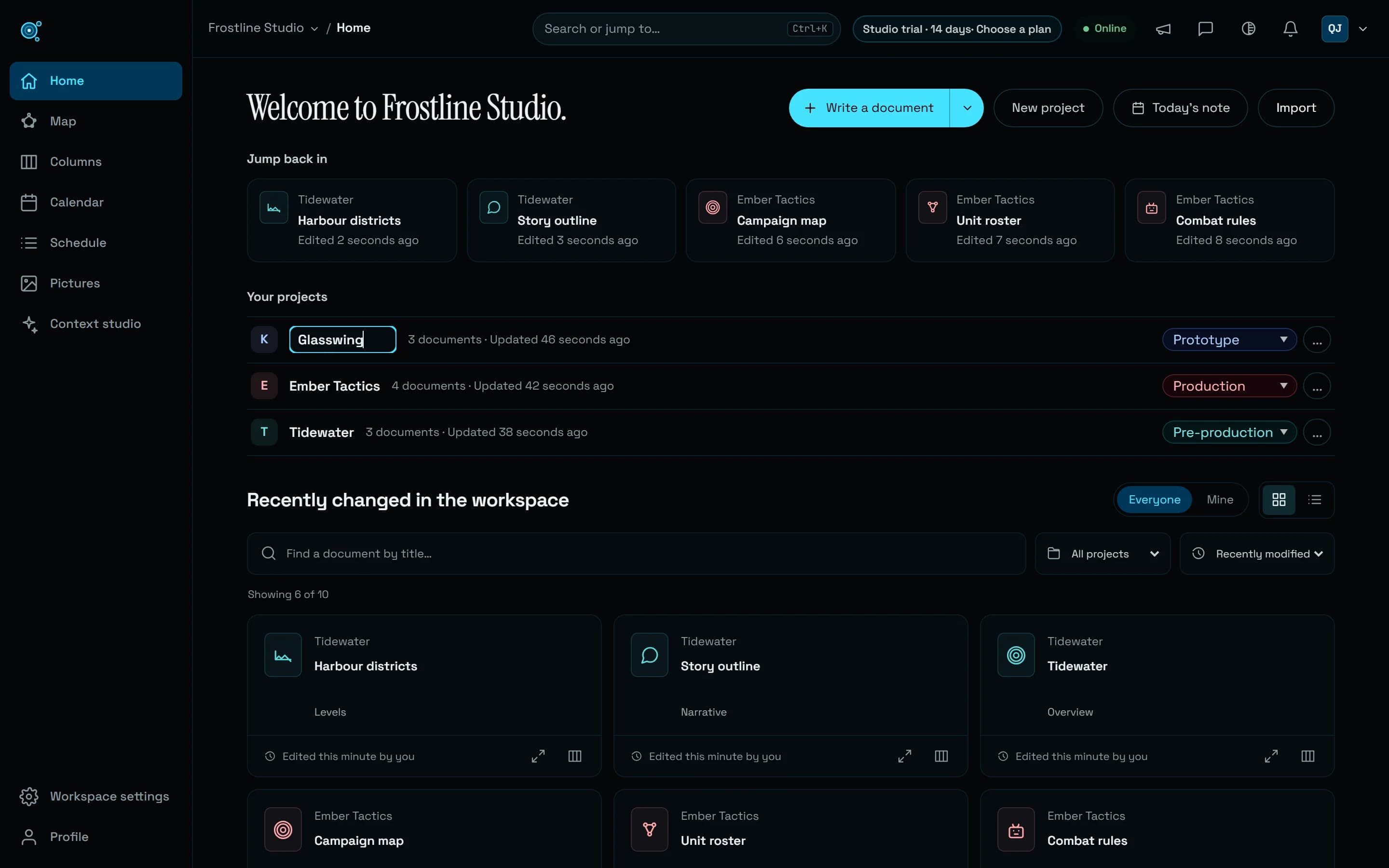
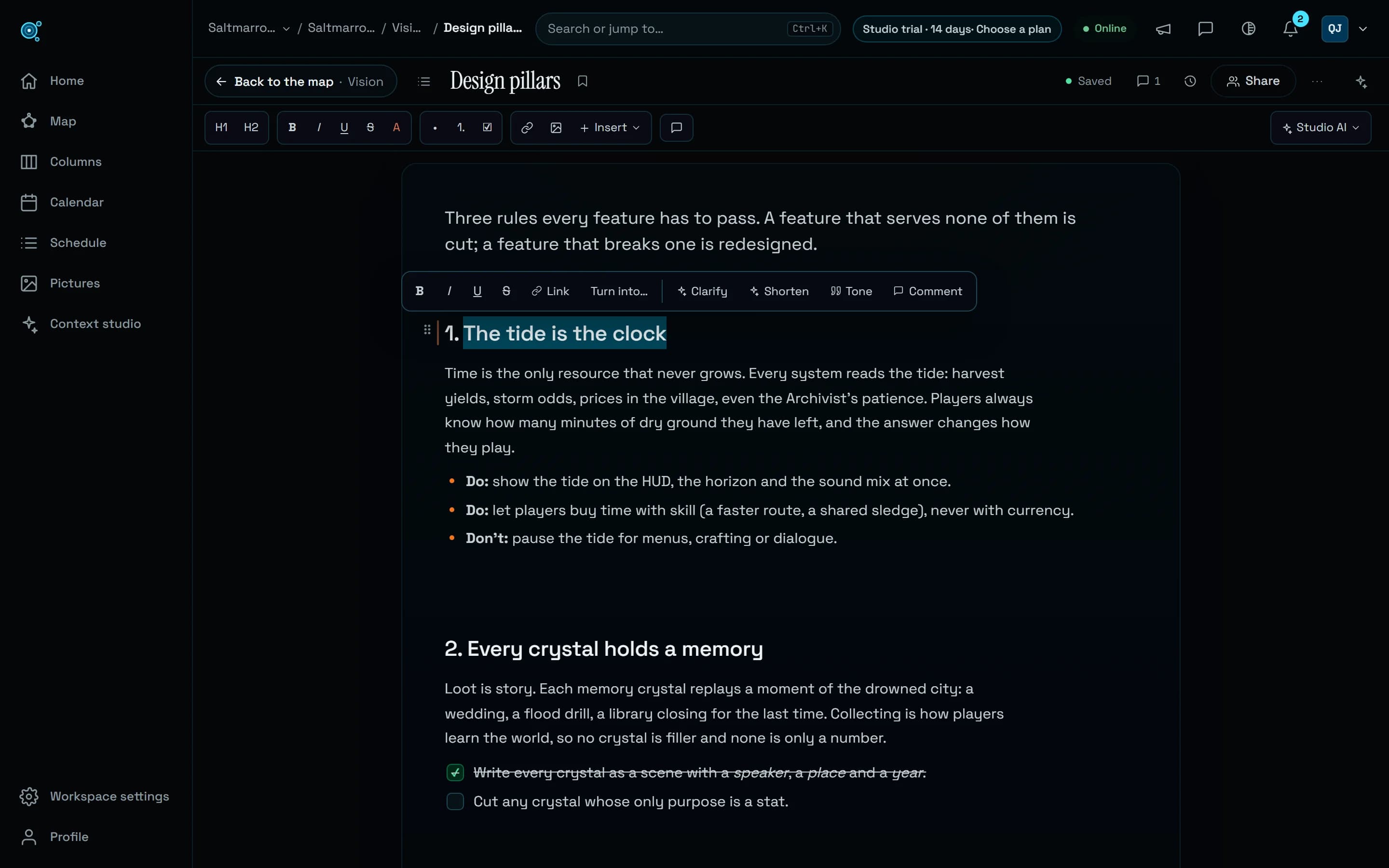
One agent connection, several workspaces. Studio AI sees the pictures.
Connect an agent once and tick the workspaces it may reach: every call names the one it works in. Studio AI now looks at the pictures in your documents, searches the whole workspace and sees long tasks through, and templates come in 12 languages.
An agent connected over MCP reached one workspace per connection, so someone in two teams connected it twice, and nothing in a call said which workspace a change was for. Studio AI, inside the app, could not see the pictures it was asked about, searched only the open project and stopped a long task after a dozen steps. Both now reach further, under the same rules.
Tick the workspaces an agent reaches
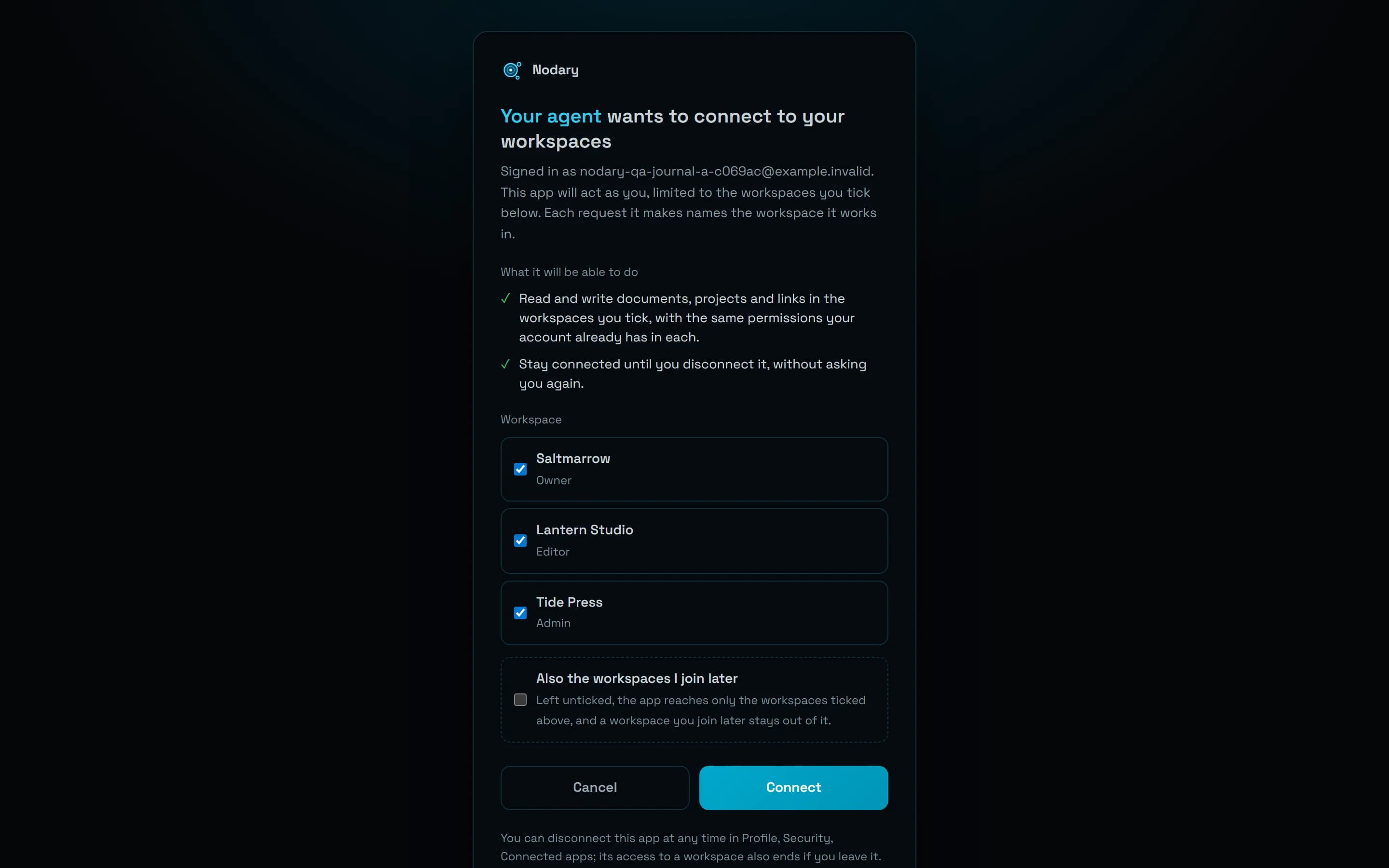
When you connect Claude, ChatGPT, Cursor, Claude Code or another MCP client and you belong to several workspaces, the consent screen now lists them all, each ticked, with your role in each: untick those the agent should stay out of. Also the workspaces I join later stays unticked unless you tick it. With a single workspace, the screen is as it was. The agent then works in the ticked workspaces with your rights in each, and the connection shows once in Profile, Security, Connected apps, where you can disconnect it; connecting and disconnecting are recorded in the Audit log of each workspace it reaches. A new account created on the way, from an agent’s sign-in, comes back to the consent screen once its email is verified.
Every call names its workspace
In a connection that reaches several workspaces, every tool takes a workspace, by its id, its short name or its exact name, and every answer starts by naming the workspace it worked in. A change that names none is refused with the list of workspaces to choose from, so nothing lands in the wrong place; a read may find the workspace from a document’s id, never from a title. list_workspaces gives the agent that list, with your role in each. A workspace locked by a failed payment, or above the free plan after its trial, refuses only the calls made into it, and the others carry on. Each workspace stays apart in the data itself, not only in the tools. Keys made in the settings (gdc_) still reach one workspace, as before.
Studio AI looks at the pictures
Studio AI can now look at the pictures in your documents, a single image, a picture grid, a moodboard or a board, with the notes pinned on them, before it describes, compares or reviews them. Ask what a reference shows, or whether a deliverable follows the art bible’s palette, and it answers from the picture itself. It can also find the pictures of the workspace, a project or a document. One request shows it at most six pictures.
The whole workspace, and long tasks to the end
Studio AI now searches every project of the workspace, the open project’s results first, and lists documents, recent changes, progress and project knowledge across the workspace when you ask about it. It knows who you are, so “what is assigned to me” works straight away. It reads the notes and frames on the map, makes them and changes their text. A long document or a large sheet is read in pages instead of being cut off, and a document read only in part is never rewritten whole: Studio AI changes the parts it read. A long task now goes on as long as it makes progress. It stops when it goes round in circles, when its time runs short or when your Comets run out, then says what is done and what is left, with a Continue button that picks the same request up; typing continue in any of the 12 languages does the same.
New tools, and comments that say who wrote them
Studio AI and agents connected over MCP share new tools: restore a document to one of its saved versions, the version before kept so it can be undone; read what a live view shows today; open today’s note; and remove a knowledge note, a context brief or a saved view that has gone stale, with your rights. A comment an agent writes now says so beside your name, via Studio AI or via a connected assistant, and an agent may edit or delete only those comments: never one a person wrote, nor a discussion someone has replied in. Share links, document access, members, roles, keys, billing and deleting a project stay with people, on both sides. In Studio AI, a reader is offered no writing tool and a commenter only the comment tools.
Templates in 12 languages, imports from other tools
The 30 built-in templates and the three starter sets now exist in each of the app’s 12 languages, translated ahead and reviewed rather than on the fly, and an agent can ask for one in a given language: Studio AI uses yours, the MCP English unless told otherwise. The example sheets, boards and dialogues of a new block speak your language too. Imports now read HTML pages, Word files, CSV tables and Notion exports: a page’s title and text without the site around it, callouts and toggles, Notion’s ids taken out of titles and folders with its links still working, and a Notion database as a document holding a sheet, its pages filed under it. The import report names every file left out, and why.
Try it in your workflow
- In your agent’s client, add Nodary’s MCP address and sign in: the MCP guide shows how, client by client.
- On the consent screen, leave ticked the workspaces the agent may reach, then choose Connect.
- Ask the agent to list your workspaces, then to write a document in one of them, by its name.
- In a document with a picture, open Studio AI and ask what the picture shows.
One connection reaches at most 50 workspaces. A connection made before today keeps its single workspace until you connect again, and connecting again replaces it. Each connection still makes up to 120 requests a minute. Pictures count toward the Comets of a request like its words, and Studio AI is counted in Comets (☄), never in money. Word files are read as .docx, not the older .doc, and a Word file larger than 50 MB once unpacked is refused as unreadable. The link opens the MCP guide, with how to connect each client.