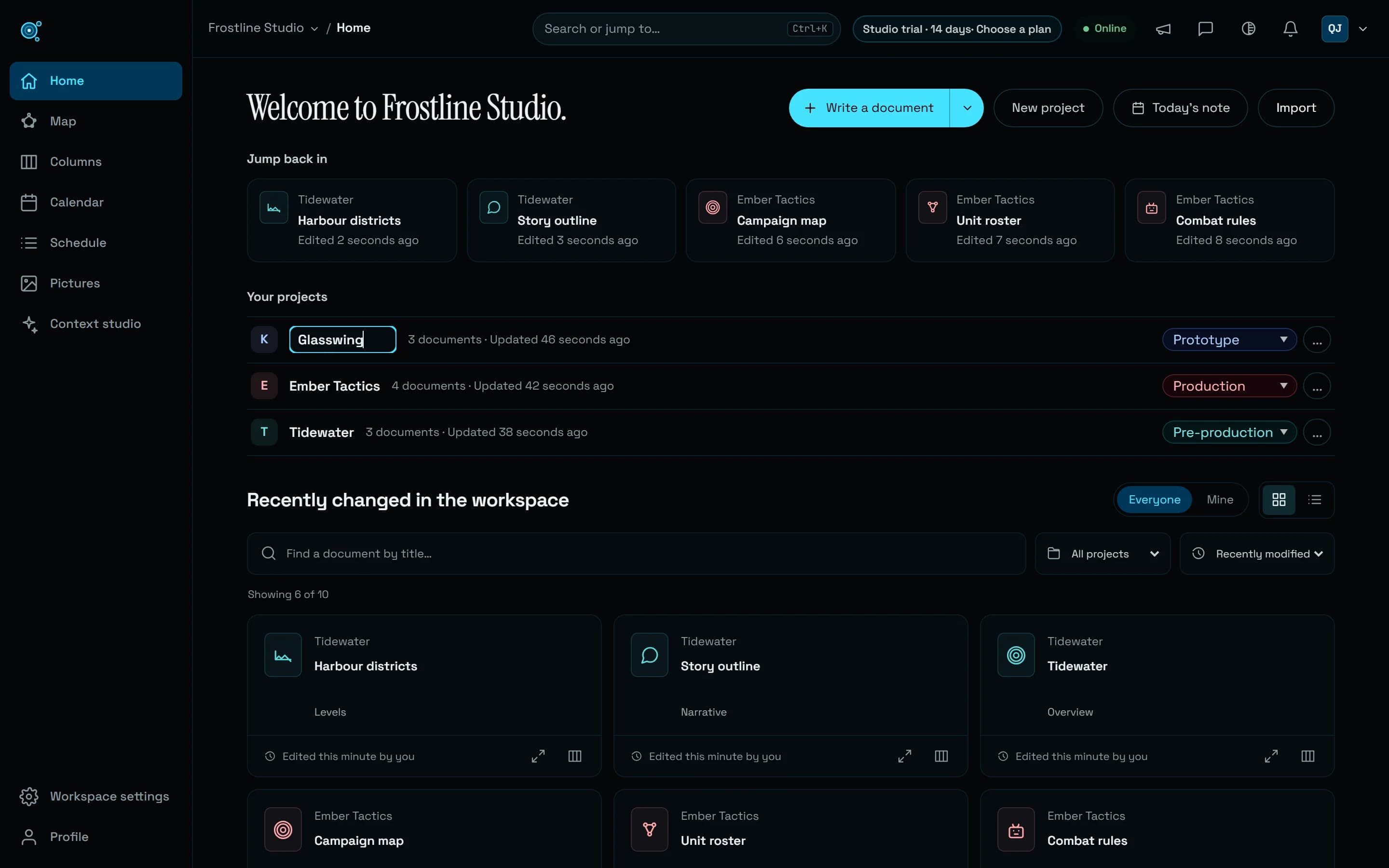
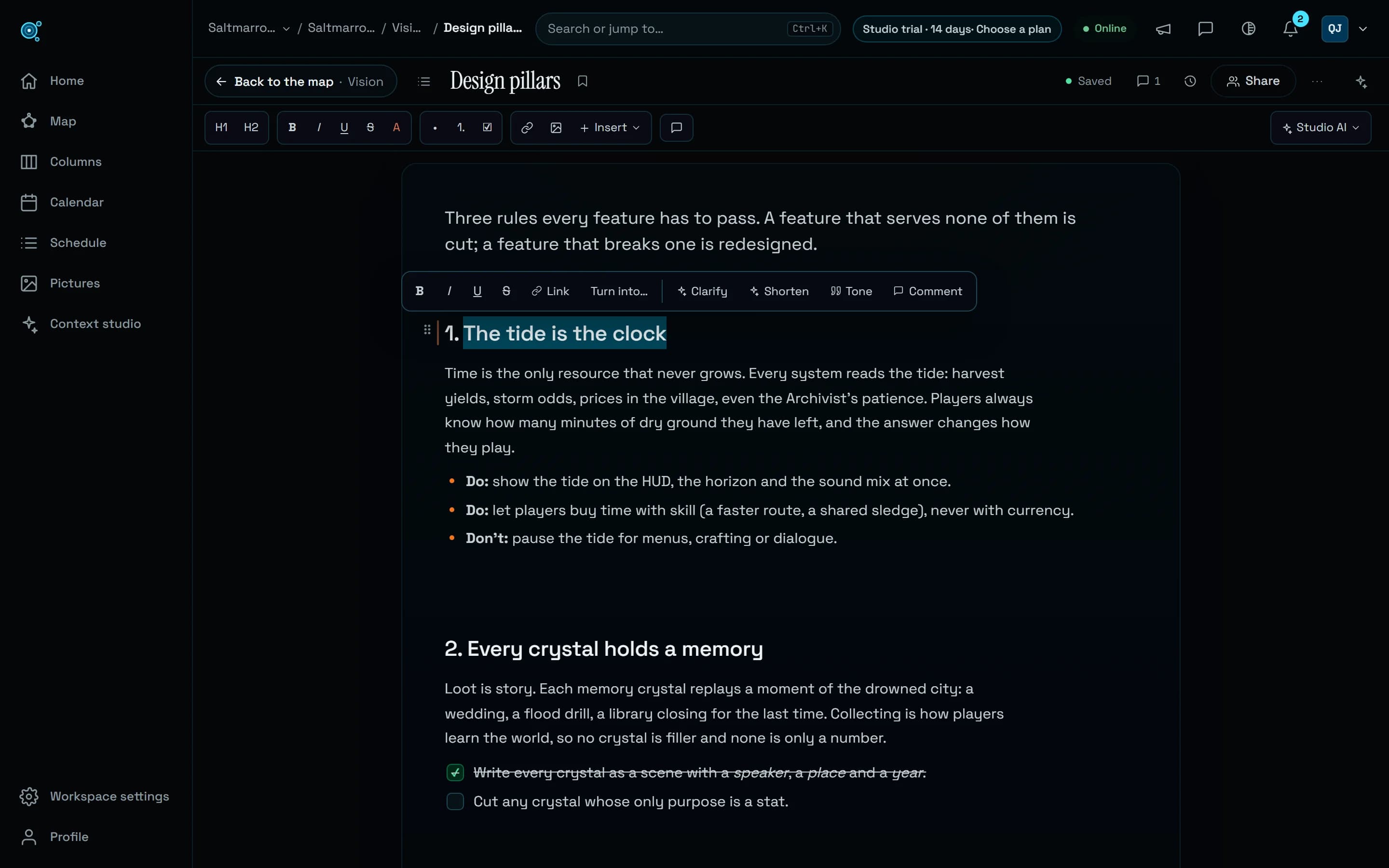
Keep a project to the people who work on it.
On Studio, a project can be open to the whole workspace or kept to the people added to it, each with a role there. Newcomers are welcomed for their role and plan, comments reach the people concerned, and storage goes past 50 GB.
Every member of a workspace used to see every project, so a client’s project or an unannounced game was either open to the whole team or kept in a workspace of its own. Comments reached only the people they mentioned, everyone got the same welcome and first steps whatever their role and plan, and a Studio workspace stopped at 50 GB of files. Here is what changes for teams.
Open to the workspace, or to the people added
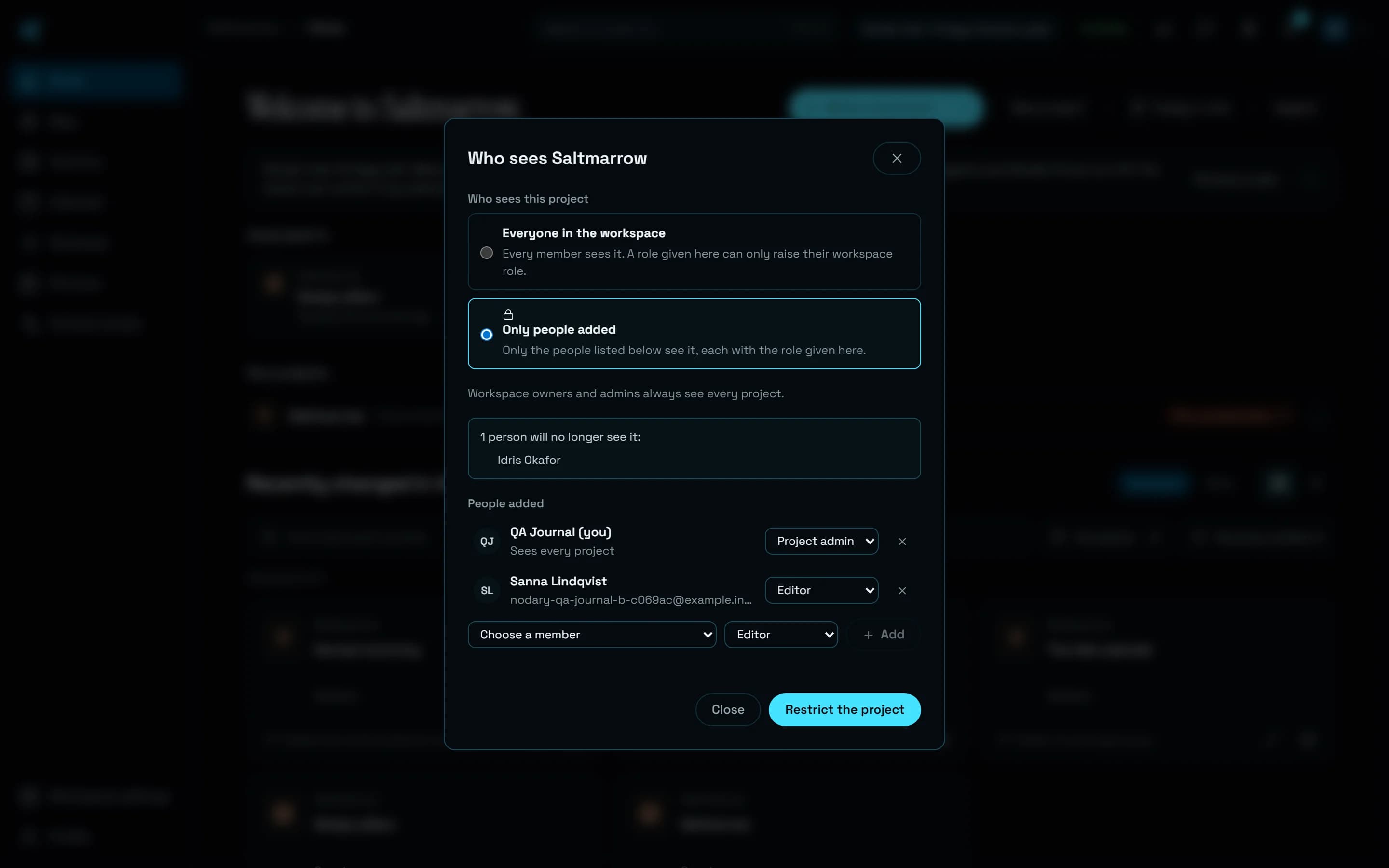
On Home, a project’s menu now has Project access, and so does the map’s project menu for the project in view. Leave the project open to everyone in the workspace, or keep it to the people added to it, each with a role there: project admin, editor, commenter or reader. In a restricted project that role is the person’s own there, in place of their workspace role; in an open project, a role given there can only raise it, as before. The workspace’s owners and admins always see every project, and a project’s admins choose its people. Before anything changes, the panel says who would stop seeing the project and who would have less access, and lists the public links to its documents that still open, offering to revoke them. A restricted project wears a lock with the number of people who see it, on Home, in the workspace settings’ permissions and before its name at the top of the page.
Nothing of it for anyone else
Someone outside a restricted project sees nothing of it: not on the map, in Columns, the calendar, search, the pictures, saved views or favourites, not in notifications or exports, and not through Studio AI or an agent connected over MCP. A link to one of its documents opens the same page as a document that does not exist. Its live edits, pointers and changes travel only among its people, and a public link to the whole workspace leaves restricted projects out.
Members kept to their projects, invitations into one
A member can now see only the projects they are added to, and no document outside a project: choose it in their menu in the workspace settings, under Sees. An invitation by email or by link can lead straight into one project, with a role there, and a pending invitation says which project. Per-project permissions, in the workspace settings, now list every member, with the reader and project admin roles. Every member takes a seat, whatever they see.
A welcome for your role and your plan
The welcome now opens once in each workspace you join, rather than once per account, and it speaks to you: an owner reads what the plan opens and, on Free, is offered the trial in one click; someone who joins reads the workspace’s name and their role, with a first thing to do that their role allows. The first steps on Home follow your role and plan, and tick themselves from what you actually did: an owner on the trial is asked to write, invite the team, connect an agent, ask Studio AI and link a source, an owner on a Studio subscription to invite the team, choose who sees each project, connect an agent and ask Studio AI, a commenter to open a document, leave a comment and keep one at hand. When the plan changes, a card on Home says what it opens. The trial’s days left sit in a chip at the top of the page, and members who do not manage the workspace hear of the trial only in its last three days, and only when its end would lock the workspace.
Comments reach the people concerned
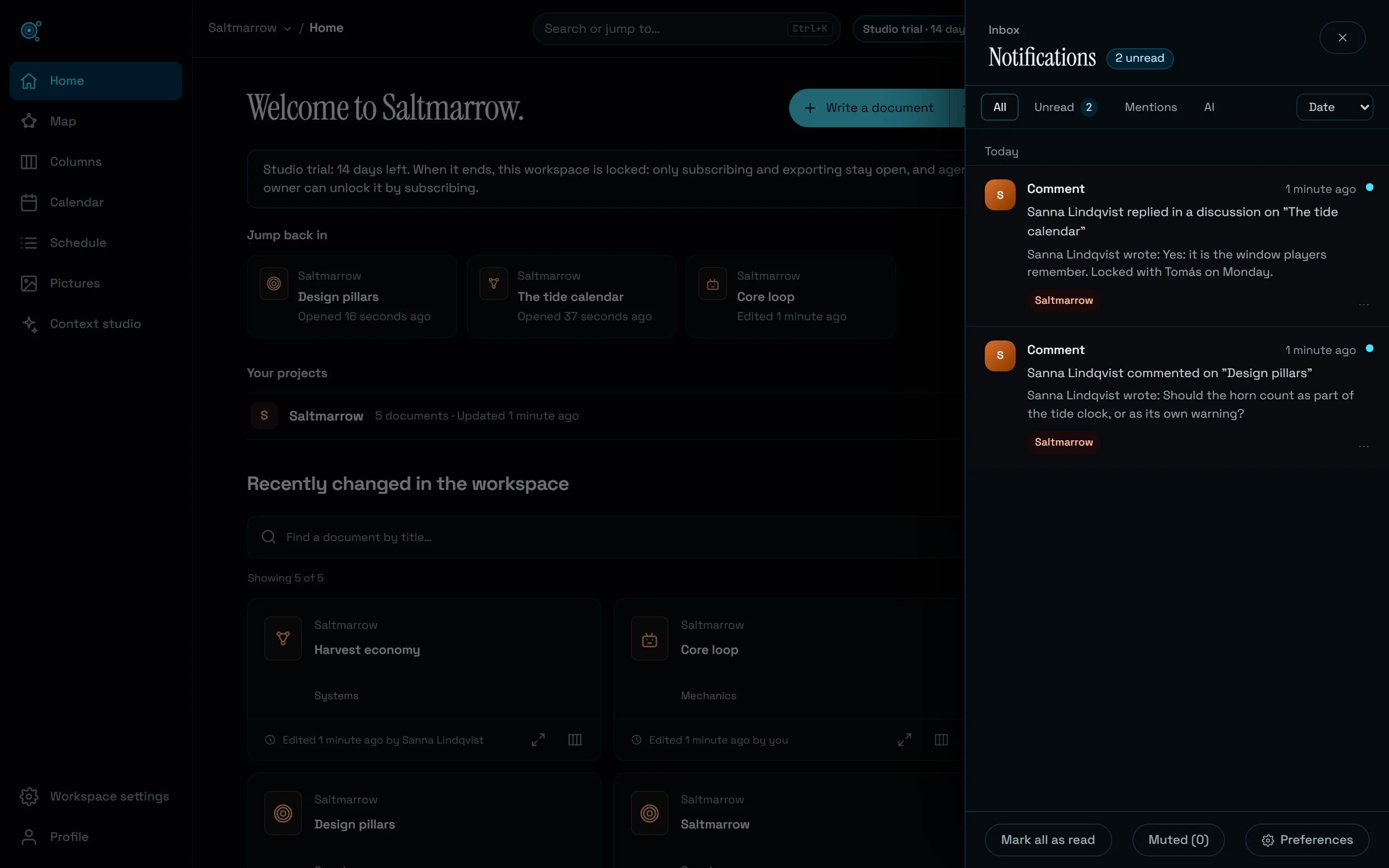
A comment used to tell only the people it mentioned. A new discussion now tells the document’s owner and the person it is assigned to, and a reply tells everyone who wrote in that discussion, besides the people mentioned. Nobody hears of their own comment, or of one twice, and only people who can see the document are told. The bell rings at once in every open tab, the notification opens the discussion, and an email follows unless you turned those emails off, at most three per document every ten minutes. Comments can be muted like any other kind of notification.
Storage beyond 50 GB
A Studio workspace that needs more than its 50 GB of files now adds storage in blocks of 50 GB, at €10 a month each, or €100 a year with annual billing, on the same invoice as the seats, up to 1,000 GB more. The owner sets the number of blocks on the Storage card of Usage and billing, which shows the new limit and its price first, and warns when the new limit would sit under what the workspace already holds. Adding is charged right away, prorated to the end of the current period; removing takes effect at once and is not credited. Files are never deleted: above the limit, uploads stop while reading and exporting carry on, and an upload refused for lack of room offers Add storage where storage can be added. Enterprise adds storage by contract.
Try it in your workflow
- On Home, open a project’s menu and choose Project access.
- Choose Only people added, add the people who work on it with a role each, read who would lose access, then choose Restrict the project.
- In Workspace settings, invite someone straight into that project, or set a member to see only the projects they are added to.
- On a Studio subscription, the owner opens Usage and billing in Workspace settings to add storage.
Restricted projects come with Studio, Enterprise and the Studio trial, and a workspace that changes plan keeps its restricted projects restricted. Restricting a project does not take back what people already downloaded or exported from it, and there is no way yet to ask for access to a project from inside it. Storage blocks are bought on a Studio subscription: Pro, Free and the no-card trial do not add storage, and adding storage before a subscription’s free days are over ends them and starts billing at once, after you confirm. Prices are in euros, taxes added where they apply, and only the workspace owner manages billing. The link opens the plans.