Find and replace across a project. Export to Word.
Find and replace in a document or across a whole project, match by match. Move blocks into a linked document, and export any document as a Word file.
Renaming a mechanic halfway through a project meant opening every document that mentioned it and changing it by hand. Splitting a document that had grown too long meant cutting and pasting, and a document left Nodary as Markdown or a PDF, never as a Word file. Now you find and replace in one document or across a whole project, move blocks into a document of their own in one step, and export a Word file.
Find and replace in a document
Ctrl+F opens a find bar over the document (Cmd+F on a Mac), and Ctrl+H opens it with Replace (Cmd+Shift+H, since Cmd+H hides the app on a Mac). It also opens from More actions, Find and replace, and from Ctrl+K, Find in this document. Every match is highlighted and the bar counts them, 3 of 12; Enter and Shift+Enter move between them, and Match case and Whole words narrow the search (Alt+C and Alt+W). Replace changes the current match and goes on to the next; Replace all changes every match at once, with Undo. The new words take the formatting of the words they replace, and the links and bold around them stay. People who only read the document get Find without Replace. While teammates write in the same document, the count and the highlights follow their typing.
What is searched
Paragraphs, headings, lists, quotes, callouts, to-dos, tables and specs are searched in their words as they read, so a match that runs across bold and plain words is found. Spreadsheets, code, diagrams, screenplays, dialogues and captions are not searched, and What is searched, in the bar, says so. Accents always count. Arabic marks are ignored unless Match case is on, and Whole words also works in scripts written without spaces, such as Chinese and Japanese.
Across the whole project
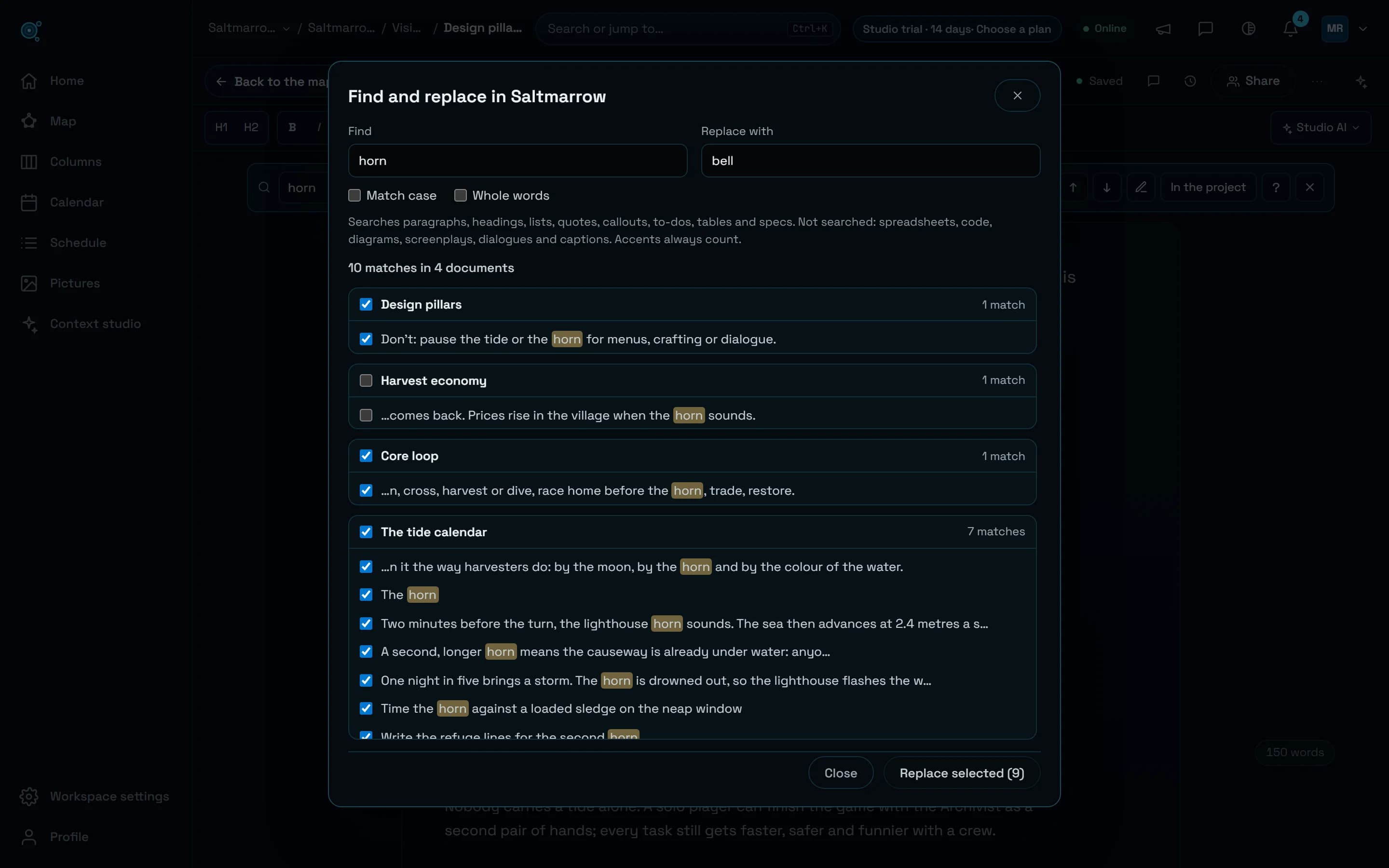
In the find bar, In the project opens the same search over every document of the project; the map’s project menu offers it too, as Find and replace in this project. Matches are listed by document, each with the words around it. Tick or untick a match or a whole document, then choose Replace selected. Locked documents and documents you may only read are listed but never ticked. The report says what was replaced and what was left, and why. Each document that changed keeps its earlier text in its history, and anyone who has it open sees the change without reloading.
Blocks into a document of their own
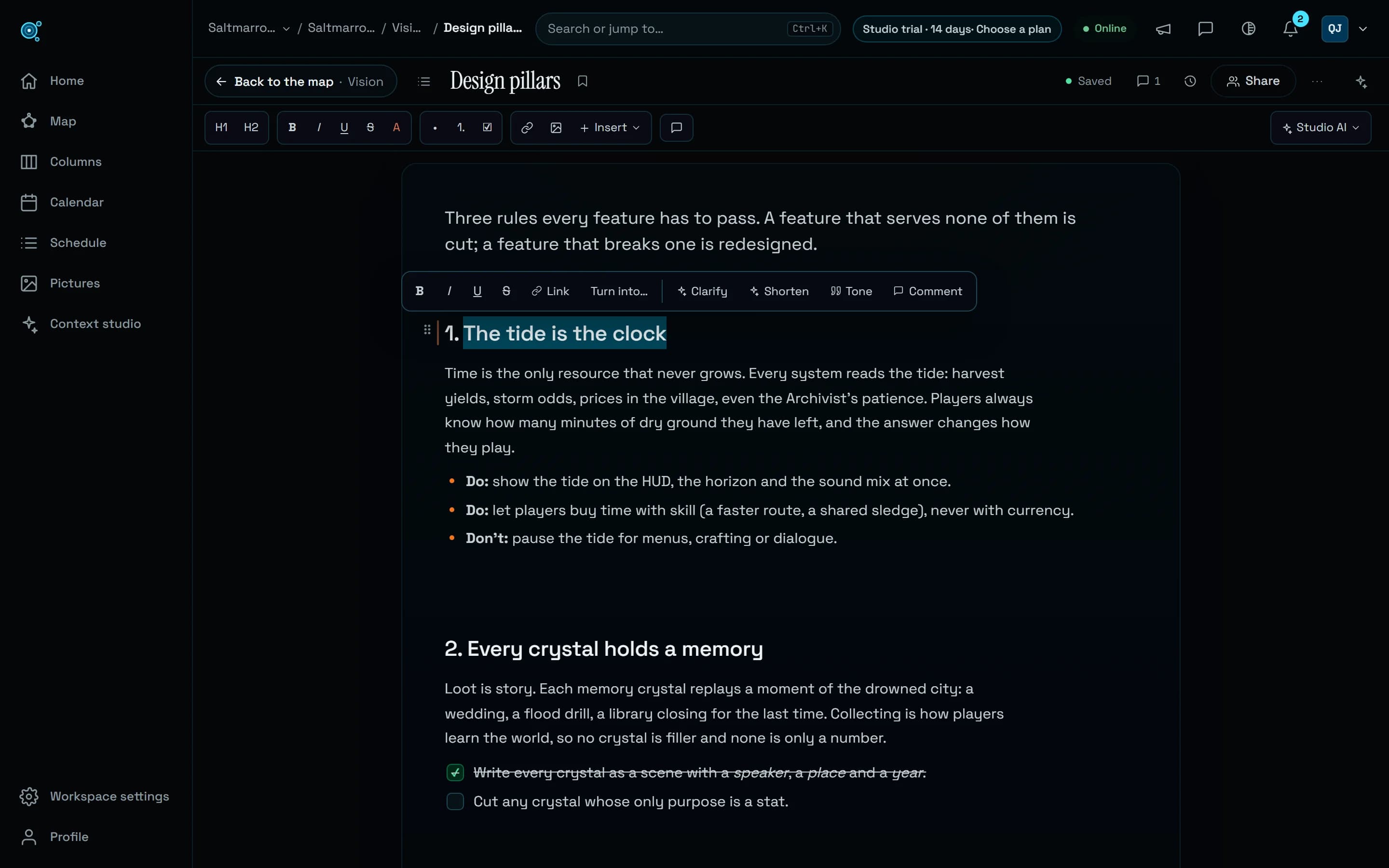
Select blocks, by dragging across them, with Shift and the arrows, or with Ctrl+A twice, then choose Extract to a new document in the toolbar over the selection. Its title starts as the first heading you selected, and it is filed under this document or anywhere else in the project. Move to another document… adds the blocks to the end of a document you can edit instead. Either way, a link to that document takes the blocks’ place, comments on those blocks stay on this document, and Undo puts everything back as it was. A chart and the sheet it draws move together or not at all.
Export to Word
Export, in the editor, and the reader’s Export menu now offer Word (.docx). The file keeps the title and headings; bold, italics, underline, strike, code and highlights; links; numbered and bulleted lists, quotes, callouts, tables and specs; to-dos as ☐ and ☑ with their owner; code blocks; pictures fitted to the page; spreadsheets as their computed tables, charts as their data and diagrams as they are drawn. Right-to-left text stays right to left. A picture from another site becomes a link, and boards, videos, sounds and 3D models become a line that says what they are.
Agents replace safely
Studio AI and agents connected over MCP have the same tools. replace_in_project first lists every match of a project without changing anything, then replaces exactly the matches it names, so a retry never replaces twice. extract_blocks moves blocks into a new or an existing document, a link left in their place.
Try it in your workflow
- Open a document, press Ctrl+F (Cmd+F on a Mac), type a word and press Enter to go from match to match.
- Choose In the project, type the new words, untick what should stay, and choose Replace selected.
- Select a few blocks and choose Extract to a new document.
- Open Export and choose Word (.docx).
A project search reads the 5,000 most recently changed documents at most and lists 500 matches at most; a replace changes up to 100 documents at a time, and replacing again goes on. A match that would cut through formatting signs is not replaced, and the bar counts it. In a workspace where live co-editing is off, Replace all is undone with its Undo notice rather than Ctrl+Z. Word files are written as .docx. The live demo is read only: open Export on one of its documents to download the Word file; finding and replacing needs a workspace of your own, Free included.